question asked: 15 Dec, 12:18
``` You can take advantage of the `contains()` function in the following XPath selector to get the attribute text: `//p[contains(.,'question asked')]/strong/@title` * You want to extract the number of answers in a Q&A page. Each question is in a ``.
You can take advantage of the `count()` method to get the number of answers in the page:
`count(//tr[@class='answer'])`
> **Note**
>
> The XPath selector must be compatible with XPath 1.0.
## Advanced web scraping JSON example
**Context**:
For Stack Overflow website pages, you want to split the question and each answer in separate index items.
This enables result folding in the search interface to wrap the answers under the corresponding question item (see [About result folding](https://docs.coveo.com/en/1884/)).
**Solution**:
> **Note**
>
> The Sitemap source web scraping feature doesn't support the creation of sub-items and the application of a configuration to sub-items.
> The `subItems` and `for.types` portions of the following JSON example are only supported in the Web source.
You create the following web scraping configuration which:
* Excludes non-content sections (header, herobox, advertisement, sidebar, footer).
* Extracts some question metadata.
* Defines `answer` sub-items.
* Extracts some answer metadata.
```json
[
{
"name": "questions",
"for": {
"urls": [".*"]
},
"exclude": [
{
"type": "CSS",
"path": "body header"
},
{
"type": "CSS",
"path": "#herobox"
},
{
"type": "CSS",
"path": "#mainbar .everyonelovesstackoverflow"
},
{
"type": "CSS",
"path": "#sidebar"
},
{
"type": "CSS",
"path": "#footer"
},
{
"type": "CSS",
"path": "#answers"
}
],
"metadata": {
"askeddate":{
"type": "CSS",
"path": "div#sidebar table#qinfo p::attr(title)"
},
"upvotecount": {
"type": "XPATH",
"path": "//div[@id='question'] //span[@itemprop='upvoteCount']/text()"
},
"author":{
"type": "CSS",
"path": "td.post-signature.owner div.user-details a::text"
}
},
"subItems": {
"answer": {
"type": "CSS",
"path": "#answers div.answer"
}
}
},
{
"name": "answers",
"for": {
"types": ["answer"]
},
"metadata": {
"upvotecount": {
"type": "XPATH",
"path": "//span[@itemprop='upvoteCount']/text()"
},
"author": {
"type": "CSS",
"path": "td.post-signature:last-of-type div.user-details a::text"
}
}
}
]
```
## Tips, tools, and troubleshooting
Working efficiently and using the proper tools will help you successfully and more rapidly develop a web scraping configuration.
Here are a few pointers:
### 1- Use UI-assisted mode whenever possible
* UI-assisted mode generates regexes for you, handles character escaping, and validates your input values.
UI-assisted mode is simpler and more mistake proof than Edit with JSON mode.
* Create a web scraping configuration in UI-assisted mode, even if you need to use Edit with JSON mode for some configurations later.
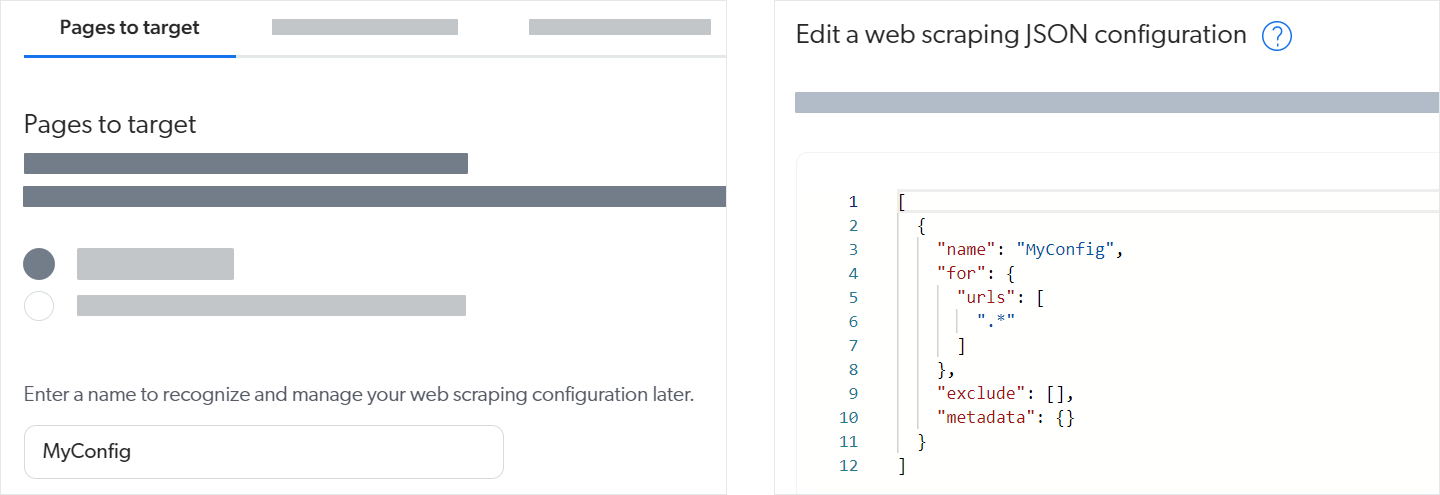
For example, the left image below shows that you can just provide the configuration name in UI-assisted mode and save to have the web scraping configuration JSON structure (right image below) created for you.
### 2- Work incrementally
* Use a test source that includes only a few typical pages to test your web scraping configuration as you develop it.
[rebuilding](https://docs.coveo.com/en/2712/) this test source will be quick.
Once the configuration works as desired for your test source, apply it to more or all of the items and validate the results.
* Incrementally add web scraping properties to your JSON configuration.
Save functional web scraping configurations so you can roll back your changes, if necessary.
### 3- Use the right tools
* Use the [**Content Browser**](https://platform.cloud.coveo.com/admin/#/orgid/content/browser/) ([platform-ca](https://platform-ca.cloud.coveo.com/admin/#/orgid/content/browser/) | [platform-eu](https://platform-eu.cloud.coveo.com/admin/#/orgid/content/browser/) | [platform-au](https://platform-au.cloud.coveo.com/admin/#/orgid/content/browser/)) to validate your configuration changes (see [Inspect search results](https://docs.coveo.com/en/2053#inspect-search-results)).
* Use the [**Export to Excel**](https://docs.coveo.com/en/2053#export-to-excel) option to view field values for many items at a time.
* Use the Coveo Labs [Web Scraper Helper](http://url.coveo.com/webscraper) available on the Chrome Web Store to test web scraping configurations.
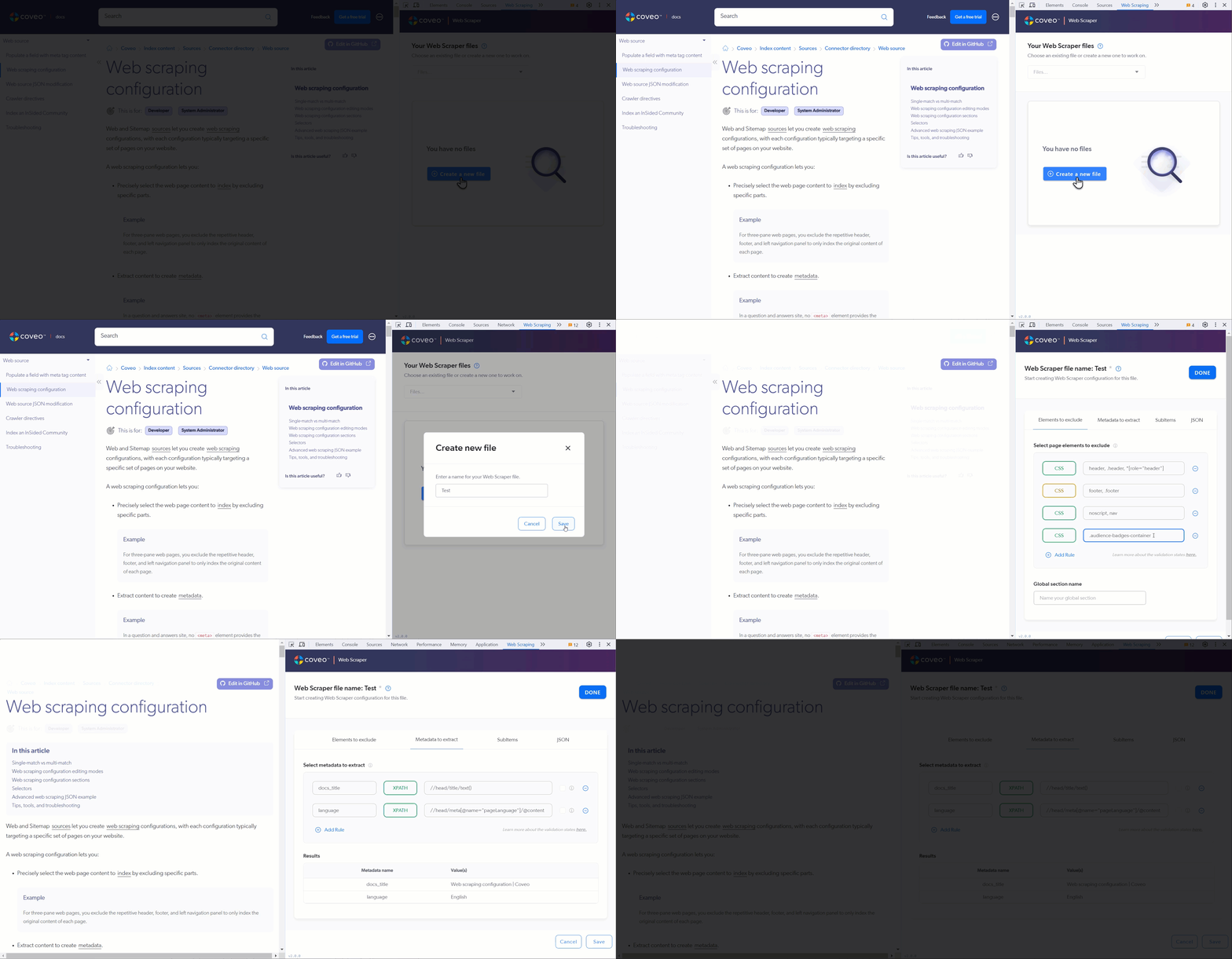
--
. Open the web page you want to test.
. Open the Coveo Web Scraper Helper.
. Create a file or use a saved file.
. Test your **Elements to exclude** selectors.
The helper hides the HTML elements that match the selectors you provide.
. Test your **Metadata to extract** selectors.
In the **Results** area, the helper displays the values it finds with your selectors.
--
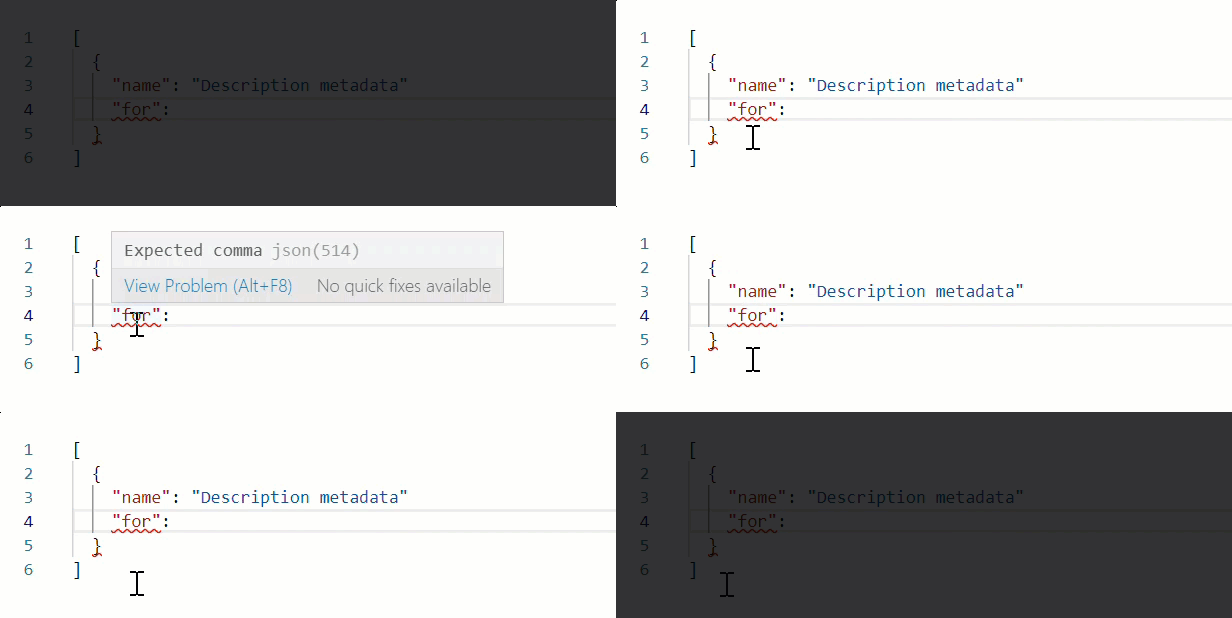
* When working in Edit with JSON mode, the Sitemap source validates your web scraping configuration JSON in real time, underlining content in red whenever it encounters an unexpected character.
Hover over an error for more details.
For example, note the missing comma at the end of line 3 in the following example:
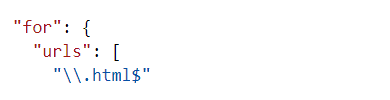
* Test your regular expressions in a tool such as [Regex101](https://regex101.com/) to make sure they match the desired URLs.
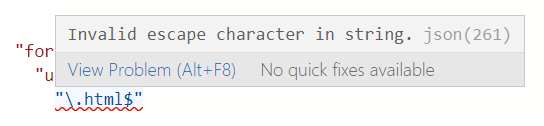
If you copy your regex back into the aggregated web scraping JSON afterward (in Edit with JSON mode), remember to escape backslash (`\`) characters.
--
--
### 4- Get help
The [Troubleshooting Sitemap source issues](https://docs.coveo.com/en/n1ab0354/) article will help you solve most web scraping configuration-related problems.