---
title: Index Salesforce Knowledge
slug: m5ba6010
canonical_url: https://docs.coveo.com/en/m5ba6010/
collection: coveo-for-salesforce
source_format: adoc
---
# Index Salesforce Knowledge
Salesforce Knowledge is a knowledge base where your organization can create and manage articles to help users find answers to common questions.
Knowledge articles can include how-to guides, FAQs, troubleshooting steps, and other documentation that's essential for providing effective customer support.
By indexing Salesforce Knowledge in Coveo, you enable users to search and access these articles directly from Coveo-powered search interfaces, helping them resolve issues faster and provide consistent information.
Knowledge articles can be organized by article types (such as How-To, FAQ, or Product Documentation) and can include rich content, attachments, and custom fields.
This article explains how to configure your Salesforce source to index Knowledge articles, including both Classic Knowledge and Lightning Knowledge.
You'll learn which objects and fields to select, how to configure body mappings to display article content in search results, and how to handle special considerations like article translations and data categories.
## Index Salesforce Knowledge
. [Add a Salesforce source](https://docs.coveo.com/en/1052/) linked to your Salesforce organization, ensuring all [prerequisites](https://docs.coveo.com/en/1052#prerequisite-create-a-dedicated-salesforce-crawling-user) are met.
Ensure all [permissions required to index Knowledge](https://docs.coveo.com/en/1052#crawling-user-requirements) have been set.
> **Note**
>
> The **Knowledge User** permission is required to index Classic Knowledge articles only. It doesn't apply when [Lightning Knowledge is enabled](https://help.salesforce.com/s/articleView?id=sf.knowledge_lightning_enable.htm&type=5).
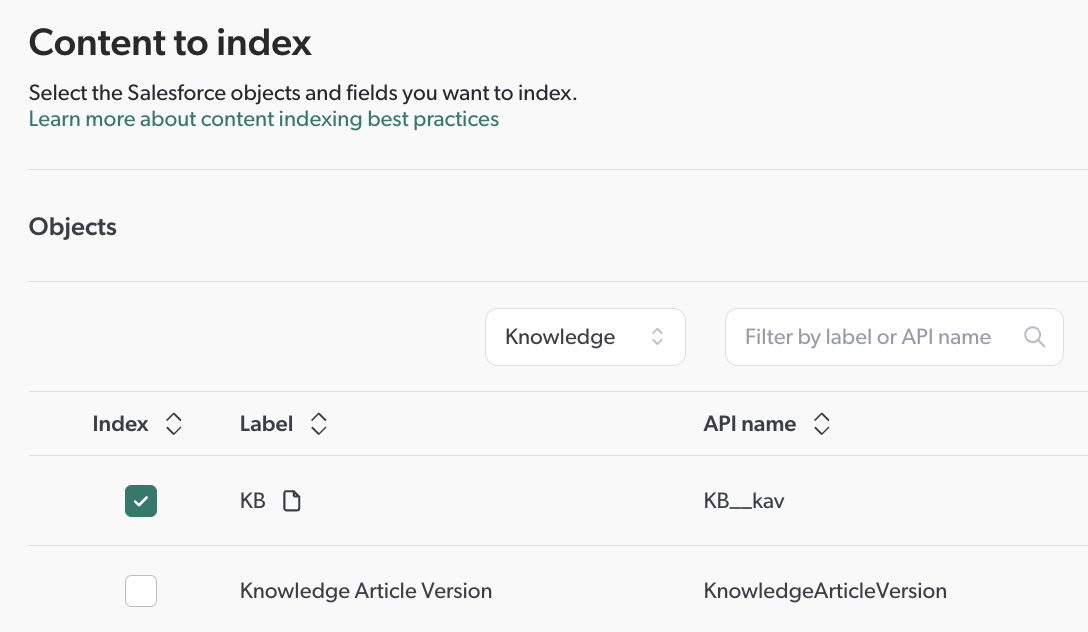
. On the source subpage, the **Content to index** subtab lets you select the objects and fields you want to index.
You can use the filter at the top of the list to quickly find the Knowledge objects.
. To index Classic Knowledge, select the [Knowledge Article Types](https://help.salesforce.com/s/articleView?id=sf.knowledge_article_types_manage.htm&type=5) (for example, How-To, FAQ) that you want to index.
> **Leading practice**
>
> The list of created Article Types is available on the **All Article Types** page in Salesforce.
> To access this page, from **Setup** (Salesforce Classic), enter `Knowledge Article Types` in the **Quick Find** box, and then select **Knowledge Article Types**.
. For each object you selected, make sure to select the Salesforce fields and relationships you want to index.
. Follow the instructions under [Add a Salesforce source](https://docs.coveo.com/en/1052/) to finish creating your Salesforce source.
### Configure a body mapping
The [item](https://docs.coveo.com/en/210/) body is the search-optimized HTML representation of the actual item content.
For standard [sources](https://docs.coveo.com/en/246/), the [document processing manager (DPM)](https://docs.coveo.com/en/191/) generates a representative body once the item reaches the processing stage of the [indexing pipeline](https://docs.coveo.com/en/1893/).
This default body is displayed in the [quickview](https://docs.coveo.com/en/3311/).
Since Knowledge articles don't have a default body [mapping](https://docs.coveo.com/en/217/), you must configure the mapping to get relevant search results and to ensure proper functioning of the [Quickview](https://coveo.github.io/search-ui/components/quickview.html) component.
See [Define a Salesforce object body](https://docs.coveo.com/en/1052#define-a-salesforce-object-body) for instructions on how to configure a body mapping for Salesforce objects.
The body mapping feature supports HTML tags to format the body displayed in the Quickview.
As a result, you can enter content to be treated as HTML, given you enter it inside an `` element.
For example, if you want a `Knowledge` object to display the Knowledge article description, question, resolution, and summary, you enter the following mapping rule: `%[Kav_Description__c]
%[Kav_Question__c]
%[Kav_Resolution__c]
%[Kav_Summary]``
> **Note**
>
> The `Kav_` prefix must be added to all Salesforce field names when defining mapping rules for Knowledge objects or Article Types.
The changes will be effective once you've saved and rebuilt your source.
## Knowledge features
### Creation of metadata per category group
Salesforce Knowledge uses [data categories](https://help.salesforce.com/s/articleView?id=sf.category_whatis.htm&type=5) to classify articles into logical categories that help users find relevant content more easily.
When indexing Knowledge, the following [metadata](https://docs.coveo.com/en/218/) and [field](https://docs.coveo.com/en/200/) [mappings](https://docs.coveo.com/en/217/) are automatically created to represent the data category selection for each article.
[Attributes]
|===
|Metadata |Description| Field
|`dc_GroupName`
|The article categories for the `GroupName` group.
|`sfdatacategory`
Where:
`` represents the API name of the category group.
|`dc_expanded_GroupName`
|The category labels that can be used to find an article when performing a query.
The format used is compatible with [hierarchical facets](https://docs.coveo.com/en/2667/).
|`sfdatacategoryexpanded`
Where:
`` represents the API name of the category group.
|===
### Seamless migration from Classic Knowledge to Lightning Knowledge
When migrating from Classic Knowledge to Lightning Knowledge, the [`UseMigrateToFromArticleIdForPermanentIdGeneration`](https://docs.coveo.com/en/m6h90378/) hidden parameter can be used to preserve the permanent IDs of your Classic Knowledge article versions.
Preserving the original permanent IDs is necessary to avoid breaking your existing [featured result rules](https://docs.coveo.com/en/3376/) and to avoid losing your [Coveo Machine Learning (Coveo ML)](https://docs.coveo.com/en/188/) [Automatic Relevance Tuning (ART)](https://docs.coveo.com/en/1013/) boosted search results that relate to your Knowledge content.
### Body mappings
With Lightning Knowledge, it's now possible to specify a different body layout for each record type (for example, FAQ and Troubleshooting).
**To configure a different body for a record type**
. [Add an item type](https://docs.coveo.com/en/1640#manage-mappings) that matches the record type.
The format for specifying the **Item Type** is:
```language
:
```
Where:
* `` is the name of the Salesforce Object (for example, Knowledge)
* `` is the type of Salesforce record (for example, FAQ)
**Example**
`Knowledge:FAQ`
. [Add a mapping rule](https://docs.coveo.com/en/1640#manage-mappings) to your source.
> **Notes**
>
> * When applying the mapping rule, click **Specific item types** to select the items to which the mapping rule should apply.
>
> * Enter the mapping rule using the format specified in the [Configure a body mapping](https://docs.coveo.com/en/m5ba6010#configure-a-body-mapping) section above.
### Multilingual support
When indexing Knowledge, one article version per language is indexed by default.
Each article version is also assigned a unique permanent ID during the indexing process.
## Known limitations
### KB record access based on data categories
In Salesforce, if you rely on [data categories](https://help.salesforce.com/s/articleView?id=sf.category_parent_admin.htm&type=5) to control Classic or Lightning KB record access, beware that these permissions can't be [indexed](https://docs.coveo.com/en/204/) as this information isn't available in the Salesforce API.
Consequently, in search results, all users can view all KB articles under all data categories.
Cases such as this one require custom manipulations to ensure content security.
> **Note**
>
> When standard Salesforce [**Sharing for Lightning Knowledge**](https://help.salesforce.com/s/articleView?id=sf.knowledge_sharing.htm&type=5) is enabled for Lightning KB record access, all Knowledge permissions are supported, including permissions set on **Online**, **Draft**, and **Archived** articles.
### Refresh limitations
A refresh is successfully triggered only when both the Knowledge Article (`\__KA`) and Knowledge Article Version (`__KAV`) records are updated.
This means that if only one of these records is updated, the corresponding indexed item won't be refreshed until the other record is also updated.
When investigating refresh issues, ensure that both records have been updated by checking the `SystemModStamp` field on both records to confirm they have changed.