---
title: Filter and boost using JavaScript in custom renderings
slug: lb296096
canonical_url: https://docs.coveo.com/en/lb296096/
collection: coveo-for-sitecore-v5
source_format: adoc
---
# Filter and boost using JavaScript in custom renderings
> **Legacy feature**
>
> This article pertains to achieving relevance with the Coveo Hive framework.
> Coveo Hive is now in maintenance mode.
>
> See [Achieve relevance](https://docs.coveo.com/en/n9qd0318/) for guidance on leveraging [Coveo Platform](https://docs.coveo.com/en/186/) relevance features with the Coveo Atomic library.
Creating custom renderings based off Coveo for Sitecore filtering or boosting renderings lets you leverage the Coveo JavaScript Search Framework in your rendering view file code.
You can subsequently add these custom renderings to your search interfaces.
## Creating a Custom Filtering Rendering
The following instructions create a **CoveoForSitecoreFilterExpression** rendering with a custom expression and add this rendering to the search interface.
. Create a `.cshtml` file.
.. Create a folder for custom view files (example: `/Views/Project/CoveoForSitecoreHive`).
.. In the folder, create a new `.cshtml` file (example: `JS Query Filter.cshtml`).
. Add the dependencies.
.. The first two dependencies are required by custom renderings.
.. The partial view will render the rendering name on the search page in the **Experience Editor**.
[source,c#]
```
@using Coveo.UI.Components
@using Coveo.UI.Components.Extensions
@Html.Partial(Partials.EDIT_TITLE, Html.Coveo().GetViewName())
```
. Add the **CoveoForSitecoreFilterExpression** rendering.
```xml
```
. Insert the JavaScript code required to create the filtering rule in the file.
The following code will exclude two items (the search page and the `Home` page) from the search results.
```xml
```
. Create a custom rendering in Sitecore.
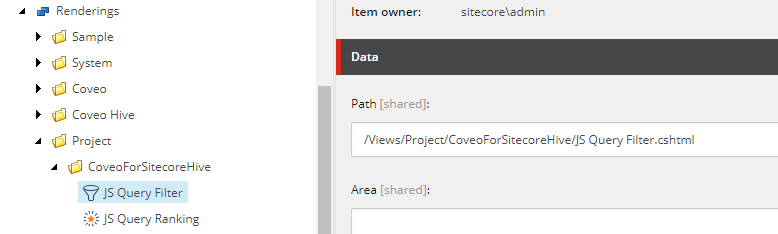
.. Copy the `Query Filter` rendering, located under `/Renderings/Coveo Hive/Scopes` to a custom rendering folder (example: `/Renderings/Project/CoveoForSitecoreHive`).
.. Change the path to match it with the new `.cshtml` file.
. Make the rendering available in the search interface.
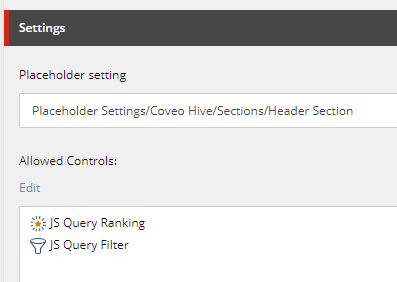
.. Add the rendering in the required placeholder of the search interface.
In this example, the [Placeholder Extender](https://docs.coveo.com/en/2340/) rendering is used to add the custom rendering to the `Header Section` placeholder allowed controls in the [Modular Frame](https://docs.coveo.com/en/2213/).
. Add the rendering to the search interface.
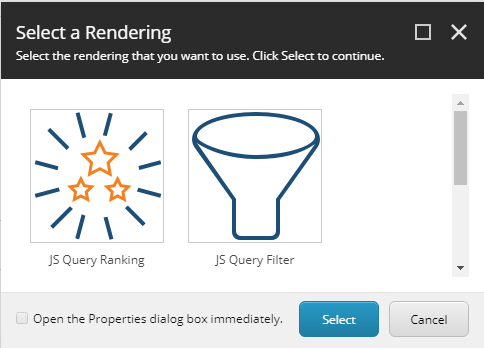
.. Open your search page with the **Experience Editor** and add the rendering.
In this example, the rendering is available in the `Header Section` placeholder.
## Creating a Custom Ranking Rendering
The following instructions create a **CoveoForSitecoreRankingExpression** rendering with a custom expression and add this rendering to the search interface.
. Create a `.cshtml` file.
.. Create a folder for custom view files (example: `/Views/Project/CoveoForSitecoreHive`).
.. In the folder, create a new `.cshtml` file (example: `JS Query Ranking.cshtml`).
. Add the dependencies in the file.
.. The first two dependencies are required by custom renderings.
.. The partial view will render the rendering name on the search page in the **Experience Editor**.
[source,c#]
```
@using Coveo.UI.Components
@using Coveo.UI.Components.Extensions
@Html.Partial(Partials.EDIT_TITLE, Html.Coveo().GetViewName())
```
. Add the **CoveoForSitecoreRankingExpression** rendering in the file.
```xml
```
. Insert the JavaScript code required to create the ranking rule in the file.
The following code will boost the items having the value `` in the field `` by 500 points.
```xml
```
. Create a custom rendering in Sitecore.
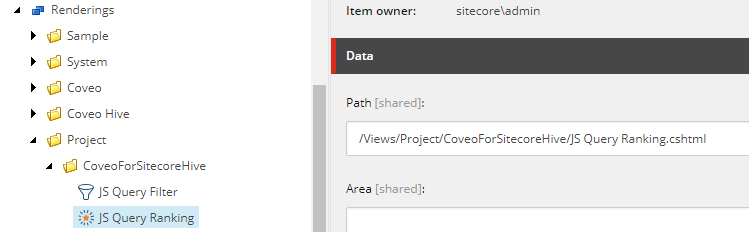
.. Copy the `Query Ranking` rendering, located under `/Renderings/Coveo Hive/Scopes` to a custom rendering folder (example: `/Renderings/Project/CoveoForSitecoreHive`)
.. Rename it `JS Query Ranking`.
.. Change the path to match it with the new `.cshtml` file.
. Make the rendering available in the search interface.
.. Add the rendering in the required placeholder of the search interface.
In this example, the [Placeholder Extender](https://docs.coveo.com/en/2340/) rendering is used to add the custom rendering to the `Header Section` placeholder allowed controls in the [Modular Frame](https://docs.coveo.com/en/2213/).

. Add the rendering to the search interface.
.. Open the search page with the **Experience Editor** and add the rendering.
In this example, the rendering is available in the `Header Section` placeholder.
