---
title: Push data to Coveo (SAP Commerce Cloud 2005 or earlier)
slug: ladf2005
canonical_url: https://docs.coveo.com/en/ladf2005/
collection: coveo-for-commerce
source_format: adoc
---
# Push data to Coveo (SAP Commerce Cloud 2005 or earlier)
This article explains how to push data from an SAP Commerce Cloud (version 2005 or earlier) to a Coveo organization.
## Step 1: Create a source in your Coveo organization
To fetch SAP content in a push implementation, you should use a Catalog source.
See [Add a Catalog source](https://docs.coveo.com/en/n8of0593/).
## Step 2: Create an SAP extension
You must create an SAP extension within which you'll implement Coveo indexation logic.
Refer to the [SAP documentation to learn how to create a new extension](https://help.sap.com/docs/SAP_COMMERCE_CLOUD_PUBLIC_CLOUD/51e73d14aedc487384e4518b60a1f5fd/438db70eb0234697976eeceaba6d0394.html?version=v2205) in your SAP project.
## Step 3: Create a Coveo Solr server mode
To push documents to Coveo, you must add a new [Solr Server Mode](https://help.sap.com/docs/SAP_COMMERCE/d0224eca81e249cb821f2cdf45a82ace/f64b31a2c8274d3eae8a53abf206f247.html) and switch to it.
To create a new mode
. In your project directory, go to the extension directory, for example, `coveocore`.
. From the `resources` directory, open the `xxxxx-items.xml` file, for example, `coveocore-items.xml`.
. In the `SolrServerModes` enum, add the `coveo` value like shown in the example below:
```xml
```
## Step 4: Make the Coveo Solr server mode available in the Administration Cockpit
To make a newly created Coveo Solr server mode available in the UI, you must update the `SolrServerMode` enum.
. In your extension directory, go to the `resources` directory.
. Open the `xxxxx-beans.xml` file, for example, `coveocore-beans.xml`.
. Add a new server mode, `Coveo`.
```xml
Coveo
```
. In your extension directory, open the `extensioninfo.xml` file.
. Add the `solrfacetsearch` extension.
```xml
```
## Step 5: Specify the Coveo Solr server mode
To activate the newly created Solr server mode
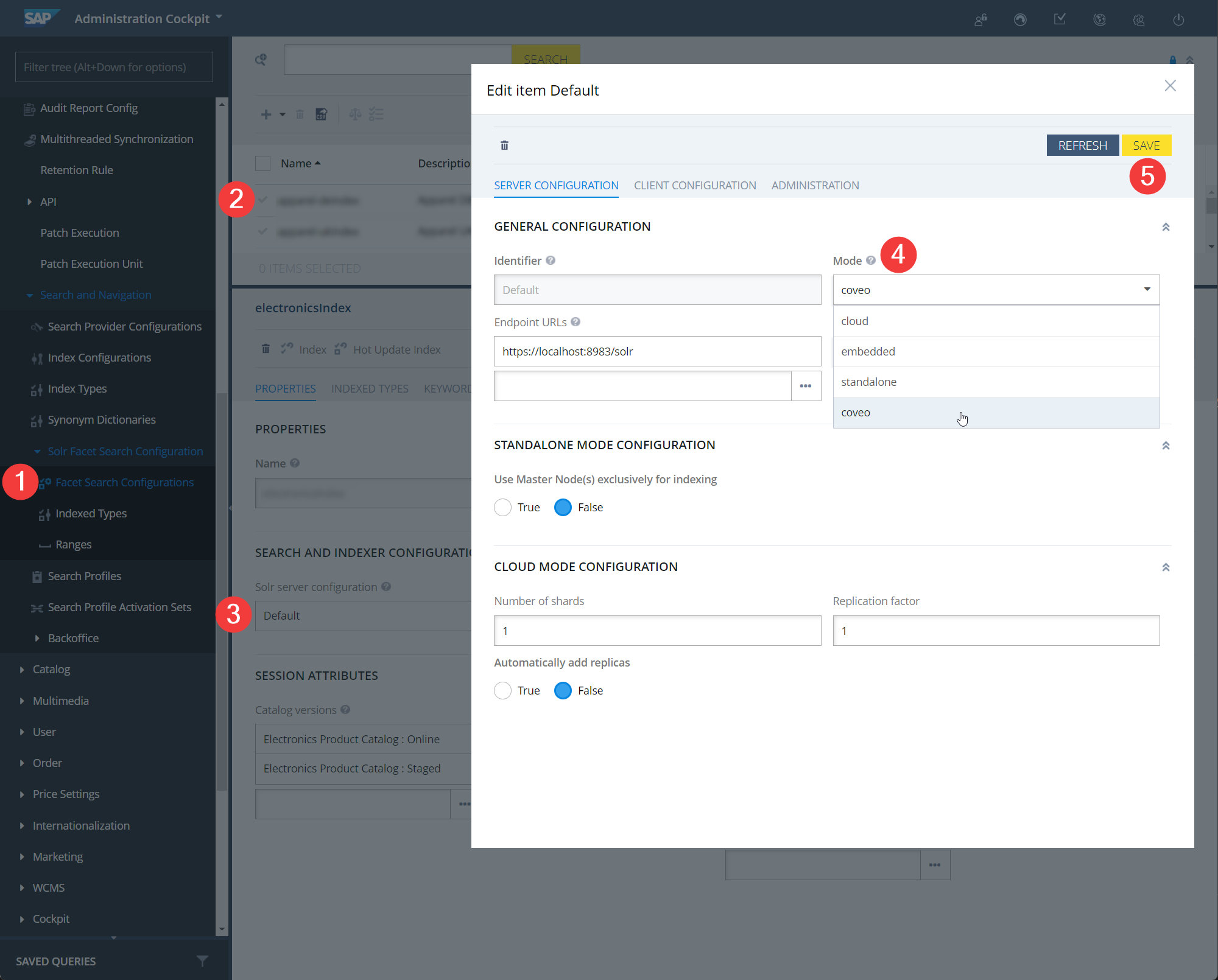
. In the Administration Cockpit, go to the **System → Search and Navigation → Solr Facet Search Configuration → Facet Search Configurations**.
. In the list of configurations, double-click the required configuration.
. In the **Search and Index Configuration** section, double-click the **Solr server configuration** value.
. In the **Mode** dropdown menu, select `coveo`.
. Click **Save** at the top of the modal window.
## Step 6: Create a search provider
. In your extension directory, go to the `resources` directory.
. Open the `xxxxx-spring.xml` file, for example, `coveocore-spring.xml`.
. Add a new search provider, `coveoSearchProviderFactory`.
```xml
```
. In your extension directory, go the `src/com/coveo/service/impl` directory.
. Create a `CoveoSearchProviderFactory.java` file with the following code:
```java
import de.hybris.platform.solrfacetsearch.config.FacetSearchConfig;
import de.hybris.platform.solrfacetsearch.config.IndexedType;
import de.hybris.platform.solrfacetsearch.config.SolrServerMode;
import de.hybris.platform.solrfacetsearch.solr.SolrSearchProvider;
import de.hybris.platform.solrfacetsearch.solr.exceptions.SolrServiceException;
import de.hybris.platform.solrfacetsearch.solr.impl.DefaultSolrSearchProviderFactory;
public class CoveoSearchProviderFactory extends DefaultSolrSearchProviderFactory {
@Override
public SolrSearchProvider getSearchProvider(FacetSearchConfig facetSearchConfig, IndexedType indexedType) throws SolrServiceException {
SolrServerMode mode = facetSearchConfig.getSolrConfig().getMode();
if(mode.equals(SolrServerMode.COVEO)){
return getXmlExportSearchProvider();
}
return super.getSearchProvider(facetSearchConfig, indexedType);
}
}
```
## Step 7: Create the exporter class
The new exporter class should allow SAP Commerce to:
* convert Solr documents to Coveo documents
* push documents to Coveo using the [Coveo Push API client library for Java](https://github.com/coveo/push-api-client.java).
> **Start using the client library**
>
> Make sure that:
>
> * your project meets the prerequisites specified [in the installation guide for the client library](https://github.com/coveo/push-api-client.java).
>
> * you performed the steps of the installation guide.
> **Tip**
>
> For more info about the Stream API, see:
>
> * [Push and update your catalog data](https://docs.coveo.com/en/p48b0322/).
>
> * [Stream API reference](https://platform.cloud.coveo.com/docs?urls.primaryName=PushAPI#/Stream).
To add a new exporter class, perform the following steps.
. In your extension directory, open the `external-dependencies.xml` file.
. Add a Java client library as a dependency
```xml
com.coveo
push-api-client.java
2.3.0
```
> **Important**
>
> To activate dependency management, make sure your project meets the following requirements:
>
> * [Apache Maven](https://maven.apache.org/download.cgi) is installed
>
> * the `usemaven="true"` directive is present in the `extensioninfo.xml` file, for example:
>
> ```xml
```
. In your extension directory, go to the `resources` directory.
. Open the `xxxxx-spring.xml` file, for example, `coveocore-spring.xml`.
. Add a new exporter class
```xml
```
. In your extension directory, go to the `src/com/coveo/service/impl` directory.
. Create a `CoveoExporter.java` file.
Use the following code as a starting template; the actual implementation would depend on your particular project and configuration.
```java
import de.hybris.platform.solrfacetsearch.indexer.exceptions.ExporterException;
import de.hybris.platform.solrfacetsearch.indexer.spi.Exporter;
public class CoveoExporter implements Exporter {
private static final Gson gson = new Gson();
@Override
public void exportToUpdateIndex(Collection collection, FacetSearchConfig facetSearchConfig, IndexedType indexedType) throws ExporterException {
Configuration configuration = getConfiguration("configuration.json");
PlatformUrl platformUrl = new PlatformUrlBuilder().withEnvironment(Environment.PRODUCTION).withRegion(Region.US).build();
CatalogSource catalogSource = CatalogSource.fromPlatformUrl("my_api_key","my_org_id","my_source_id", platformUrl);
// Using the Stream Service will act as a source rebuild, therefore any currently indexed items not contained in the payload will be deleted.
StreamService streamService = new StreamService(catalogSource);
try {
collection.stream().forEach(solrInputDoc ->{
// This method needs to convert the Solr document into the Coveo document.
// The conversion depends on your implementation and structure of your Solr documents.
// In simplified manner, the converted document may be created like this:
CoveoDoc = convert(SolrInputDoc);
// After conversion, open a stream for uploading the converted document to your Coveo organization.
streamService.add(CoveoDoc);
});
// Close the stream.
streamService.close();
} catch (Exception e) {
log.error("error");
}
}
}
```