---
title: Smart Snippets implementation overview
slug: l9le0392
canonical_url: https://docs.coveo.com/en/l9le0392/
collection: leverage-machine-learning
source_format: adoc
---
# Smart Snippets implementation overview
To provide relevant [snippets](https://docs.coveo.com/en/laeb0292/) of content in a search results list, [Coveo Machine Learning (Coveo ML)](https://docs.coveo.com/en/188/) [Smart Snippets](https://docs.coveo.com/en/laea5490/) [models](https://docs.coveo.com/en/1012/) require the content they use to be formatted in a certain way.
This article provides best practices for properly scoping, formatting, and testing the content you want the model to use.
## Step 1: Scope the content
To optimize the output of a Coveo ML Smart Snippet model, we strongly recommend that you first identify the content that the model must use.
This will help you better understand how to configure the model.
### Item language value
Coveo Smart Snippet models return snippets of content only for items whose `language` [field](https://docs.coveo.com/en/200/) value is `English`.
> **Note**
>
> Other languages are supported as a beta.
> For a list of beta-supported languages, see [Supported languages for machine learning models](https://docs.coveo.com/en/1956#supported-languages-for-machine-learning-models).
### HTML content
Coveo Smart Snippet models only return snippets of content for [items](https://docs.coveo.com/en/210/) that contain content in HTML format.
Therefore, you should ensure that the content that you want to use for creating the model contains HTML elements.
> **Leading practice**
>
> You can use the [**Content Browser**](https://platform.cloud.coveo.com/admin/#/orgid/content/browser/) ([platform-ca](https://platform-ca.cloud.coveo.com/admin/#/orgid/content/browser/) | [platform-eu](https://platform-eu.cloud.coveo.com/admin/#/orgid/content/browser/) | [platform-au](https://platform-au.cloud.coveo.com/admin/#/orgid/content/browser/)) page of the [Coveo Administration Console](https://docs.coveo.com/en/183/) to verify the items that are available for the model.
>
> For example, you select the **My Source** [source](https://docs.coveo.com/en/246/) and **HTML File** file type to find the items from the **My Source** source that can be used as input by the model.
>
> 
> **Important**
>
> When checking the items that could be usable by the model in the [**Content Browser**](https://platform.cloud.coveo.com/admin/#/orgid/content/browser/) ([platform-ca](https://platform-ca.cloud.coveo.com/admin/#/orgid/content/browser/) | [platform-eu](https://platform-eu.cloud.coveo.com/admin/#/orgid/content/browser/) | [platform-au](https://platform-au.cloud.coveo.com/admin/#/orgid/content/browser/)), the number of items that match your requirements may differ from the number of items you'll see when inspecting the item count of your model's [build statistics](https://docs.coveo.com/en/1894#smart-snippets).
>
> During the build process, the model can ignore some items because they either contain invalid HTML, or no snippets could be extracted from the parsed HTML.
### permanentid field
The items from which you want the model to extract snippets must use the value of the [`permanentid`](https://docs.coveo.com/en/1913/) field as their unique identifier.
> **Leading practice**
>
> You can use the [**Content Browser**](https://platform.cloud.coveo.com/admin/#/orgid/content/browser/) ([platform-ca](https://platform-ca.cloud.coveo.com/admin/#/orgid/content/browser/) | [platform-eu](https://platform-eu.cloud.coveo.com/admin/#/orgid/content/browser/) | [platform-au](https://platform-au.cloud.coveo.com/admin/#/orgid/content/browser/)) page of the Coveo Administration Console and [check an item's proprieties](https://docs.coveo.com/en/1712/) to verify whether an item uses the `permanentid` as its unique identifier.
### Document types
When you inspect the items that the model can use (that is, items containing the required HTML tags in a given source), you may notice that many of these items are available, but not all of them are relevant for the model.
When [configuring a Coveo ML Smart Snippet model](https://docs.coveo.com/en/l6he0424#create-a-smart-snippet-model), you can optionally target certain document types that must be used by the model.
This allows you to further narrow the content that the model will use as an input.
**Example**
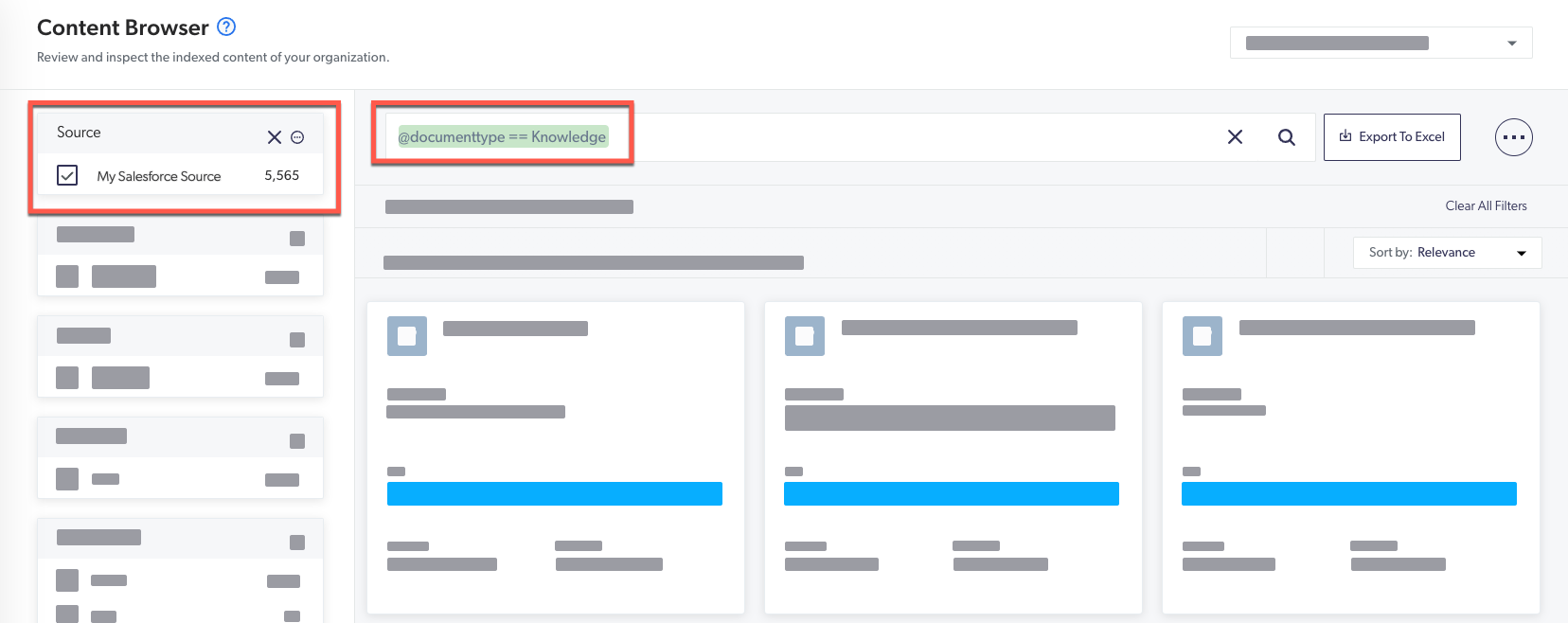
The content you want the model to extract resides in a Salesforce source. This content is available in items whose `documenttype` has the `Knowledge` value. Therefore, you select `Knowledge` in the **Document type** dropdown menu so that the model uses only items whose `documenttype` field value is `Knowledge`.
In the [**Content Browser**](https://platform.cloud.coveo.com/admin/#/orgid/content/browser/) ([platform-ca](https://platform-ca.cloud.coveo.com/admin/#/orgid/content/browser/) | [platform-eu](https://platform-eu.cloud.coveo.com/admin/#/orgid/content/browser/) | [platform-au](https://platform-au.cloud.coveo.com/admin/#/orgid/content/browser/)) page of the Coveo Administration Console, you can verify the items that would be available for the model by scoping the items that have the `Knowledge` value for the `documenttype` field. For example, you can use a [field query](https://docs.coveo.com/en/1552#field-queries) to scope the documents as follows:
### Content fields
When you inspect the items that the model can use (that is, items of a specific [document type](#document-types) containing the required HTML tags in a given source), you may notice that these items contain multiple [fields](https://docs.coveo.com/en/200/) that embed HTML content.
The content of some of these fields may not be relevant and you may not want the model to use it.
When [configuring a Coveo ML Smart Snippet model](https://docs.coveo.com/en/l6he0424#create-a-smart-snippet-model), you can optionally target certain fields to be used by the model.
This allows you to further narrow the content that the model will use as an input.
If you don't mention specific fields, the model will use the value of the item `body` field by default.
**Example**
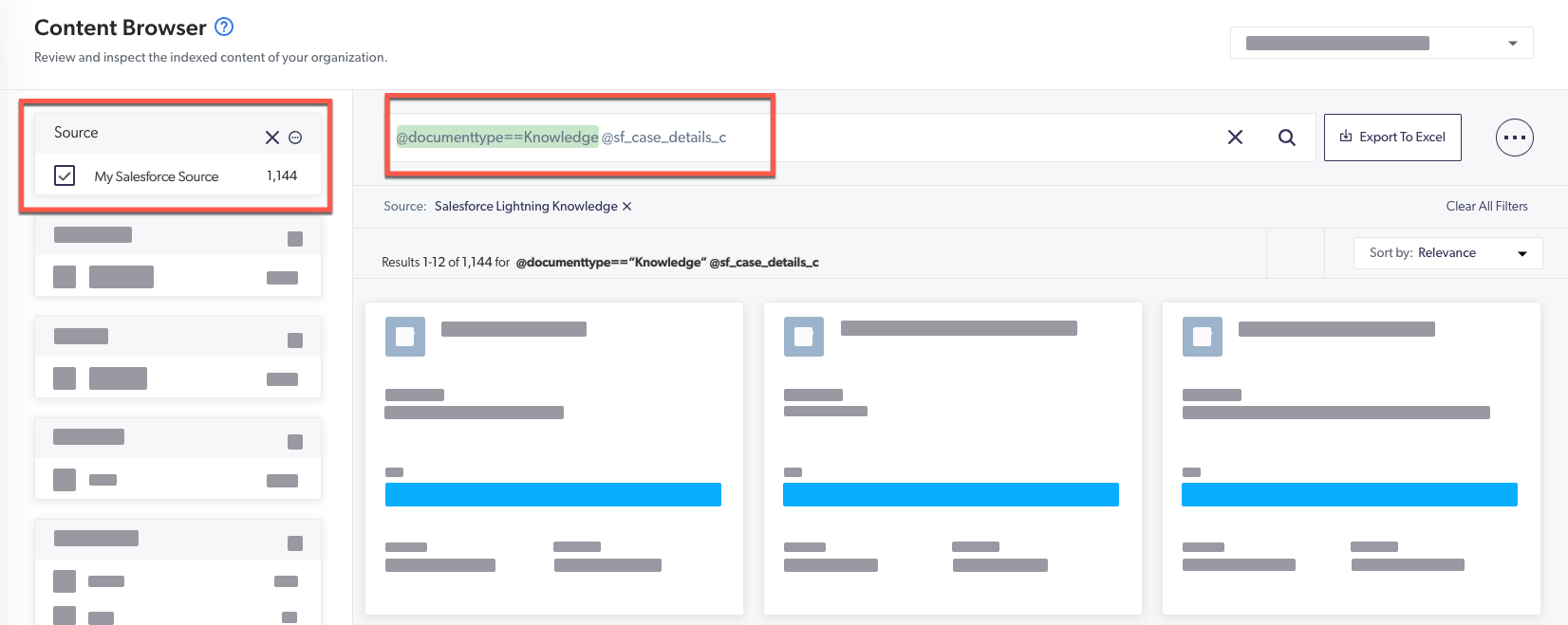
The content you want the model to extract resides in a Salesforce source. The relevant information, formatted in HTML, is located in a custom field named `sf_case_details_c`.
Therefore, you select the `sf_case_details_c` field in the **Field(s) containing HTML content** dropdown menu so that the model uses only the content that appears in the `sf_case_details_c` field when extracting the document.
In the [**Content Browser**](https://platform.cloud.coveo.com/admin/#/orgid/content/browser/) ([platform-ca](https://platform-ca.cloud.coveo.com/admin/#/orgid/content/browser/) | [platform-eu](https://platform-eu.cloud.coveo.com/admin/#/orgid/content/browser/) | [platform-au](https://platform-au.cloud.coveo.com/admin/#/orgid/content/browser/)) page of the Coveo Administration Console, you can verify the items that contain the `sf_case_details_c` field.
For example, you can use a [field query](https://docs.coveo.com/en/1552#field-queries) to scope items of the **My Salesforce Source** source whose `documenttype` value is `Knowledge` and that contains the `sf_case_details_c` field as follows:
## Step 2: Optimize the content
Now that you've targeted the content that must be used by the model, you must ensure that this content is properly configured.
Coveo ML Smart Snippets establish correlations between the headers appearing in result items and user queries.
Therefore, your content must be configured accordingly.
For optimal results, we recommend that you use [Google structured data](https://developers.google.com/search/docs/data-types/faqpage) in JSON-LD format in the `` of the HTML items that must be used by the model to extract snippets.
The following code sample shows a simple HTML markup that contains JSON-LD formatted content within the ``:
```html
Example Site - Frequently Asked Questions(FAQ)
```
> **Important**
>
> If you're using a Web or Sitemap [source](https://docs.coveo.com/en/246/), don't exclude `