`:
```html
```
> **Note**
>
> There are several occurrences of Zendesk search boxes in other sections of the theme code, such as in `
`.
> Find and replace them with the Coveo search box code.
> If they aren't replaced, users may experience issues such as performing a search and landing on a blank results page.
. Click **Publish**.
. On the [**API Keys**](https://platform.cloud.coveo.com/admin/#/orgid/organization/api-access/) ([platform-ca](https://platform-ca.cloud.coveo.com/admin/#/orgid/organization/api-access/) | [platform-eu](https://platform-eu.cloud.coveo.com/admin/#/orgid/organization/api-access/) | [platform-au](https://platform-au.cloud.coveo.com/admin/#/orgid/organization/api-access/)) page in the Coveo Administration Console, [create an API Key](https://docs.coveo.com/en/1718#create-an-api-key) using the **Anonymous search** [template](https://docs.coveo.com/en/1718#api-key-templates).
. Return to the **Customization design** page, and under the **templates** folder, select **script.js**.
. Enter the following code _after_ the `DomContentLoaded` section:
```javascript
var options = {
APIKey: "",
searchBoxId: "searchbox",
searchPageId: "search"
}
CoveoForZendesk.init(options);
```
. Replace `` with the new API key.
. Add the following options as needed after `CoveoForZendesk.init(options)`:
[%header,cols="~,~"]
|===
|Option
|Information
|`APIKey` (required)
|The API key required to execute the search.
|`searchPageUrl``
|The destination URL when a user executes a search (if different from the default search page).
|`searchBoxId` (required)
|The HTML ID of your CoveoSearchBox component div (generally `searchbox`).
|`searchPageId` (required)
|The HTML ID of your CoveoSearchInterface component div (generally `search`).
|`searchPageName`
|The URL fragment of the search page name. For example, for `go.coveo.com/search`, the fragment would be `/search`.
|`searchOptions`
|Additional [options](https://coveo.github.io/search-ui/globals.html) for the Coveo search interface.
|===
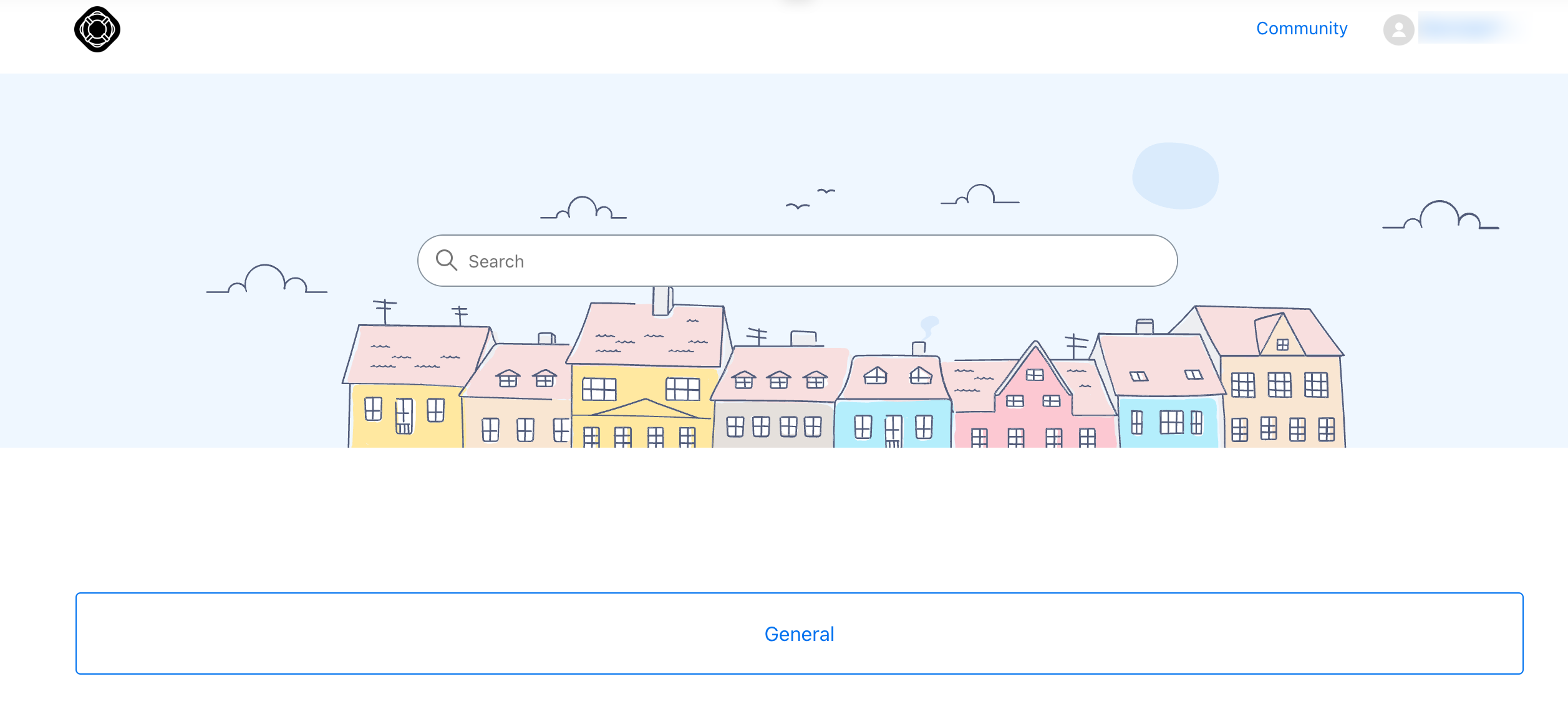
. Click **Preview** to review the Help Center interface.
The search box should now be visible on the header.
## Add Coveo search page
. In the **templates** folder of the **Customize design** window, select **search_results.hbs**.
. Remove the all of the existing code under the `
` section.
. On the [**Search Pages**](https://platform.cloud.coveo.com/admin/#/orgid/search/search-pages/) ([platform-ca](https://platform-ca.cloud.coveo.com/admin/#/orgid/search/search-pages/) | [platform-eu](https://platform-eu.cloud.coveo.com/admin/#/orgid/search/search-pages/) | [platform-au](https://platform-au.cloud.coveo.com/admin/#/orgid/search/search-pages/)) page of the [Coveo Administration Console](https://docs.coveo.com/en/183/), [create a legacy search page](https://docs.coveo.com/en/1656#create-a-hosted-search-interface) with the [Interface Editor](https://docs.coveo.com/en/1852/) to generate a page template markup.
. Copy the Coveo page template markup, and then paste the it under the `
` section in **search_results.hbs**.
. Remove the markup in the `
` and `
` sections to ensure that you don't have multiple search boxes.
. Click **Publish**.