--- title: Manage query parameter rules slug: '3411' canonical_url: https://docs.coveo.com/en/3411/ collection: tune-relevance source_format: adoc --- # Manage query parameter rules A query parameter is a component of a [query](https://docs.coveo.com/en/231/) that can be specified either through the query string or in the JSON body of a user query. The **Query parameters** section of the [**Query Pipelines**](https://platform.cloud.coveo.com/admin/#/orgid/search/pipelines/) ([platform-ca](https://platform-ca.cloud.coveo.com/admin/#/orgid/search/pipelines/) | [platform-eu](https://platform-eu.cloud.coveo.com/admin/#/orgid/search/pipelines/) | [platform-au](https://platform-au.cloud.coveo.com/admin/#/orgid/search/pipelines/)) page lets members with the [required privileges](#required-privileges) create query parameter rules to override search parameter values for every query that matches a [condition](https://docs.coveo.com/en/2793/). These rules can be added without having to modify the [search interface](https://docs.coveo.com/en/2741/) code. By default, the list of query parameters in a query pipeline is empty. Therefore, the query parameters in the search interface code are used. Query parameter rules are defined independently for each pipeline. These parameters are useful in customizing the search experience, allowing for the override of default values for every query that matches a defined condition. **Example** You want to enable or disable the [query syntax](https://docs.coveo.com/en/181/) based on a [user](https://docs.coveo.com/en/250/) or group. For administrators, you set a rule that enables advanced query syntax whenever they're performing a search. This includes allowing specific query operators or search fields that are typically not available to general users. On the other hand, for general users, the default search parameters would apply, with the advanced syntax options remaining disabled. > **Note** > > Query parameter [rules](https://docs.coveo.com/en/236/) have priority over the same parameters set in the search interface code. ## Prerequisites Before creating a rule, make sure that you have the following: * Access to a search page You need access to a Coveo-powered [search interface](https://docs.coveo.com/en/2741/) to be able to test the [rule](https://docs.coveo.com/en/236/) that you create. * An existing query pipeline The queries from the search page must travel through a specific [query pipeline](https://docs.coveo.com/en/180/). * Required privileges You need specific [privileges to be able to add and edit rules in a query pipeline](#required-privileges). Once you meet these requirements, you can create a rule on the [**Query Pipelines**](https://platform.cloud.coveo.com/admin/#/orgid/search/pipelines/) ([platform-ca](https://platform-ca.cloud.coveo.com/admin/#/orgid/search/pipelines/) | [platform-eu](https://platform-eu.cloud.coveo.com/admin/#/orgid/search/pipelines/) | [platform-au](https://platform-au.cloud.coveo.com/admin/#/orgid/search/pipelines/)) page. To test the rule, [use the A/B test feature](https://docs.coveo.com/en/3255/) to compare the results of the rule with the results of the original pipeline. ## Access the Query parameters subtab To manage query parameter rules in a query pipeline: . On the [**Query Pipelines**](https://platform.cloud.coveo.com/admin/#/orgid/search/pipelines/) ([platform-ca](https://platform-ca.cloud.coveo.com/admin/#/orgid/search/pipelines/) | [platform-eu](https://platform-eu.cloud.coveo.com/admin/#/orgid/search/pipelines/) | [platform-au](https://platform-au.cloud.coveo.com/admin/#/orgid/search/pipelines/)) page, click the query pipeline in which you want to manage rules, and then click **Edit components** in the Action bar. . On the page that opens, select the **Advanced** tab. . On the **Advanced** tab, on the left side of the page, select **Query parameters**. ## Add or edit query parameter rules You can add query parameter rules to a query pipeline to override the current parameter value for every query that matches a condition. . [Access the **Query parameters** subtab](#access-the-query-parameters-subtab), then do one of the following: * In the upper-right corner of the page, click **Add rule**. ** On the **Add a Query Parameter Rule** subpage, select a parameter, and then click **Next**. If you can't find the parameter you're looking for, you can look for it in the **Filter by parameter name** field. ![Parameter panel example | Coveo](https://docs.coveo.com/en/assets/images/tune-relevance/parameters-panel.gif) * Select the rule you want to edit, and then click **Edit** in the Action bar. . In the **Rule configuration** panel, do one of the following: **If you selected a string parameter**
Details Select or enter the value of the parameter with which you want to replace the actual parameter value. ![Configuration panel for string parameter | Coveo](https://docs.coveo.com/en/assets/images/tune-relevance/rule-configuration-string.png)
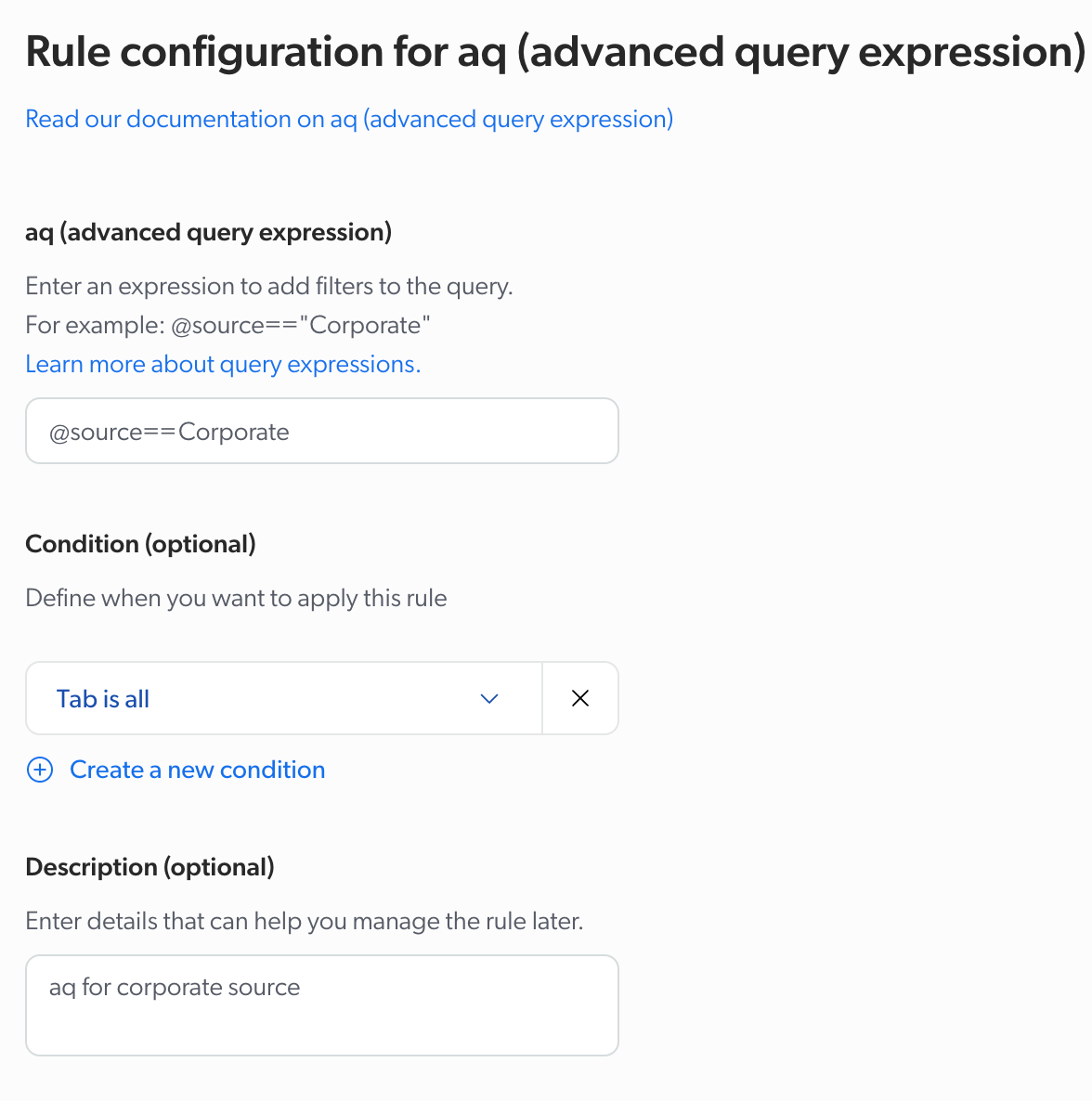
**If you selected an integer parameter**
Details Enter the number with which you want to replace the actual parameter value. ![Configuration panel for integer parameter | Coveo](https://docs.coveo.com/en/assets/images/tune-relevance/rule-configuration-integer.png)
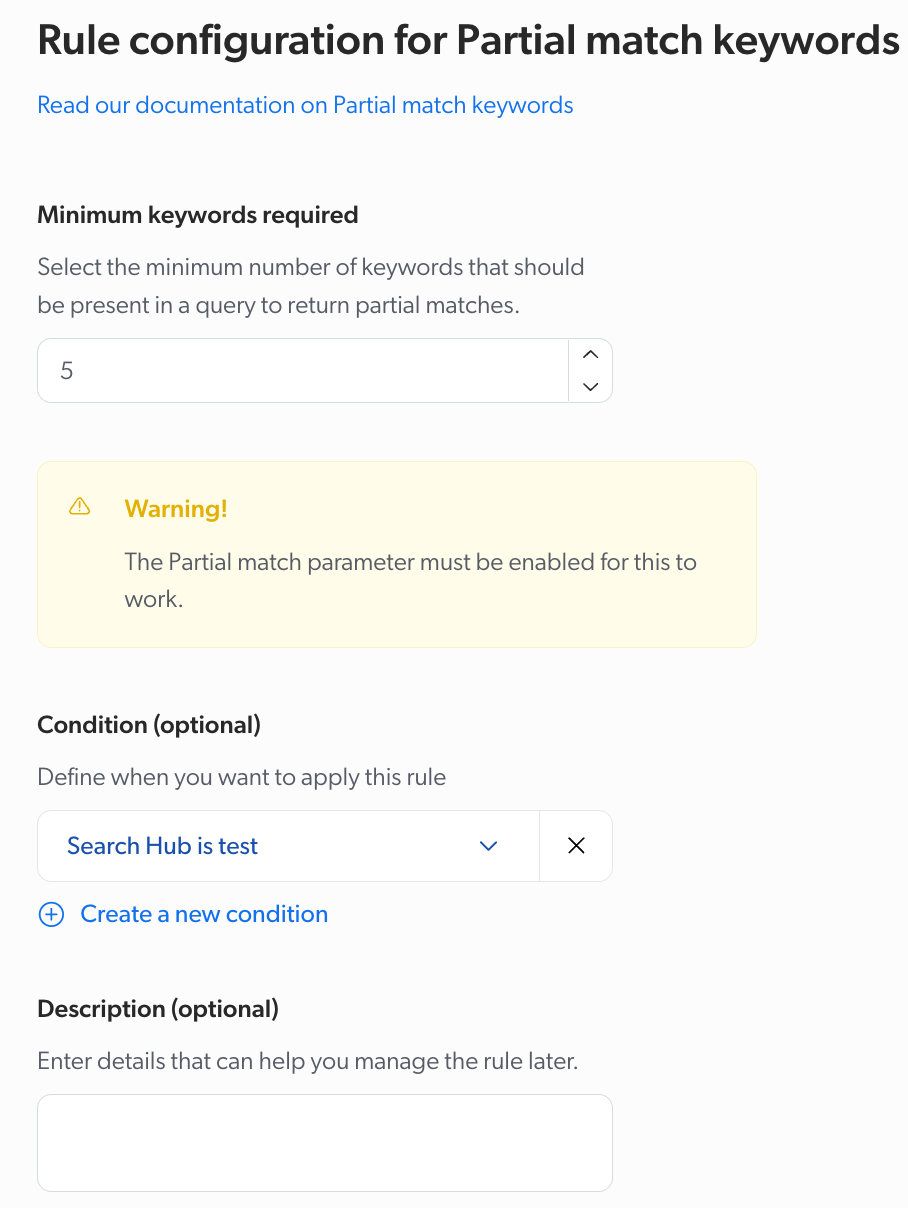
**If you selected a Boolean parameter**
Details Select whether to enable or disable the parameter. ![Configuration panel for Boolean parameter | Coveo](https://docs.coveo.com/en/assets/images/tune-relevance/rule-configuration-boolean.png)
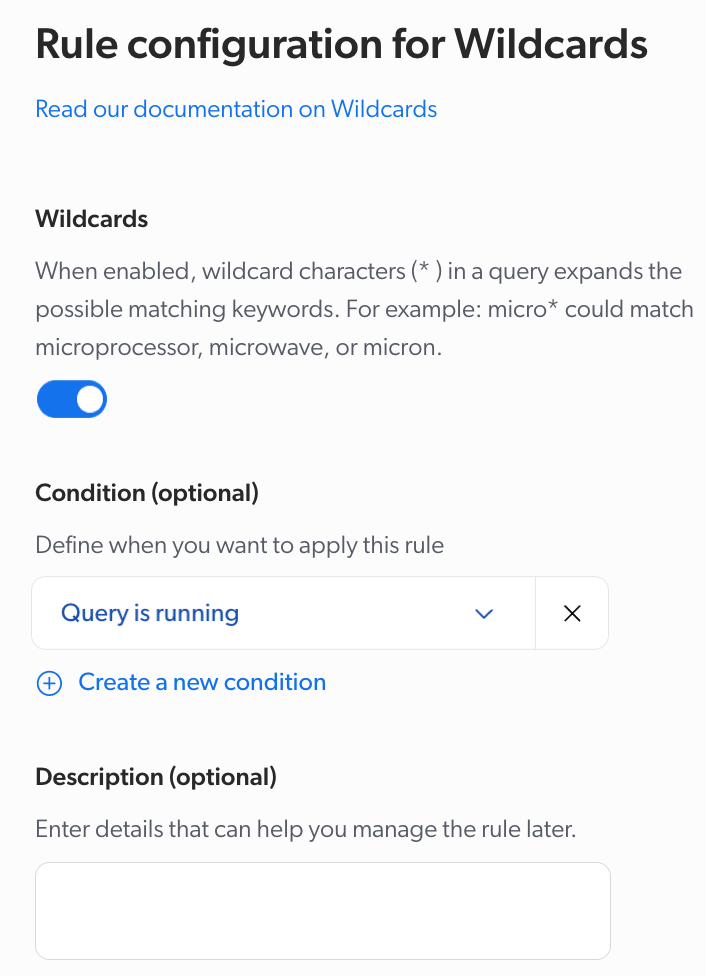
. Under **Condition (optional)**, select a query pipeline condition in the dropdown menu or create a new one. . Under **Description (optional)**, enter information that will help you manage the rule in the future. . Depending on whether you're creating a new rule or editing an existing one, click **Add rule** or **Save**. > **Tip** > > You can check who created or last modified a given query parameter rule by inspecting the Details column of the **Query parameters** subtab. > > ![Query parameter rule details | Coveo](:https://docs.coveo.com/en/assets/images/tune-relevance/rule-creation-modification-date.png) ## Duplicate query parameter rules When creating query parameter rules in a query pipeline, you may want to create a new rule that's similarly configured to an existing one. An efficient way to do this is to duplicate the existing rule and then modify it as needed. . [Access the **Query parameters** subtab](#access-the-query-parameters-subtab). . In the **Query parameters** subtab, select the rules you want to duplicate within the same pipeline. . In the **Action** bar, click **Duplicate**. The duplicated query parameter rules appear at the bottom of the list in the pipeline component tab. ## Copy query parameter rules to another pipeline When you have multiple query pipelines that require similar rules, you can copy query parameter rules from one pipeline to another. . [Access the **Query parameters** subtab](#access-the-query-parameters-subtab). . In the **Query parameters** subtab, select the rules you want to copy to another pipeline. . In the Action bar, click **More**, and then click **Copy to**. . In the dialog that appears, select the target pipeline to which you want to copy the rules, and then click **Copy**. ## Delete query parameter rules . [Access the **Query parameters** subtab](#access-the-query-parameters-subtab) of the query pipeline you want to manage. . In the **Query parameters** subtab, select the rules you want to delete. . In the **Action** bar, click **More** and then **Delete**. . Click **Delete** to confirm. Your deleted rules will stop being effective immediately in the target pipeline. > **Tip** > > * To avoid undesired search behaviors, delete unused query pipeline rules, as they can impact search relevance. > > * Consider using the [Groups & Campaigns feature](https://docs.coveo.com/en/3283/) to make query pipeline rules only apply for a specific time period. ## Change the rule order Query pipeline rules are executed in the order in which they appear on the page until a condition is satisfied. . [Access the **Query parameters** subtab](#access-the-query-parameters-subtab). . Select the rule for which you want to change the position. . In the Action bar, click **Move up** or **Move down** to change the position of the rule. > **Note** > > When you move a query parameter rule, only the order of execution of query parameter rules is adjusted. > Moving the rule doesn't affect the [order of execution](#order-of-execution) of query parameter rules relative to other query pipeline components. ## Reference The query parameters in this section can be modified when creating query parameter rules. For the list of query parameters that can be used when sending requests to the Search API, see [Query parameters](https://docs.coveo.com/en/13#tag/Search-V2/operation/searchUsingPost). ### aq (advanced query expression) The advanced query expression, typically generated by code (for example, when toggling facet values). > **Note** > > When logging a usage analytics event for a query, the `advancedQuery` field of that event should be set to the `aq` value of the corresponding query (for reporting purposes). **Example** You want to avoid content from being filtered by a certain facet selection. The **Source** facet of your search interface contains the **Tutorial video** and **Tutorial web** facet values, which both lead to complementary content. Therefore, you create a rule by doing the following: * In the **aq (advanced query expression)** field, you enter the following expression: `(@source=="Tutorial video" OR @source=="Tutorial web")`. * Under **Condition**, you create the condition: `Query contains Tutorial`. ### Catalog ID The unique identifier of the [catalog entity](https://docs.coveo.com/en/3139/) to use for the query in a Coveo for Commerce solution. When specified, the query is executed within the context of the specified catalog, ensuring that results and pricing data are relevant to that catalog's configuration. > **Important** > > This parameter only applies to Coveo for Commerce implementations that send queries to the Search API. > > If your implementation sends queries to the [Commerce API](https://docs.coveo.com/en/103/api-reference/commerce-api), the catalog context is already determined by the API endpoint and you shouldn't specify this parameter in your query parameter rules. **Example** Your organization manages multiple commerce experiences, including a _Barca Sports_ storefront and a _Barca_ portal. Each experience is powered by its own catalog entity (for example, `barca_sports_catalog` and `barca_portal_catalog`) to ensure that query results and pricing data stay relevant to that audience. To make sure that each experience only queries its own catalog, you create a query parameter rule that sets the **Catalog ID** parameter based on the **Search Hub** value. * For the _Barca Sports_ storefront, you set the Catalog ID to `barca_sports_catalog` and add a condition where the Search Hub is _Barca_Sports_. * For the _Barca_ portal, you set the Catalog ID to `barca_portal_catalog` and add a condition where the Search Hub is _Barca_Portal_. This ensures that queries from each search interface are scoped to the correct catalog entity. > **Tip** > > If a catalog entity has been removed from your Coveo for Commerce organization, any query parameter rule that references that catalog must be updated accordingly. > You can identify the rule by looking at the **Parameter** column. > When a catalog entity has been removed, the catalog will have a UUID instead of a catalog name. > For example, the highlighted rule shows a UUID of `3931a4df-ffc6-4077-9090-59c2a71d0d46`. > > ![Query parameter rule page with catalog IDs | Coveo](:https://docs.coveo.com/en/assets/images/tune-relevance/query-parameter-catalog-id-list.gif) > > To fix this: > > . Select the rule and click **Edit** to open the rule panel. > You can see in the **Catalog** field that no catalog is specified. > > ![Edit catalog ID in the query parameter rule panel | Coveo](:https://docs.coveo.com/en/assets/images/tune-relevance/edit-catalog-id-rule.png) > > . In the **Catalog ID** field, select the correct catalog from the dropdown menu. > > . Click **Save**. ### Child field The `@`-prefixed name of the field to use to be able to identify an item as a child of another item in a [folded query result](https://docs.coveo.com/en/1466/). Use a field whose value points to the [**Parent field**](#parent-field) value of the intended parent. Whenever an item is a child of another item, its `childField` value must be identical to the `parentField` value of that other item. > **Notes** > > * In the index, the values of the `childField` must only contain alphanumeric characters. > Using a `childField` whose values contain non-indexable characters, such as underscores, will make folding fail. > > * The values of the `childField` must contain 60 characters or less (60 being the default maximum of characters for a word in the index). ### cq (constant query expression) The constant query expression, typically populated with expressions that must apply to all queries sent from a specific search interface (for example, from a specific tab). Once evaluated, the result sets of those expressions are kept in a special cache. > **Tip** > > Avoid including dynamic content in the constant query expression. > Otherwise you risk filling up the cache with useless data, which can have a negative impact on performance. > **Notes** > > * Other parts of the query expression can also benefit from the index cache (see [**Maximum age**](#maximum-age)). > However, using the constant query expression allows you to explicitly cache specific result sets. > > * Temporal keywords (`now`, `today`, `yesterday`) in the constant query expression are only re-evaluated once every three to four minutes. > Therefore, you should avoid basing `cq` expressions on temporal keywords if you require split second accuracy. **Example** When your employees perform queries, you want to show results that are internal. Therefore, you create a rule by doing the following: * In the **cq (constant query expression)** field, you enter `@targetAudience==internal`. * Under **Condition**, you create the condition: `Context[useGroup] is employee`. ### Debug Whether to force a successful response to include debug information. **Default**: `false` > **Notes** > > * Debug information can only appear in responses in the JSON format. > > * Avoid setting this parameter to `true` in your production environment, as it has a negative impact on query performance. ### dq (disjunction query expression) The disjunction query expression, typically populated by Coveo ML ART models to ensure that relevant items are included in the query results. This expression is merged with the other parts of the query expression using the `OR` operator. Therefore, the resulting query expression is `((q AND aq) OR dq) AND cq`. For further information on query expressions, see [About the query expression](https://docs.coveo.com/en/2830/). > **Important** > > This parameter overrides the generated disjunction query expression (`dq`). > Therefore, add a condition for your rule to be applied. ### Enable Did You Mean Whether to enable the [_Did You Mean_ feature](https://docs.coveo.com/en/1810/) of the index, which populates the `queryCorrections` property of a successful response with keyword correction suggestions. **Default**: `false` > **Notes** > > * The _Did You Mean_ feature only processes [the basic query expression](#q-basic-query-expression). > > * The _Did You Mean_ feature won't return corrections when the query is processed by a Coveo ML ART model whose Intelligent Term Detection (ITD) feature is enabled. > > * When both **Enable Did You Mean** and [**Enable ML Did You Mean**](#enable-ml-did-you-mean) parameters are set to `true`, the output of both features will appear in the `queryCorrections` array. ### Enable duplicate filtering Whether to filter out duplicates, so that items resembling one another only appear once in the query results. **Default**: `false` > **Notes** > > * Two items must be at least 85% similar to one another to be considered duplicates. > > * When duplicates are found, only the higher-ranked item of the two is kept in the result set. > > * Enabling this feature can make the total result count less precise, since only results up to those being retrieved (see the [**Number of results**](#number-of-results) parameter) are submitted to duplicate filtering. ### Enable ML Did You Mean Whether to enable the Coveo ML query suggestions _Did You Mean_ feature, which populates the `queryCorrections` property of a successful response with keyword correction suggestions. **Default**: `false` > **Notes** > > * The _Did You Mean_ feature only processes the basic query expression (see the [**q (basic query expression)**](#q-basic-query-expression) parameter). > > * When both the [**Enable Did You Mean**](#enable-did-you-mean) and **Enable ML Did You Mean** parameters are set to `true`, the output of both features will appear in the `queryCorrections` array. ### Enable query syntax Whether to interpret advanced Coveo query syntax as such in the basic query expression (see the [**q (basic query expression)**](#q-basic-query-expression) and [**Lowercase operators**](#lowercase-operators) parameters). **Default**: `true` > **Note** > > While the **Enable query syntax** parameter is set to `true` at the API level, certain search interface libraries, such as Atomic, may override this default and set the parameter to `false`, which disables the advanced query syntax. > This means that certain operators might not function as expected unless the **Enable query syntax** parameter is explicitly set to `true`. **Examples** * After analyzing usage analytics data, you noticed that special characters such as `(`, `[`, `]`, `{`, `}`, `-`, and `&` created content gaps. Therefore, you create a rule where you set the **Enable query syntax** parameter to `false` so the index interprets those special characters as spaces. * You want to ignore operators for your clients, but not for your internal users, so you set a condition on the identity. Therefore, you create a rule where you set the **Enable query syntax** parameter to `false` and under **Condition**, you create the condition: `Identity is anonymous`. * You want to ignore all operators but still want to use `AND`, `OR`, and `NOT`. Therefore, you create a rule where you set the **Enable query syntax** parameter to `false` and under **Condition**, you create the condition: `Query doesn't contain "and" or Query doesn't contain "or" or Query doesn't contain "not"`. ### Enable term permutations Whether to enable the term permutations feature in the query pipeline. **Default**: `false` When set to `true`, the term permutations feature expands the keywords used in the user query to search for different variations of the same query by using casing variations and character transitions. **Example** In your Coveo index, you have support articles and user manuals that relate to the **TP 213 v4** product. You realize that your clients and support agents are often querying `TP213v4` to find related information. This results in some of your users not finding the information they're looking for. Therefore, you create a rule where you set the **Enable term permutations** parameter to `true` to ensure that all usage variations of `TP213v4` are taken into account when queried. Therefore, when searching for `TP213v4`, a user will obtain a query similar to the following: ```text TP213v4 OR ((TP 213 v4) OR (TP213 V4) OR (tp2 13 V4)) ``` > **Important** > > The term permutations feature expands every keyword used in a query. > Since each queried keyword is affected by the feature, this may lead to query performance issues. > Therefore, this feature should only be used when necessary and under certain conditions. ### Excerpt length The maximum length of result excerpts (in number of characters). An _excerpt_ is a segmented text generated at query time by the index from the body of an item. When a query is performed, the excerpt yields relevant item body sections in which the queried terms are highlighted. An excerpt includes the most relevant sentences in which the queried keywords appear, in the order in which they appear in the item, up to the specified number of characters. **Default**: `200` > **Note** > > The maximum length you set using this parameter also applies to retrieved first sentences, if those are included in the results (see the [**Retrieve first sentences**](#retrieve-first-sentences) parameter). **Example** When your clients are on a specific tab, you want to show longer descriptions than in the other tabs. Therefore, you create a rule by doing the following: * In the **Excerpt length** field, you enter `500`. * Under **Condition**, you create the condition: `Tab is Books`. ### Filter field The `@`-prefixed name of the field to use to group items into distinct [folded query results](https://docs.coveo.com/en/1466/). Use a field whose value is identical for all items to group under the same folded query result. ### Filter field range The maximum number of items to include in the `childResults` array of a [folded query result](https://docs.coveo.com/en/1466/). **Default**: `5` ### Forward language to Coveo index Controls whether the language of the user's interface is used when interpreting the query. **Default**: `false` When set to `true`, the language of the user's interface is included in the search request sent to the Coveo index. This means that the interpretation and processing of the user's query are influenced by their language setting, potentially enhancing the relevance of the returned search results. It can be particularly useful for [stem expansion](https://docs.coveo.com/en/1576#stem-expansions). > **Tip** > > This parameter should be used in combination with the `locale` request parameter. **Example** If a user's interface is in French and the **Forward language to Coveo index** parameter is set to `true`, the language information is included in the search request sent to the Coveo index. French content is therefore prioritized in the search results, making the results more relevant to the user's language preference. ### Index The identifier of the index mirror to forward the request to. If you don't specify an index value, any index mirror could be used. > **Note** > > Passing an `index` (or `indexToken`) value has no effect when the results of a specific request can be returned from cache (see [**Maximum age**](#maximum-age)). ### Locale The locale of the current user. Must comply with IETF's [BCP 47](https://www.rfc-editor.org/rfc/bcp/bcp47.txt) definition. Coveo ML models use this information to provide contextually relevant output. Moreover, this information can be referred to in query expressions and QPL statements by using the `$locale` object. > **Note** > > When logging a usage analytics event, the `language` field of that event should match the language part of the locale value of the query (for example, `en-US` in `locale` becomes `en` in `language`). ### Logical index The identifier for a logical group of indexes that have been configured to include items from the same sources. If you don't specify a value, the default grouping will be used, typically including all indexes. #### Logical index aggregation Whether to define the logical group of indexes to aggregate when a query is sent. When defined, the query is sent to all indexes in the logical group. ### Lowercase operators Whether to treat the `AND`, `NEAR`, `NOT`, and `OR` keywords in the basic query expression (see the [**q (basic query expression)**](#q-basic-query-expression) parameter) as Coveo query syntax operators, even if those keywords are in lowercase. > **Note** > > Setting this parameter to `true` has no effect unless you also set the [Enable query syntax](#enable-query-syntax) parameter to `true`. > For instance, if you set both this parameter and the `enableQuerySyntax` parameter to `true`, the index interprets the `near` keyword in the basic query expression `service center near me` as the `NEAR` Coveo query syntax operator. **Default**: `false` **Example** You want to allow customers to use the `AND` and `OR` operators even if they write them in lowercase. When you ignore the operators, where the **Enable query syntax** is set to `false`, you must add a rule to exclude `AND` and `OR`, otherwise the operators won't be considered. Therefore, you create a rule to set the **Lowercase operators** parameter to `true`. ### lq (large query expression) The large query expression, typically populated with a case description, long textual query, or any other form of text that can help refine a query. The Coveo ML Intelligent Term Detection (ITD) feature can extract relevant keywords from the large query expression and inject those keywords in the basic query expression (see the [**q (basic query expression)**](#q-basic-query-expression) parameter). ### lq Partial match keywords The minimum number of keywords that need to be present in the [**lq (large query expression)**](#lq-large-query-expression) to convert it to a partial match expression in case the Coveo ML Intelligent Term Detection (ITD) feature can't extract relevant keywords from the large query expression. For further information on query expressions, see [About the query expression](https://docs.coveo.com/en/2830/). **Default**: `5` > **Note** > > This parameter applies as a fallback setting when no Coveo ML ART model is available in the query pipeline to process a query that contains a non-null large query expression (`lq`). ### lq Partial match max keywords The maximum number of keywords from the large query expression (see the `lq` parameter) that will be included in the partial match expression in case the Coveo ML Intelligent Term Detection (ITD) feature can't extract relevant keywords from the large query expression. **Default**: `100` > **Notes** > > * This parameter applies as a fallback setting when no Coveo ML ART model is available in the query pipeline to process a query that contains a non-null large query expression (`lq`). > > * Setting this parameter to a high value can negatively impact the performance of queries, while setting it too low can produce less relevant results. ### lq Partial match threshold An absolute or relative value indicating the minimum number of partial match expression keywords an item must contain to match the large query expression in case the Coveo ML Intelligent Term Detection (ITD) feature can't extract relevant keywords from the large query expression. **Default**: `50%` If specified, the **lq Partial match threshold** parameter value must be one of the following: * a 32-bit unsigned integer (for example, `3`) * a percentage value between 0% and 100% (for example, `75%`) * an empty string (`""`) * the `all` string > **Notes** > > * This parameter applies when no Coveo ML ART model is available in the query pipeline to process a query that contains a non-null large query expression (`lq`). > > * The `""` and `all` values are both equivalent to `100%`. ### Maximum age The maximum age (in milliseconds) of the cached query results. If the results of a specific request are available in the cache, and if those results are no older than the `maximumAge` value, the service returns those results rather than forwarding a new query to the index. Such cache hits improve responsiveness but still count as queries in your queries per month (QPM) count. **Default**: `-1` > **Note** > > This parameter is automatically overridden when `staticQuery` is set to `true`. ### Maximum timeout The maximum time (in milliseconds) limit for the query to execute before timing out. ### ML Did You Mean max candidates The maximum number of Coveo ML _Did You Mean_ candidates to request from the QS model. **Default**: `3` ### ML Did You Mean min score The minimum score a query suggestion may have to be allowed as a candidate for the Coveo ML query suggestions _Did You Mean_ feature. For best results, value should typically be in range [`0.8`, `2`]. **Default**: `1.0` ### ML Did You Mean use facet count Whether to use facet counts for the Coveo ML _Did You Mean_ feature. **Default**: `false` ### Number of results The number of results to return. Along with the [`firstResult`](https://docs.coveo.com/en/1491#firstresult-integer-int32) parameter allows you to retrieve a specific page of result items. This parameter also defines the maximum number of results which can be returned by the Coveo ML [Content Recommendations (CR)](https://docs.coveo.com/en/3387/) and [Product Recommendations (PR)](https://docs.coveo.com/en/lacb0109/) features. **Default**: `10` > **Note** > > The maximum `numberOfResults` value depends on the index settings of your [Coveo organization](https://docs.coveo.com/en/185/). > By default, a Coveo index can return a maximum of 2,000 items per query. > **Important** > > Don't set this parameter in the query pipeline if your search interface contains a [`Pager`](https://coveo.github.io/search-ui/components/pager.html) component. Otherwise, pagination won't work correctly in your search interface. **Example** When your clients search for `find a store`, you'll want the results returned to only be the articles that help them find stores. You also need a [featured result rule](https://docs.coveo.com/en/3376/) on that specific article for the same query. Therefore, you create a rule by entering `1` in the **Number of results** field to ensure that only the most relevant article is returned. ### Parent field The `@`-prefixed name of the field to use to be able to identify an item as a parent in a [folded query result](https://docs.coveo.com/en/1466/). Use a field whose value can uniquely identify each item. All items whose [`childField`](#child-field) value is identical to the `parentField` value of another item are considered children of that other item. > **Notes** > > * In the index, the values of the `parentField` must only contain alphanumeric characters. > Using a [`childField`](#child-field) whose values contain non-indexable characters, such as underscores, will make folding fail. > > * The values of the `parentField` must contain 60 characters or less (60 being the default maximum of characters for a word in the index). ### Partial match Whether to convert a basic expression containing certain keywords to a partial match expression, so that any item containing a specific amount of those keywords will match the expression. If you don't set this parameter to `true`, an item must contain all the basic expression keywords to match the expression. See [Leverage the partial match feature](https://docs.coveo.com/en/414/) for details. **Default**: `false` > **Notes** > > * This feature only applies to the basic expression (`q`) of a query, and to the basic `queryOverride` of its Group By operations. > > * When the `enableQuerySyntax` parameter is set to `true`, this feature has no effect on a basic expression containing advanced Coveo query syntax (field expressions, operators, etc.). ### q (basic query expression) The basic query expression, typically the keywords entered by the end user in a query box. For further information on query expressions, see [About the query expression](https://docs.coveo.com/en/2830/). > **Note** > > When logging a usage analytics event for a query, the `queryText` field of that event should be set to the `q` value of the corresponding query. > **Important** > > This parameter overrides the query expression that the user enters in the search box. > Therefore, add a condition for your rule to be applied. ### Query correction Whether to enable the [Query correction feature](https://docs.coveo.com/en/1810/). You can select the **Apply automatically** option to automatically correct the query, or the **Suggest alternatives** option to suggest a correction to the user. > **Note** > > Both the **Did You Mean** feature and the **Suggest alternatives** option suggest alternative queries when a possible spelling mistake is detected, whether the original query returns results or not. > They differ in the way they suggest corrections: > > * The **Did You Mean** feature suggests corrections unless thesaurus or partial match rules are applied, in which case the feature is disabled. > > * The **Suggest alternatives** option offers more accurate suggestions and remains enabled even when thesaurus or partial match rules apply. **Examples** * As an online book retailer, you're aware that there are some authors with unique names that are commonly misspelled in queries. For instance, customers who are looking for books by the author `Michael Crichton` tend to misspell the author's name as `Michael Crighton`. You create a **Query correction** rule where you select **Apply automatically**, therefore, the query is corrected to `Michael Crichton`, and the user is presented with the correct results. ![Query correction example 1 | Coveo](https://docs.coveo.com/en/assets/images/tune-relevance/query-correction-example-1.png) * In a pharmacy intranet, pharmacy technicians often search for medications by their generic names rather than their brand names. Different medications intended for different purposes can sometimes have similar names, which can lead to typos when searching for them. For instance, `metformin`, a medication for diabetes, is often misspelled as `methformen`. To avoid risking an automatic correction where the query is transformed to the name of another medicine, such as `methadone`, you create a **Query correction** rule where you select **Suggest alternatives**, so that corrections are suggested to the technician. ![Query correction example 2 | Coveo](https://docs.coveo.com/en/assets/images/tune-relevance/query-correction-example-2.png) ### Question mark Whether to enable the question mark character (`?`) in the wildcard feature of the index to expand basic expression keywords (see the `q` parameter) containing the question mark character (`?`) to the possible matching keywords. See [Using wildcards in queries](https://docs.coveo.com/en/1580/) for the complete parameter definition. **Default**: `false` > **Note** > > Setting this parameter to `true` has no effect unless you also set the `wildcards` parameter to `true`. **Example** You want to allow clients to use the `?` wildcard, especially since you set operators to be ignored ([Enable query syntax](#enable-query-syntax) is set to `false`). You also set the [**Wildcards**](#wildcards) parameter to `true`, which is required for the `questionMark` parameter to be effective. Therefore, you create a rule where you set the **Question mark** parameter to `true`. ### Recommendation The recommendation interface identifier from which the query originates. ### Retrieve first sentences Whether to include the first sentences of textual items in the query results. First sentences are typically useful when rendering result items such as emails, since the first few sentences of these kinds of items are often more relevant than a contextually generated excerpt (see the [Excerpt length](#excerpt-length) parameter). **Default**: `false` > **Note** > > The maximum length of the retrieved sentences (in number of characters) is determined by the value of the `excerptLength` parameter. **Example** You want to always show the first sentence of items. This sentence will be truncated if longer than the excerpt. If the sentence is short (for example, title of an email), the rest of the normal excerpt will be shown until the `excerptLength` is reached. Therefore, you create a rule by doing the following: * You set the **Retrieve first sentences** parameter to `true`. * Under **Condition**, you create the condition: `Query is Email`. ### Search hub The first level of origin of the request, typically the identifier of the graphical search interface from which the request originates. Coveo ML models use this information to provide contextually relevant output. > **Notes** > > * This parameter will be overridden if the search request is authenticated by a [search token](https://docs.coveo.com/en/1346/) that enforces a specific pipeline, or a `searchHub` that routes queries to a specific pipeline via a query pipeline condition. > > * When logging a usage analytics event for a query, the `originLevel1` field of that event should be set to the value of the `searchHub` search request parameter. ### Sort criteria The criteria to use for sorting the query results. Allowed values: * **Relevance** (default): Uses standard index ranking factors (adjacency, TDIDF, and more) and custom ranking expressions (QREs and QRFs) to compute a ranking score for each query result item, and sorts the query results by descending score value. **Example** You're managing a knowledge base for new employees. By selecting **Relevance**, you ensure that content such as training materials and onboarding guides are displayed at the top of the search results while still considering other factors such as the number of views and the last modified date. * **Ranking expression**: Uses only custom ranking expressions (QREs and QRFs) to compute a ranking score for each query result item, and sorts the query results by descending score value. **Example** Your e-commerce site, _Barca Sport_, carries a collection of premium soccer cleats that you want to promote. You've already created a ranking expression rule that boosts the score of this item by `100`. By selecting **Ranking expression** as the sort criteria, you ensure that other ranking factors are ignored, and that the premium soccer cleats are displayed at the top of the search results. * **Specific fields**: Sort using the value of a specific sortable field. **Example** Your e-commerce site, _Barca Sport_, offers a wide range of products. When setting the Sort criteria, you select **Specific fields**, first by selecting `date` in descending order (showing the newest items first), and then `product` in ascending order (alphabetically organizing products with the same release date). For a query like `running shoes`, the newest shoes are displayed first. If multiple shoes were added on the same date, they're listed alphabetically. > **Notes** > > * A ranking score can be calculated only when using **Relevance** or **Ranking expression**. > > * You can specify a list of sort criteria by combining up to ten specific fields. > > ![Sort criteria panel | Coveo](:https://docs.coveo.com/en/assets/images/tune-relevance/sort-criteria-panel.png) > > * You need additional privileges to view fields in the index to be able to leverage the **Specific fields** option (see the [Required privileges](https://docs.coveo.com/en/1833#required-privileges) section of the **Manage fields** article). ### Summary length The length of the automatically generated item summary. The Coveo Platform uses a linguistic algorithm that relies on term frequency and proximity to generate an item summary made of sentences identified to be the most important ones in the item. This summary is generated independently from the query, as opposed to a result item excerpt, which is generated based on query keywords. **Default**: `0` ### Tab The second level of origin of the request, typically the identifier of the selected tab in the graphical search interface from which the request originates. Coveo ML models use this information to provide contextually relevant output. > **Note** > > When logging a usage analytics event for a query, the `originLevel2` field of that event should be set to the tab value of the query (or to the default string, if no tab value was specified in the query). ### Wildcards Whether to enable the wildcards feature of the index in order to expand basic expression keywords (see the [**q (basic query expression)**](#q-basic-query-expression) parameter) containing wildcard characters (`*`) to the possible matching keywords (see [Using wildcards in queries](https://docs.coveo.com/en/1580/)). **Default**: `false` **Example** You want to allow your clients to use wildcards, especially since you create a rule where the **Enabled query syntax** parameter is set to false. Therefore, you create a rule where you set the **Wildcards** parameter to `true`. ### QPL syntax Use the following [query pipeline language (QPL)](https://docs.coveo.com/en/235/) syntax to define a statement expressing the `queryParamOverride` feature: ```text override ``` #### `` This is one of the two options: * `query`: modifies parameters in search requests (that is, in GET or POST requests to the `/rest/search/v2` route). * `querySuggest`: modifies parameters in query suggestion requests (that is, in GET or POST requests to the `/rest/search/v2/querySuggest` route). #### `` A comma-separated list of parameter-value pairs, where each parameter is a valid query/query suggestion parameter and each value must be a valid value for the specified query/query suggestion parameter (see [Query parameters](https://docs.coveo.com/en/13#tag/Search-V2/operation/searchUsingGet)). ## Order of execution The following diagram illustrates the [order of execution of query pipeline features](https://docs.coveo.com/en/1376/): ![Diagram showing order of execution | Coveo](https://docs.coveo.com/en/assets/images/tune-relevance/order-of-execution-query-pipeline-features.png) ## Required privileges The following table indicates the [privileges](https://docs.coveo.com/en/1791#required-privileges) required to view or edit query parameter rules. Learn more about the [Privilege reference](https://docs.coveo.com/en/1707/) or how to [manage privileges](https://docs.coveo.com/en/3151/). [cols="3",options="header"] |=== |Action |Service - Domain |Required access level |View query parameter rules |Organization - Organization Search - Query pipelines |View .2+|Edit query parameter rules |Organization - Organization |View |Search - Query pipelines |Edit |===