---
title: Manage sources
slug: '3390'
canonical_url: https://docs.coveo.com/en/3390/
collection: index-content
source_format: adoc
---
# Manage sources
A [source](https://docs.coveo.com/en/246/) is a virtual container that contains [items](https://docs.coveo.com/en/210/) from a [repository](https://docs.coveo.com/en/2739/) like your company website, a database, or a SharePoint system.
The [**Sources**](https://platform.cloud.coveo.com/admin/#/orgid/content/sources/) ([platform-ca](https://platform-ca.cloud.coveo.com/admin/#/orgid/content/sources/) | [platform-eu](https://platform-eu.cloud.coveo.com/admin/#/orgid/content/sources/) | [platform-au](https://platform-au.cloud.coveo.com/admin/#/orgid/content/sources/)) page of the [Coveo Administration Console](https://docs.coveo.com/en/183/) lets you create and manage sources.
When you [add a source](#add-a-source), Coveo uses a [connector](https://docs.coveo.com/en/2734/) to establish a connection with your repository, and it [indexes](https://docs.coveo.com/en/204/) items and their permissions.
Depending on the selected [content security](https://docs.coveo.com/en/1779/) option, the source content is accessible to authorized users through a [search interface](https://docs.coveo.com/en/2741/).
If the selected option is **Same users and groups as in your content system**, only users with the appropriate [permissions](https://docs.coveo.com/en/223/) can view a given item in the search results.

## Leading practices when working with sources
When working with sources, consider the following leading practices:
* Before you create a source, make sure to use the appropriate [connector](https://docs.coveo.com/en/1702#choosing-the-right-connector) and [content retrieval method](https://docs.coveo.com/en/1612/).
* Create your source in your [sandbox organization](https://docs.coveo.com/en/2959/) first.
Once you've confirmed that it indexes the desired content, you can copy your source configuration to your production organization, either [with a snapshot](https://docs.coveo.com/en/3239/) or manually.
Alternatively, when creating your source, select the [**Specific users and groups**](https://docs.coveo.com/en/1779#specific-users-and-groups) content security option so that only you can see search results from this source.
* Work iteratively, especially with large content systems.
[Configure your source to index only one or a few generic items](https://docs.coveo.com/en/2992/) to speed up rebuilds and limit the impact on the indexed system.
Once you're satisfied with the source configuration, you can index all items.
* Index only the content you need in your search interface for optimal [crawling speed](https://docs.coveo.com/en/2078/).
* Aim for a good balance between content freshness and resource usage:
** Select the option that uses the least amount of resources when [launching](#refresh-rescan-or-rebuild-sources) or [scheduling](https://docs.coveo.com/en/1933/) source updates.
See [Refresh, rescan, and rebuild](https://docs.coveo.com/en/2039/) for more information on source updates.
** [Delete](#delete-a-source) any unused source to free up resources.
** Schedule source updates during off-peak hours, when your Coveo index is less busy with user queries.
## Add a source
On the [**Sources**](https://platform.cloud.coveo.com/admin/#/orgid/content/sources/) ([platform-ca](https://platform-ca.cloud.coveo.com/admin/#/orgid/content/sources/) | [platform-eu](https://platform-eu.cloud.coveo.com/admin/#/orgid/content/sources/) | [platform-au](https://platform-au.cloud.coveo.com/admin/#/orgid/content/sources/)) page, click **Add source**.
The panel that appears lists the source types available in your [Coveo organization](https://docs.coveo.com/en/185/).
**Sources types available in Coveo**
Details
Click a source type for detailed instructions to guide you in creating that source.
[Amazon S3](https://docs.coveo.com/en/1616/)
[Box Business](https://docs.coveo.com/en/1594/)
[Catalog](https://docs.coveo.com/en/n8of0593/)
[Confluence Cloud](https://docs.coveo.com/en/1530/)
[Confluence Data Center](https://docs.coveo.com/en/1822/)
[Database](https://docs.coveo.com/en/1885/)
[Dropbox Business](https://docs.coveo.com/en/1636/)
[File](https://docs.coveo.com/en/1766/)
[Google Drive](https://docs.coveo.com/en/1531/)
[GraphQL API](https://docs.coveo.com/en/n6gh2329/)
[Jira Software Cloud](https://docs.coveo.com/en/1655/)
[Jira Software Data Center](https://docs.coveo.com/en/1772/)
[Khoros Community](https://docs.coveo.com/en/1691/)
[Microsoft Dynamics 365](https://docs.coveo.com/en/1915/)
[Push](https://docs.coveo.com/en/1546/)
[REST API](https://docs.coveo.com/en/1896/)
[RSS](https://docs.coveo.com/en/1647/)
[Salesforce](https://docs.coveo.com/en/1052/)
[SAP](https://docs.coveo.com/en/9618/)
[ServiceNow](https://docs.coveo.com/en/2107/)
[SharePoint Online](https://docs.coveo.com/en/1739/)
[SharePoint Server](https://docs.coveo.com/en/2061/)
[Sitecore](https://docs.coveo.com/en/1579/)
[Sitemap](https://docs.coveo.com/en/1967/)
[Slack](https://docs.coveo.com/en/l8490367/)
[Web](https://docs.coveo.com/en/malf0160/)
[YouTube](https://docs.coveo.com/en/1637/)
[Zendesk](https://docs.coveo.com/en/1880/)

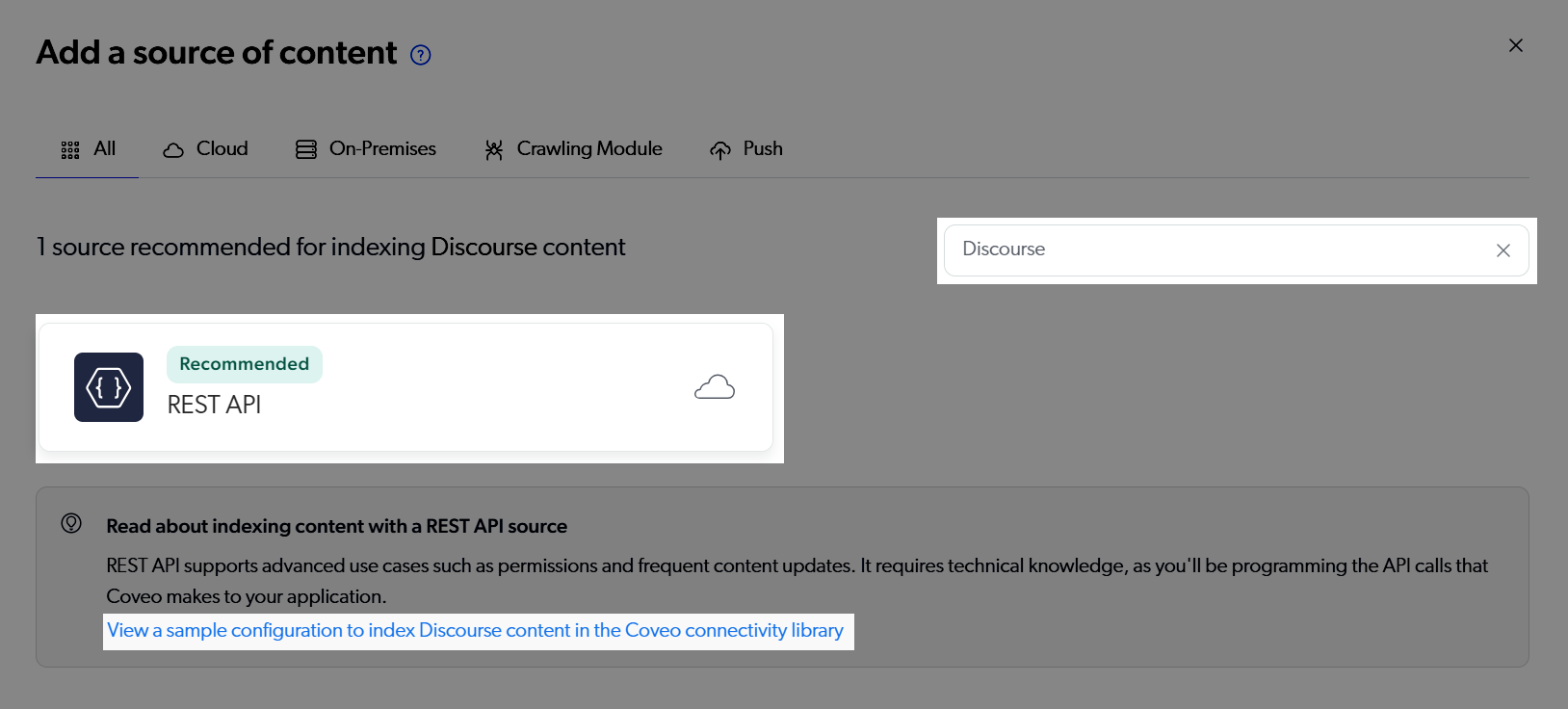
If you don't see the source type you need, try entering the name of your software in the search box.
Coveo will recommend source types that have proven successful in indexing that specific software, if applicable.
If Coveo recommends more than one option with the same name, see [Content retrieval methods](https://docs.coveo.com/en/1612/) for details.
See [Choosing the right connector](https://docs.coveo.com/en/1702#choosing-the-right-connector) and [Prepare to index content](https://docs.coveo.com/en/2680/) for more guidance on selecting the appropriate source type for your content.
**More on source recommendations**
Details
When you search for a software, Coveo recommends source types based on established indexing success with that software.
Coveo may also recommend a sample configuration from the [Coveo connectivity library](https://github.com/coveooss/connectivity-library/) for a recommended [generic source type](https://docs.coveo.com/en/1702#generic-connectors) (for example, [REST API](https://docs.coveo.com/en/1896/), [GraphQL API](https://docs.coveo.com/en/n6gh2329/)) to help you speed up the configuration process.
In such cases, the sample configuration has been tested to work with the software, though it will need some adjustments to meet your specific needs.
## Duplicate a source
If you intend to create two sources with a similar configuration, you should consider creating a source and then duplicating it.
The source duplication feature can save you time, especially if the source configuration involves many parameters.
Once your first source is duplicated, you can then edit the desired parameters in the source copy.
You can also use the duplication feature to rename a source, since source names can't be edited.
However, depending on your source size, this process may take several hours, as your new source will have to [build](https://docs.coveo.com/en/2712/) entirely.
. On the [**Sources**](https://platform.cloud.coveo.com/admin/#/orgid/content/sources/) ([platform-ca](https://platform-ca.cloud.coveo.com/admin/#/orgid/content/sources/) | [platform-eu](https://platform-eu.cloud.coveo.com/admin/#/orgid/content/sources/) | [platform-au](https://platform-au.cloud.coveo.com/admin/#/orgid/content/sources/)) page, click the source you want to duplicate, and then **Duplicate** in the **More** menu.
. In the **Duplicate a source** panel that appears, enter a source name for the copy, and then click **Duplicate source**.
. Back on the [**Sources**](https://platform.cloud.coveo.com/admin/#/orgid/content/sources/) ([platform-ca](https://platform-ca.cloud.coveo.com/admin/#/orgid/content/sources/) | [platform-eu](https://platform-eu.cloud.coveo.com/admin/#/orgid/content/sources/) | [platform-au](https://platform-au.cloud.coveo.com/admin/#/orgid/content/sources/)) page, once your new source has been added, edit it to make the desired changes.
. [Build your new source](#refresh-rescan-or-rebuild-sources).
### About saving options
When editing a source, you typically have two options to save your changes: **Save** and **Save and rebuild source**.
Because a source with several million items may take weeks to rebuild, you should choose **Save** whenever possible to avoid unnecessary operations in the [Coveo Platform](https://docs.coveo.com/en/186/) and your content system.
Click **Save** when:
* Your changes don't affect the indexed content.
For example, changes relative to the source credentials don't require a rebuild to take effect.
* You plan to make additional changes to the source configuration soon.
Then, back on the [**Sources**](https://platform.cloud.coveo.com/admin/#/orgid/content/sources/) ([platform-ca](https://platform-ca.cloud.coveo.com/admin/#/orgid/content/sources/) | [platform-eu](https://platform-eu.cloud.coveo.com/admin/#/orgid/content/sources/) | [platform-au](https://platform-au.cloud.coveo.com/admin/#/orgid/content/sources/)) page, click **Launch rebuild** when you're ready to make the changes effective. Alternatively, you can wait for the next [scheduled source rebuild](https://docs.coveo.com/en/1933/) to take place.
Click **Save and rebuild source** when:
* Your changes will impact the indexed content items.
For example, if you change the source URL, different items will be indexed.
So, you must rebuild the source to apply this change.
* You want your changes to be effective as soon as possible.
## Delete a source
Deleting a source removes all of its indexed content from your Coveo organization.
This operation can't be undone.
> **Tip**
>
> If possible, delete sources during off-peak hours, when your Coveo index is less busy with user queries.
. On the [**Sources**](https://platform.cloud.coveo.com/admin/#/orgid/content/sources/) ([platform-ca](https://platform-ca.cloud.coveo.com/admin/#/orgid/content/sources/) | [platform-eu](https://platform-eu.cloud.coveo.com/admin/#/orgid/content/sources/) | [platform-au](https://platform-au.cloud.coveo.com/admin/#/orgid/content/sources/)) page, click the source that you want to delete, and then **Delete** in the **More** menu.
. Click **Delete source** to confirm.
Alternatively, from the source configuration panel, click the **Manage source** menu and select **Delete**.

## View the metadata of a source
The **View and map metadata** subpage displays the metadata of your source items in a user-friendly format.
To access this tool, select a source on the [**Sources**](https://platform.cloud.coveo.com/admin/#/orgid/content/sources/) ([platform-ca](https://platform-ca.cloud.coveo.com/admin/#/orgid/content/sources/) | [platform-eu](https://platform-eu.cloud.coveo.com/admin/#/orgid/content/sources/) | [platform-au](https://platform-au.cloud.coveo.com/admin/#/orgid/content/sources/)) page, and then click **More** > **View and map metadata** in the Action bar.
You can use the **View and map metadata** subpage to:
* Explore the metadata of your source items, such as the title, body, date, and author.
* Verify that your source items have the correct metadata and mapping rules.
* [Add missing metadata](https://docs.coveo.com/en/o3ca0547/) to your index.
See [View the metadata of a source](https://docs.coveo.com/en/m9ti0339/) for details on this feature.
## Refresh, rescan, or rebuild sources
You can manually launch an update operation ([refresh](https://docs.coveo.com/en/2710/), [rescan](https://docs.coveo.com/en/2711/), or [rebuild](https://docs.coveo.com/en/2712/)) to ensure that the content displayed in your search interface reflects your actual content.
See [Refresh, rescan, and rebuild](https://docs.coveo.com/en/2039/) for details on each operation.
This is useful when you want to ensure that the content is up to date following a change in the source.
**Examples**
* Your coworker just imported many articles into your knowledge base system.
Instead of waiting for the next schedule update operation, you manually launch a rescan of your knowledge base source.
As a result, the content is indexed and available in your search interface sooner.
* You edit a field option and want this option to apply immediately to all items in the source.
You manually launch a rebuild operation.
. On the [**Sources**](https://platform.cloud.coveo.com/admin/#/orgid/content/sources/) ([platform-ca](https://platform-ca.cloud.coveo.com/admin/#/orgid/content/sources/) | [platform-eu](https://platform-eu.cloud.coveo.com/admin/#/orgid/content/sources/) | [platform-au](https://platform-au.cloud.coveo.com/admin/#/orgid/content/sources/)) page, click the source that you want to update.
. Click the desired update operation in the Action bar or the **More** menu.
You can follow and review updates in the [Activity panel](#review-the-activity-of-a-source).
## Pause a source update
Most sources support pausing an ongoing [rescan](https://docs.coveo.com/en/2711/) or [rebuild](https://docs.coveo.com/en/2712/).
This can be done on the [**Sources**](https://platform.cloud.coveo.com/admin/#/orgid/content/sources/) ([platform-ca](https://platform-ca.cloud.coveo.com/admin/#/orgid/content/sources/) | [platform-eu](https://platform-eu.cloud.coveo.com/admin/#/orgid/content/sources/) | [platform-au](https://platform-au.cloud.coveo.com/admin/#/orgid/content/sources/)) page by selecting the source, and then **Pause Rescan/Rebuild** in the **More** menu.
Changes in the source configuration or source-related resources (for example, mappings, fields) that occur while an update is paused are taken into account when the operation is resumed.
A source update can also be paused when there's an issue with the source or with Coveo.
Once the update is either resumed and completed, or canceled, your source proceeds with any [pending updates](#review-pending-updates).
The update operation is automatically canceled after 7 days.
## Review pending updates
A source update operation is pending when it can't be executed yet due to another operation already taking place.
For example, if you launch a [rebuild](https://docs.coveo.com/en/2712/) while a scheduled [refresh](https://docs.coveo.com/en/2710/) is ongoing, your rebuild will only take place once the refresh is completed.
You can see pending updates either in the [**Activity** panel](https://docs.coveo.com/en/1969/) or the [**Activity Browser**](https://platform.cloud.coveo.com/admin/#/orgid/activity/browser/) ([platform-ca](https://platform-ca.cloud.coveo.com/admin/#/orgid/activity/browser/) | [platform-eu](https://platform-eu.cloud.coveo.com/admin/#/orgid/activity/browser/) | [platform-au](https://platform-au.cloud.coveo.com/admin/#/orgid/activity/browser/)).
## Copy a source name or ID
You can copy the name or ID of a source to use it in other parts of the Coveo Platform, including the [Coveo Platform API](https://platform.cloud.coveo.com/docs?urls.primaryName=Source).
To do so, on the [**Sources**](https://platform.cloud.coveo.com/admin/#/orgid/content/sources/) ([platform-ca](https://platform-ca.cloud.coveo.com/admin/#/orgid/content/sources/) | [platform-eu](https://platform-eu.cloud.coveo.com/admin/#/orgid/content/sources/) | [platform-au](https://platform-au.cloud.coveo.com/admin/#/orgid/content/sources/)) page, click [copy16px] next to the source name.

## Browse the content of a source
You can review the content of a source using the [Content Browser](https://docs.coveo.com/en/2053/).
. On the [**Sources**](https://platform.cloud.coveo.com/admin/#/orgid/content/sources/) ([platform-ca](https://platform-ca.cloud.coveo.com/admin/#/orgid/content/sources/) | [platform-eu](https://platform-eu.cloud.coveo.com/admin/#/orgid/content/sources/) | [platform-au](https://platform-au.cloud.coveo.com/admin/#/orgid/content/sources/)) page, click the source that you want to inspect, and then click **More** > **Open in Content Browser** in the Action bar.
On the [**Content Browser**](https://platform.cloud.coveo.com/admin/#/orgid/content/browser/) ([platform-ca](https://platform-ca.cloud.coveo.com/admin/#/orgid/content/browser/) | [platform-eu](https://platform-eu.cloud.coveo.com/admin/#/orgid/content/browser/) | [platform-au](https://platform-au.cloud.coveo.com/admin/#/orgid/content/browser/)) page, your source is automatically selected in the **Source** facet so that only the corresponding items appear in the search results.
. Use the Content Browser features to [inspect your source content](https://docs.coveo.com/en/2053/).
Alternatively, from the source configuration panel, click the **Manage source** menu and select **Open in Content Browser**.

## Review the activity of a source
As part of your duties, you may need to review [activities](https://docs.coveo.com/en/173/) related to sources for investigation or troubleshooting purposes.
To do so, in the upper-right corner of the [**Sources**](https://platform.cloud.coveo.com/admin/#/orgid/content/sources/) ([platform-ca](https://platform-ca.cloud.coveo.com/admin/#/orgid/content/sources/) | [platform-eu](https://platform-eu.cloud.coveo.com/admin/#/orgid/content/sources/) | [platform-au](https://platform-au.cloud.coveo.com/admin/#/orgid/content/sources/)) page, click [clock].
To do so, on the [**Sources**](https://platform.cloud.coveo.com/admin/#/orgid/content/sources/) ([platform-ca](https://platform-ca.cloud.coveo.com/admin/#/orgid/content/sources/) | [platform-eu](https://platform-eu.cloud.coveo.com/admin/#/orgid/content/sources/) | [platform-au](https://platform-au.cloud.coveo.com/admin/#/orgid/content/sources/)) page, select a source, and then click **Activity** in the Action bar.
Expanding a source update row reveals additional information on the operation, including:
* **Items added**: Items indexed for the first time.
* **Items unchanged**: Items that were already in the index and that didn't change since the last source update.
* **Items processed**: Items retrieved by the [crawler](https://docs.coveo.com/en/2121/).
If they meet the source filter criteria, they're indexed.
If not, they're filtered out.
* **Items filtered**: Items retrieved by the crawler that didn't meet the source filter criteria and therefore weren't indexed.
* **Items updated**: Items that have already been indexed in the past and that have been updated in your content system since last source update.
## Download source update logs
Should you need more information about an ongoing or completed [source update operation](https://docs.coveo.com/en/2039/), you can download logs of the desired [activity](https://docs.coveo.com/en/173/).
Log files provide a detailed account of the update process, including any warning or error that hinders part or all the update operation.
Information in update logs is nonsensitive.
This is information related to the authentication process, content expansion, and item filtering, among other things.
For a [per-item breakdown of the source update operation](https://docs.coveo.com/en/1864/), check the [**Log Browser**](https://platform.cloud.coveo.com/admin/#/orgid/logs/browser/) ([platform-ca](https://platform-ca.cloud.coveo.com/admin/#/orgid/logs/browser/) | [platform-eu](https://platform-eu.cloud.coveo.com/admin/#/orgid/logs/browser/) | [platform-au](https://platform-au.cloud.coveo.com/admin/#/orgid/logs/browser/)) instead.
On the [**Sources**](https://platform.cloud.coveo.com/admin/#/orgid/content/sources/) ([platform-ca](https://platform-ca.cloud.coveo.com/admin/#/orgid/content/sources/) | [platform-eu](https://platform-eu.cloud.coveo.com/admin/#/orgid/content/sources/) | [platform-au](https://platform-au.cloud.coveo.com/admin/#/orgid/content/sources/)) page, click the desired source, and then click **Open in Log Browser** in the **More** menu.
Alternatively, from the source configuration panel, click the **Manage source** menu and select **Open in Log Browser**.

To download an update log
. On the [**Sources**](https://platform.cloud.coveo.com/admin/#/orgid/content/sources/) ([platform-ca](https://platform-ca.cloud.coveo.com/admin/#/orgid/content/sources/) | [platform-eu](https://platform-eu.cloud.coveo.com/admin/#/orgid/content/sources/) | [platform-au](https://platform-au.cloud.coveo.com/admin/#/orgid/content/sources/)) page, click the desired resource, and then click **Activity** in the Action bar.
. In the **Activity** panel that opens, click the desired activity, and then click **Download logs** in the Action bar.
The downloaded file is named after the unique operation ID representing the selected activity.
To locate issue root causes in logs
. Open the log file in a text file viewer.
. Look for `WARN`,`ERROR`, and `FATAL` messages.

> **Tip**
>
> Use a log file viewer that supports highlighting by log level to make these messages more noticeable.
. If necessary, review `NOTICE` and `INFO` messages.
They sometimes reveal a configuration that you overlooked and that may be causing the issue.

See [Ways to review activity](https://docs.coveo.com/en/1969#ways-to-review-activity) for alternative ways to access this information.
## Subscribe to notifications
You can subscribe to source [notifications](https://docs.coveo.com/en/221/) to get an email when certain activities are triggered by a specific source, or when certain activities linked to a source occur.
. On the [**Sources**](https://platform.cloud.coveo.com/admin/#/orgid/content/sources/) ([platform-ca](https://platform-ca.cloud.coveo.com/admin/#/orgid/content/sources/) | [platform-eu](https://platform-eu.cloud.coveo.com/admin/#/orgid/content/sources/) | [platform-au](https://platform-au.cloud.coveo.com/admin/#/orgid/content/sources/)) page, click the desired source.
. In the Action bar, click **More**, and then select one of the following:
** **Subscribe to email notifications**
** **Edit email notifications**
. In the panel that appears, enter a name for your subscription.
. Select the frequency at which you want to receive emails.
. Under **Resource types**, select the [resource](https://docs.coveo.com/en/2820/) types you're interested in.
. Under **Operations**, select the desired operations that apply to the selected resource types.
. If you selected updated operations and want to be notified only when these operations aren't successful, select **Failed** under **Result**.
. Click **Save**.
## Required privileges
The following table indicates the privileges required for members to view or edit elements of the [**Sources**](https://platform.cloud.coveo.com/admin/#/orgid/content/sources/) ([platform-ca](https://platform-ca.cloud.coveo.com/admin/#/orgid/content/sources/) | [platform-eu](https://platform-eu.cloud.coveo.com/admin/#/orgid/content/sources/) | [platform-au](https://platform-au.cloud.coveo.com/admin/#/orgid/content/sources/)) page and associated panels.
See [Manage privileges](https://docs.coveo.com/en/3151/) and [Privilege reference](https://docs.coveo.com/en/1707/) for details.
> **Note**
>
> The **Edit all** privilege isn't required to create sources.
> When granting privileges for the [Sources](https://docs.coveo.com/en/1707#sources-domain) domain, you can grant a group or API key the **View all** or [**Custom**](https://docs.coveo.com/en/3151#custom-access-level) access level, instead of **Edit all**, and then select the **Can Create** checkbox to allow users to create sources.
> See [Can Create ability dependence](https://docs.coveo.com/en/3151#can-create-ability-dependence) for more information.
[%header,cols="50%, 18%, 20%, 25%"]
|===
|Actions
|Service
|Domain
|Required access level
.3+|View sources, view source update schedules, and subscribe to source notifications
.2+|Content
|Fields
.3+|View
|Sources
|Organization
|Organization
.3+|Edit sources, edit source update schedules, and edit source mappings
|Organization
|Organization
|View
.2+|Content
|Fields
.2+|Edit
|Sources
.4+|View and map metadata
.2+|Content
|Source metadata
.3+|View
|Fields
|Organization
|Organization
|Content
|Sources
|Edit
|===
Moreover, the following table lists privileges you can grant in addition to the required ones in the previous tables.
These privileges aren't required to use the basic features of the **Sources** page, but they're required to perform specific actions.
[%header,cols="50%, 18%, 20%, 25%"]
|===
|Action
|Service
|Domain
|Required access level
|When creating or editing a source, select the [Crawling Module](https://docs.coveo.com/en/3260/) instance to pair with this source
|Content
|Crawling Module
|View
|Manage the [Extensions](https://docs.coveo.com/en/1645/) of a source
|Content
|Extensions
|Custom or Edit all
.2+|[Access the Activity Browser and view all organization activities](https://docs.coveo.com/en/1969/)
.2+|Organization
|Activities
.2+|View
|Organization
.3+|[Download source update logs](#download-source-update-logs)
|Content
|Connectivity diagnostic logs
.3+|View
|Organization
|Activities
|Organization
|Organization
|===
> **Important**
>
> A member with the **View** access level on the **Activities** domain can access the [Activity Browser](https://docs.coveo.com/en/1969/).
> This member can therefore see all activities taking place in the organization, including those from Coveo Administration Console pages that they can't access.