---
title: Using pre-push extensions
slug: '3269'
canonical_url: https://docs.coveo.com/en/3269/
collection: index-content
source_format: adoc
---
# Using pre-push extensions
After you [create a Crawling Module source](https://docs.coveo.com/en/3267/), you may need to customize the way source items are indexed.
One way to do this is to use an _extension_, a Python script that you write and that runs for every item crawled by your source.
Coveo lets you apply extensions at two distinct stages of the indexing process:
* **On the Crawling Module host**:
This type of extension is called a [pre-push extension](https://docs.coveo.com/en/1438/) and is the topic of this article.
A pre-push extension is useful when you want to leverage data that's only available on your server to customize content indexing.
* **After your content is pushed to the [Coveo Platform](https://docs.coveo.com/en/186/)**:
This type of extension is called an [indexing pipeline extension (IPE)](https://docs.coveo.com/en/206/).
For details, see [Indexing Pipeline Extension Overview](https://docs.coveo.com/en/1556/).
This article details how to create and apply a pre-push extension to a Crawling Module source.
> **Important**
>
> * Before creating extensions, make sure the source configuration doesn't already provide the functionality you need.
>
> * Allowlist [https://pypi.org](https://pypi.org) in your security solution to enable the download of required Python modules.
>
> * Applying an extension to a source can significantly slow down content crawling.
## Apply a pre-push extension to a source
To apply a pre-push extension to a Crawling Module source:
* [Write a Python script](#write-the-python-script) that implements the logic you want to apply to crawled items.
* Reference the script in the `PrePushExtension` parameter of your source's JSON configuration.
**Instructions to set the `PrePushExtension` parameter**
Details
. On the [**Sources**](https://platform.cloud.coveo.com/admin/#/orgid/content/sources/) ([platform-ca](https://platform-ca.cloud.coveo.com/admin/#/orgid/content/sources/) | [platform-eu](https://platform-eu.cloud.coveo.com/admin/#/orgid/content/sources/) | [platform-au](https://platform-au.cloud.coveo.com/admin/#/orgid/content/sources/)) page, click the desired source, and then click **More** > **Edit configuration with JSON** in the Action bar.
. Click the `Parameters` tab located above the **JSON configuration** box.
. Add a comma (`,`) after the last parameter configuration, and then add the `PrePushExtension` parameter configuration with the value set to your script file name.
For example, if your script file name is `MyPrePushExtension.py`, you must add the following to the `parameters` section of your source JSON configuration:
```json
"PrePushExtension": {
"sensitive": false,
"value": "MyPrePushExtension.py"
}
```
The bottom of the JSON configuration box should now be similar to the following:
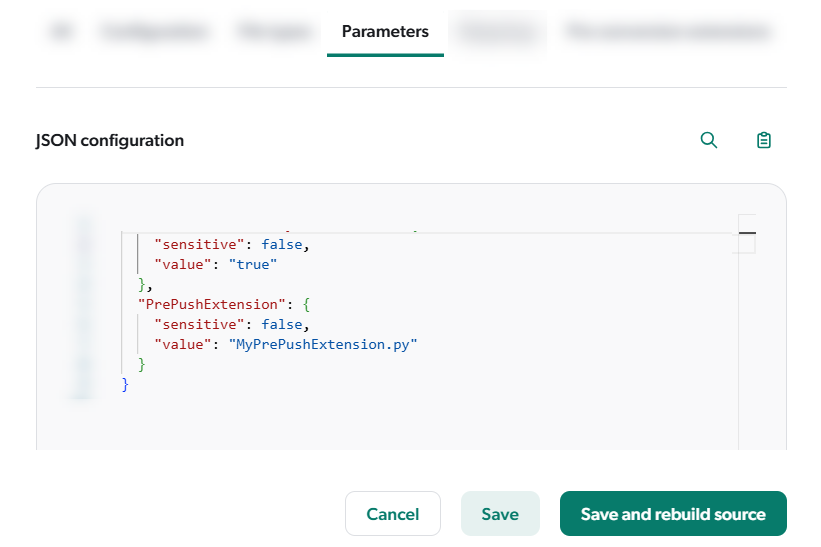
* Add your script's external dependencies to the [`requirements.txt` file](https://pip.pypa.io/en/stable/user_guide/#requirements-files) in the `C:\ProgramData\Coveo\Maestro\Python3PrePushExtensions` folder.
* Implement logging in your script, ideally to a subfolder under `C:\ProgramData\Coveo\Maestro\Logs`, to help with debugging.
See the provided [script examples](https://docs.coveo.com/en/pc3g8073/) for logging logic.
* Allowlist [https://pypi.org](https://pypi.org) in your security solution to enable the download of required Python modules.
## Write the Python script
A pre-push extension script must meet these requirements:
* It must be a [Python 3 script](https://docs.python.org/3/).
* Save it in the `C:\ProgramData\Coveo\Maestro\Python3PrePushExtensions` folder (`ProgramData` is hidden by default).
* Define a `do_extension` function that accepts the `body` argument and returns the modified `body`.
This argument is a JSON representation of the crawled item, for example:
```json
{
"DocumentId": "file:///c:/tmp/testdata/sample.txt",
"CompressionType": "ZLIB", <1>
"CompressedBinaryData": "eAELycgsVgCiRIWS1OISPQAplwUk", <1>
"clickableuri": "file:///C:/Tmp/TestData/sample.txt",
"date": "2022-05-04 15:07:39",
"Permissions": [{ <2>
"PermissionSets": [{
"AllowAnonymous": false,
"AllowedPermissions": [{
"IdentityType": "GROUP",
"SecurityProvider": "Email Security Provider",
"Identity": "*@*",
"AdditionalInfo": {}
}
]
}
]
}
],
"fileextension": "txt",
"connectortype": "FileCrawler",
"source": "File",
"collection": "File Collection",
"generateexcerpt": true,
"contenttype": "",
"originaluri": "file:///c:/tmp/testdata/sample.txt",
"printableuri": "file:///C:/Tmp/TestData/sample.txt",
"filename": "sample.txt",
"permanentid": "9a3a317a4e49c31962b969967c15e51477b0fd9ca33dceac76c94982593b",
"size": 15,
"compressedsize": 21,
"creationdate": "2022-05-04 15:07:23",
"lastaccessdate": "2023-07-04 19:07:49",
"folder": "C:\Tmp\TestData",
"fileowner": "COVEO\Bob",
"lastwritedate": "2022-05-04 15:07:39",
"parents": "",
"coveo_metadatasampling": 1
}
```
<1> To modify item data, base64-encode and compress the content, then set the `CompressionType` and `CompressedBinaryData` properties.
See the [Add item data](https://docs.coveo.com/en/3270/) example.
<2> Avoid modifying the `Permissions` property using a pre-push extension, as it may allow unauthorized access to content in your search interface.
> **Tip**
>
> The properties in the `body` JSON may vary by source type and configuration.
> To assist with script development, you can [log the current input JSON](https://docs.coveo.com/en/pc4g2155/) to a file for review.
The following shows a simple pre-push extension script template:
```python
# Import required Python libraries.
import sys
...
# Set up logging or other initial configurations.
log_folder = os.path.join(os.getenv('COVEO_LOGS_ROOT'), 'Extensions', os.getenv('SOURCE_ID','unknown')) <1>
...
# ------------------------------------------------------------------------
# Entry point for the extension. The do_extension function must be defined.
# ------------------------------------------------------------------------
def do_extension(body):
# Apply transformation logic and log actions.
...
return body
```
<1> The Coveo Crawling Module sets environment variables you can access in your script.
An extension script runs automatically during a source content update.
You can apply only one pre-push extension script per source.
However, that script can call multiple functions, including those in other Python files.
Coveo provides [sample scripts](https://docs.coveo.com/en/pc3g8073/) covering common use cases.
Use them as templates to build your own.
## Coveo pre-push extension environment variables
The Crawling Module sets the following environment variables:
[%header,cols="1,4"]
|===
|Variable
|Description
|`COVEO_LOGS_ROOT`
|Root folder for logging (usually `C:\ProgramData\Coveo\Maestro\Logs`).
|`ORGANIZATION_ID`
|The unique identifier of your [Coveo organization](https://docs.coveo.com/en/185/).
For example, `contosovequep8c`.
|`SOURCE_ID`
|The [unique identifier of the source](https://docs.coveo.com/en/3390#copy-a-source-name-or-id) currently being processed.
For example, `contosovequep8c-rki3drt6rgruxenppqst5kydxq`.
|`OPERATION_TYPE`
|Type of content operation currently being performed.
For example, `Rebuild`.
|`OPERATION_ID`
|Unique identifier of the current operation.
It's displayed in the activity details on the [**Activity Browser**](https://platform.cloud.coveo.com/admin/#/orgid/activity/browser/) ([platform-ca](https://platform-ca.cloud.coveo.com/admin/#/orgid/activity/browser/) | [platform-eu](https://platform-eu.cloud.coveo.com/admin/#/orgid/activity/browser/) | [platform-au](https://platform-au.cloud.coveo.com/admin/#/orgid/activity/browser/)) page.
For example, `b21f6712-f630-4b45-az94-158c1a9a05e3`.
|`CRAWLING_MODULE_ID`
|Unique identifier of the Crawling Module.
It's displayed on the [**Crawling Modules**](https://platform.cloud.coveo.com/admin/#/orgid/content/crawling-module/) ([platform-ca](https://platform-ca.cloud.coveo.com/admin/#/orgid/content/crawling-module/) | [platform-eu](https://platform-eu.cloud.coveo.com/admin/#/orgid/content/crawling-module/) | [platform-au](https://platform-au.cloud.coveo.com/admin/#/orgid/content/crawling-module/)) page.
For example, `contosovequep8c-47273014-aaa4-4fb3-a562-e08c2d761a31`.
|===
## Precautions when using pre-push extensions
Extensions can affect the performance of your source crawling.
If a script runs too long or encounters errors, items will be indexed without applying the script, which may cause unexpected results in your search interface.
> **Leading practice**
>
> Apply the extension to a [duplicate of your production source](https://docs.coveo.com/en/3390#duplicate-a-source) with a name that clearly indicates it's for testing purposes only.
> In this test source, [crawl only a small subset of content](https://docs.coveo.com/en/2992/) for faster debugging and to limit the log file size.
>
> Only after fully testing and validating the pre-push extension in the test source should you apply it to your production source.
## What's next?
Review the [pre-push extension examples](https://docs.coveo.com/en/pc3g8073/) to start writing your own extensions.