---
title: Create and manage in-product experiences
slug: '3160'
canonical_url: https://docs.coveo.com/en/3160/
collection: coveo-in-product-experience
source_format: adoc
---
# Create and manage in-product experiences
Coveo In-Product Experience (IPX) is a lightweight and feature-rich Coveo [search interface](https://docs.coveo.com/en/2741/) that you can quickly add to any of your websites and software-as-a-service (SaaS) applications.
The compact search interface is customizable and provides users with access to relevant content directly from your web pages.
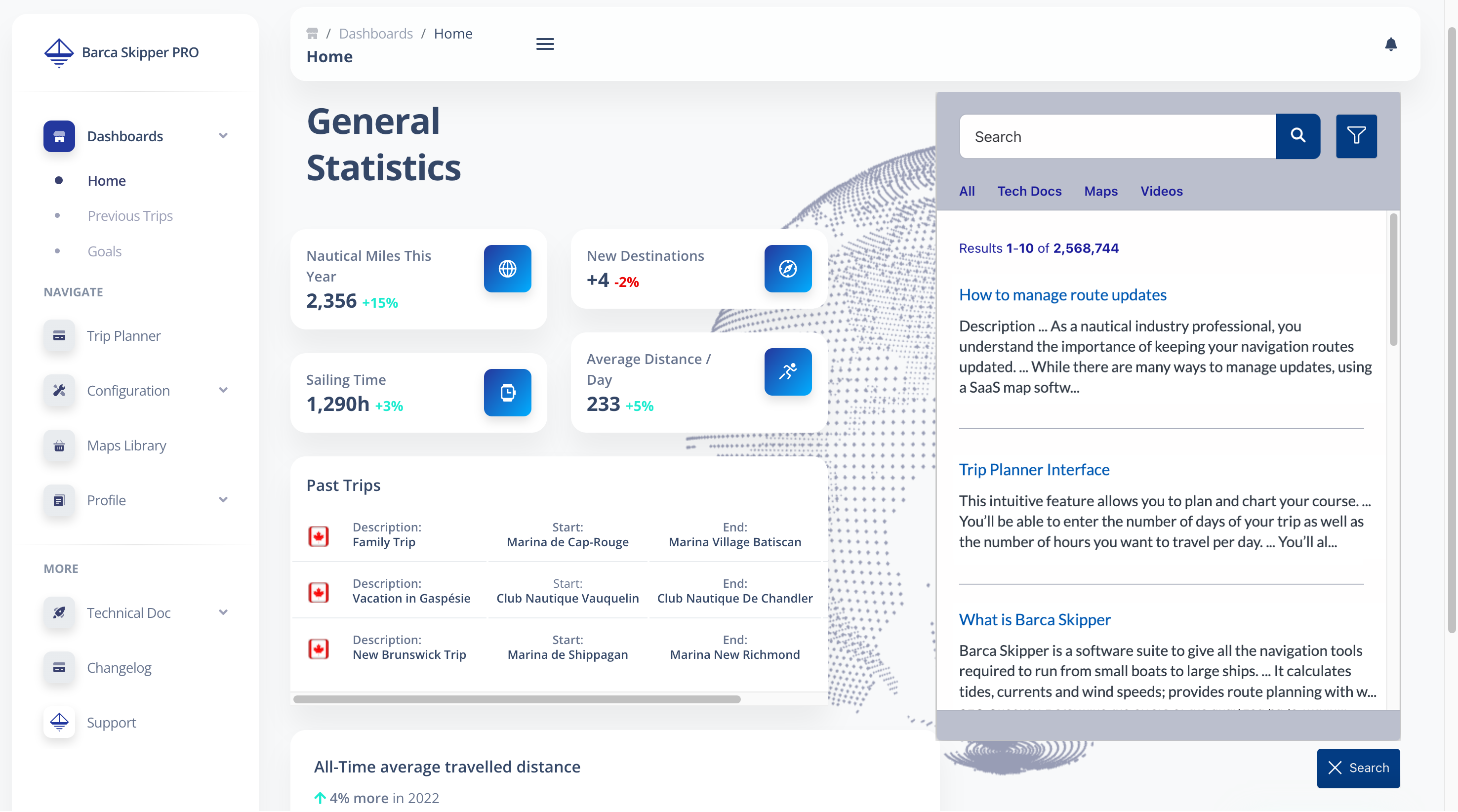
An IPX search interface automatically records [Coveo Analytics events](https://docs.coveo.com/en/260/).
This lets you enhance the relevance of search results in your IPX search interfaces using [Coveo Machine Learning (Coveo ML)](https://docs.coveo.com/en/188/).
Usage analytics events also let you generate [reports](https://docs.coveo.com/en/266/) to gain insight on how users are interacting with your IPX interfaces.
Typically, website users access the IPX search interface via a button on the web page.
However, you can configure your IPX interface so that it appears in a custom element on your website.
Both the IPX button and IPX search interface are customizable.
## Deploy an IPX interface (Overview)
To successfully deploy an IPX interface, ensure the following minimum requirements and configuration are met.
## Requirements
A [Coveo organization](https://docs.coveo.com/en/185/) with at least one [source](https://docs.coveo.com/en/246/) (preferably a source with content that's [accessible to everyone](https://docs.coveo.com/en/1779#everyone)).
> **Important**
>
> You can configure your IPX search interface to either use the same generic search token to authenticate all users, or a distinct search token for each authenticated user in your IPX search interface.
>
> A generic search token is meant to grant access to publicly available content only.
> This means that IPX users will only have access to indexed content that's accessible to everyone, while indexed content that's secured via a repository's permissions system won't appear in search results in IPX.
>
> However, you can use a distinct search token for each user if some or all of your indexed content is secured via a repository's permissions system.
> This means that each authenticated user sees only the secured content that they're allowed to access.
>
> For more information, see [Configure search token authentication](https://docs.coveo.com/en/n44d0184#configure-search-token-authentication).
### IPX configuration
. [Create your IPX interface](https://docs.coveo.com/en/3160#create-an-ipx-interface).
. [Optimize query pipelines and machine learning models for your IPX interface](https://docs.coveo.com/en/n4c90194/).
. [Add your IPX interface](https://docs.coveo.com/en/n44d0184/) to your website.
:leveloffset!:
## Create an IPX interface
You can create a next-gen IPX search interface using one of the following methods:
* [Create an IPX interface from scratch](#create-an-ipx-interface-from-scratch)
* [Create an IPX interface by duplicating an existing IPX configuration](#duplicate-an-ipx-configuration)
> **Note**
>
> The next-gen IPX search interface is Coveo's latest IPX solution, and it leverages Coveo's Headless and Atomic libraries.
>
> The previous version of the IPX search interface, which was based on the Coveo JavaScript Search Framework, is now referred to as the _legacy_ IPX interface.
> Coveo supports existing legacy IPX interfaces, but you can no longer create new IPX search interfaces using the legacy configuration.
> However, you can still [edit an existing legacy IPX interface](#edit-a-legacy-ipx-interface).
> Legacy IPX interface configurations appear with a **Legacy Editor** badge on the [**In-Product Experiences**](https://platform.cloud.coveo.com/admin/#/orgid/search/in-app-widgets/) ([platform-ca](https://platform-ca.cloud.coveo.com/admin/#/orgid/search/in-app-widgets/) | [platform-eu](https://platform-eu.cloud.coveo.com/admin/#/orgid/search/in-app-widgets/) | [platform-au](https://platform-au.cloud.coveo.com/admin/#/orgid/search/in-app-widgets/)) page.
>
> 
### Create an IPX interface from scratch
Create a new IPX search interface using the IPX builder.
> **Note**
>
> When you create an IPX search interface, the following recommended [query pipelines](https://docs.coveo.com/en/180/) and [Coveo ML](https://docs.coveo.com/en/188/) [models](https://docs.coveo.com/en/1012/) are automatically created for your IPX configuration:
>
> * A **_search_** query pipeline with associated [Automatic Relevance Tuning (ART)](https://docs.coveo.com/en/1013/) and [Query Suggestion (QS)](https://docs.coveo.com/en/1015/) [models](https://docs.coveo.com/en/1012/).
> This [query pipeline](https://docs.coveo.com/en/180/) is used to process user queries from your IPX search interface to enhance the relevance of search results.
>
> * A **_recommendation_** query pipeline with an associated [IPX Recommendation (IPXRECS)](https://docs.coveo.com/en/p6hh0418/) [model](https://docs.coveo.com/en/1012/).
> This [query pipeline](https://docs.coveo.com/en/180/) is used solely for the [IPXRECS](https://docs.coveo.com/en/p6hh0418/) [model](https://docs.coveo.com/en/1012/) to provide relevant content recommendations in your IPX search interface.
>
> The [query pipelines](https://docs.coveo.com/en/180/) and [models](https://docs.coveo.com/en/1012/) are created using default settings, and are fully functional with your IPX configuration.
> However, Coveo highly recommends that you [optimize your IPX query pipelines and models](https://docs.coveo.com/en/n4c90194/) to enhance the user experience.
> For more details, see the [automatic query pipeline and model configuration](https://docs.coveo.com/en/n4c90194#automatic-query-pipeline-configuration).
. On the [**In-Product Experiences**](https://platform.cloud.coveo.com/admin/#/orgid/search/in-app-widgets/) ([platform-ca](https://platform-ca.cloud.coveo.com/admin/#/orgid/search/in-app-widgets/) | [platform-eu](https://platform-eu.cloud.coveo.com/admin/#/orgid/search/in-app-widgets/) | [platform-au](https://platform-au.cloud.coveo.com/admin/#/orgid/search/in-app-widgets/)) page, click **Add in-product experience**.
. In the **Add an In-Product Experience (IPX)** panel, select **Simple builder**.
. Enter a descriptive **Name** for your IPX configuration.
> **Important**
>
> The name that you choose for your IPX configuration will also be used as the [search hub](https://docs.coveo.com/en/1342/) value for your IPX interface.
> The search hub value is the identifier for your IPX interface that's used for query pipeline routing, usage analytics reporting, and enabling Coveo Machine Learning features.
> The IPX name and search hub value can't be modified once the IPX configuration is created.
. (Optional) Use the **Project** selector to associate your IPX search interface with one or more [projects](https://docs.coveo.com/en/n7ef0517/).
> **Note**
>
> After the creation of your IPX search interface, you can update your Coveo project selection under the **Overview** tab.
. Click **Add**.
The IPX builder opens.
> **Note**
>
> You may be required to log in to the builder using the credentials you used to log in to the [Coveo Administration Console](https://docs.coveo.com/en/183/).
. [Customize your IPX interface](#customize-an-ipx-interface).
### Duplicate an IPX configuration
Create a new IPX search interface by duplicating an existing IPX configuration.
This is useful when you want to quickly create a new IPX configuration that's similar to an existing one.
Duplicating an IPX configuration creates a new IPX search interface configuration with the same settings as the original IPX configuration, except for the search hub value and loader script, which are unique to every IPX configuration.
> **Note**
>
> The new IPX configuration doesn't inherit the [version history](#manage-version-history) of the original IPX configuration.
If the IPX configuration that you want to duplicate includes [automatically created query pipelines and Coveo ML models](https://docs.coveo.com/en/n4c90194#automatic-query-pipeline-configuration), the [query pipelines](https://docs.coveo.com/en/180/) and [models](https://docs.coveo.com/en/1012/) are also duplicated with the same settings.
For more information, see [What gets created when duplicating an IPX](#what-gets-created-when-duplicating-an-ipx).
To duplicate an IPX configuration
. On the [**In-Product Experiences**](https://platform.cloud.coveo.com/admin/#/orgid/search/in-app-widgets/) ([platform-ca](https://platform-ca.cloud.coveo.com/admin/#/orgid/search/in-app-widgets/) | [platform-eu](https://platform-eu.cloud.coveo.com/admin/#/orgid/search/in-app-widgets/) | [platform-au](https://platform-au.cloud.coveo.com/admin/#/orgid/search/in-app-widgets/)) page, click the IPX configuration that you want to duplicate.
. In the Action bar, click **Duplicate**.
. Enter a descriptive **Name** for your IPX configuration.
> **Important**
>
> The name that you choose for your IPX configuration will also be used as the [search hub](https://docs.coveo.com/en/1342/) value for your IPX interface.
> The search hub value is the identifier for your IPX interface that's used for query pipeline routing, usage analytics reporting, and enabling Coveo Machine Learning features.
> The IPX name and search hub value can't be modified once the IPX configuration is created.
. Click **Duplicate**.
The new IPX configuration is created.
Depending on the configuration of the original IPX, the corresponding [query pipelines](https://docs.coveo.com/en/180/) and [models](https://docs.coveo.com/en/1012/) may also be created (see [What gets created when duplicating an IPX](#what-gets-created-when-duplicating-an-ipx)).
. If required, [edit the configuration](#customize-an-ipx-interface) of the newly created IPX.
#### What gets created when duplicating an IPX
This section lists what gets created when duplicating an IPX configuration.
* A new IPX search interface configuration is created with the same settings in the IPX builder as the original IPX configuration, except for the search hub value and loader script, which are unique to every IPX configuration.
For more information see, [Access the IPX search hub value and loader script](#access-the-ipx-search-hub-value-and-loader-script).
* If the IPX that you choose to duplicate uses [query pipelines and Coveo ML models that were automatically configured](https://docs.coveo.com/en/n4c90194#automatic-query-pipeline-configuration), new query pipelines and models are created for your new IPX configuration as follows:
** For every [query pipeline](https://docs.coveo.com/en/180/) that was automatically created for the original IPX configuration, a new [query pipeline](https://docs.coveo.com/en/180/) is created.
The new [query pipeline](https://docs.coveo.com/en/180/) has the same settings as the original [query pipeline](https://docs.coveo.com/en/180/), except for the [query pipeline](https://docs.coveo.com/en/180/) condition.
The new condition is based on the new IPX configuration name.
For more information, see [Automatic query pipeline configuration](https://docs.coveo.com/en/n4c90194#automatic-query-pipeline-configuration).
** For each new [query pipeline](https://docs.coveo.com/en/180/) that's created, an associated [model](https://docs.coveo.com/en/1012/) in the original [query pipeline](https://docs.coveo.com/en/180/) that was automatically created is duplicated too.
The new [model](https://docs.coveo.com/en/1012/) is created with the same settings as the original model, and is associated with the new [query pipeline](https://docs.coveo.com/en/180/).
> **Notes**
>
> * If the original [query pipeline](https://docs.coveo.com/en/180/) included an association with a [model](https://docs.coveo.com/en/1012/) that wasn't created automatically, the new query pipeline inherits the [model](https://docs.coveo.com/en/1012/) association, but that [model](https://docs.coveo.com/en/1012/) won't be duplicated.
> In this case, that same [model](https://docs.coveo.com/en/1012/) is associated with both [query pipelines](https://docs.coveo.com/en/180/).
> Only models that were automatically created are duplicated.
>
> * The [query pipelines](https://docs.coveo.com/en/180/) and [models](https://docs.coveo.com/en/1012/) are created using the naming convention detailed in [Automatic query pipeline configuration](https://docs.coveo.com/en/n4c90194#automatic-query-pipeline-configuration).
**Example**
You want to duplicate the `IPX Workplace` IPX configuration that uses the following query pipelines and models:
* A `Search pipeline - IPX Workplace` query pipeline that was automatically created, and that has the following model associations:
** `ART model - IPX Workplace` (automatically created [ART](https://docs.coveo.com/en/1013/) [model](https://docs.coveo.com/en/1012/))
** `QS model - IPX Workplace` (automatically created [QS](https://docs.coveo.com/en/1015/) [model](https://docs.coveo.com/en/1012/))
** `IPX DNE` (manually created [DNE](https://docs.coveo.com/en/2907/) [model](https://docs.coveo.com/en/1012/)).
* A `Recommendation pipeline - IPX Workplace` query pipeline with an associated `IPXRECS model - IPX Workplace` [model](https://docs.coveo.com/en/1012/), which were both automatically created.
Duplicating `IPX Workplace`, and naming the new IPX configuration `New IPX Workplace`, results in the following:
* A new IPX search interface configuration named `New IPX Workplace` that has the same settings in the IPX builder as the original IPX configuration, except for the search hub value and loader script.
* New `ART model - New IPX Workplace`, `QS model - New IPX Workplace`, and `IPXRECS model - New IPX Workplace` [models](https://docs.coveo.com/en/1012/) that inherit the same settings as the original models.
* A new `Search pipeline - New IPX Workplace` query pipeline with associated `ART model - New IPX Workplace`, `QS model - New IPX Workplace`, and `IPX DNE` [models](https://docs.coveo.com/en/1012/).
The `IPX DNE` [model](https://docs.coveo.com/en/1012/) isn't duplicated as it wasn't created automatically, but the new query pipeline maintains the model association of the original query pipeline.
* A new `Recommendation pipeline - New IPX Workplace` query pipeline with an associated `IPXRECS model - New IPX Workplace` [model](https://docs.coveo.com/en/1012/).
## Customize an IPX interface
This section details how to set up and customize an IPX search interface using the IPX builder.
> **Tip**
>
> The builder maintains a [version history](#manage-version-history) of your configuration.
> A new version is generated every time you save changes in the builder, and you can restore a previous version of your configuration.
> **Note**
>
> To edit a legacy IPX interface, see [Edit a legacy IPX interface](#edit-a-legacy-ipx-interface).
From the IPX builder, you can:
* [Manage result templates](#manage-result-templates)
* [Enable Quick view](#enable-quick-view)
* [Manage facets](#manage-facets)
* [Manage tabs](#manage-tabs)
* [Set interface colors and text](#set-interface-colors-and-text)
* [Set IPX placement](#set-ipx-placement)
* [Configure a footer](#configure-a-footer)
* [Enable Smart Snippets](#enable-or-disable-smart-snippets)
* [Enable Relevance Generative Answering (RGA)](#enable-relevance-generative-answering-rga)
* [Access the IPX search hub value and loader script](#access-the-ipx-search-hub-value-and-loader-script)
* [View, manage, and restore earlier versions of your IPX search interface configuration](#manage-version-history)
> **Note**
>
> The IPX search interface lists a maximum of 5 item recommendations.
> If there are less than 5 recommendations available for the given URL, only the available recommendations are shown.
### Access the IPX builder
The IPX builder lets you customize an IPX search interface configuration.
After you create an IPX interface, you can access its configuration settings at any time.
> **Note**
>
> To edit a legacy IPX interface, see [Edit a legacy IPX interface](https://docs.coveo.com/en/3160#edit-a-legacy-ipx-interface).
. On the [**In-Product Experiences**](https://platform.cloud.coveo.com/admin/#/orgid/search/in-app-widgets/) ([platform-ca](https://platform-ca.cloud.coveo.com/admin/#/orgid/search/in-app-widgets/) | [platform-eu](https://platform-eu.cloud.coveo.com/admin/#/orgid/search/in-app-widgets/) | [platform-au](https://platform-au.cloud.coveo.com/admin/#/orgid/search/in-app-widgets/)) page, click the IPX configuration that you want to edit.
. Click **Edit** in the Action bar.
You may be required to log in to the builder using the credentials you used to log in to the [Coveo Administration Console](https://docs.coveo.com/en/183/).
#### Live builder preview
The IPX builder includes a live preview that automatically updates based on the configuration options.
Besides showing you how your IPX interface looks, the preview is also fully interactive so you can perform actions such as searches, click search results, and open and close the IPX interface.
Use the preview to see your IPX interface customizations and functionality in real time.

### Manage result templates
Result templates set how individual query results appear in the search interface based on certain conditions.
For example, you can display results for PDFs and web pages differently.
You can:
* [Create and edit result templates](#create-and-edit-result-templates)
* [Reorder result templates](#reorder-result-templates)
* [Delete a result template](#delete-a-result-template)
Result templates are evaluated in the order they appear on the **Search results display** tab.
This means that if a query result meets the conditions found in multiple templates, the first applicable template in the list is used.
#### Create and edit result templates
. [In the IPX builder](#access-the-ipx-builder), select the **Search results display** tab.
. Do one of the following:
** To create a new template, click **Add template**.
** Click the result template that you want to edit.
. Specify the template settings:
** Enter a descriptive **Name** for your template.
** Under **Usage**, set the conditions for when to use the template:
... Click **Add condition** to add a new condition, or click an existing condition that you want to edit.
... In the **Select a field** dropdown menu, select the desired field (for example, `source`).
... In the **Select a condition** dropdown menu, select the desired operator (for example, `Must match`).
... In the **Values** field, specify at least one value (for example, `YouTube`).
Use a comma-separated list to specify multiple values.
... Click **Done** to apply your changes.
** Under **Colored badge**, select what's displayed for the colored badge above the search result:
... Select a field to show its data in the badge.

... Select a color for the badge.
** Under **Additional information**, set the information to display below the search result:
... Click **Add details** to add new information, or click the existing information that you want to edit.
... Select a field to display the corresponding [metadata](https://docs.coveo.com/en/218/) value.

... (Optional) To include a label for the selected field, select the **Include label** checkbox, and then enter a custom label or keep the default field name.
... Click **Done** to apply your changes.
> **Tip**
>
> Change the order in which the information appears by clicking [move] to drag a details card to its new location in the list.
. Click **Done** to save the result template.
. Click **Save** at the upper-right corner of the builder to save your IPX interface.
#### Reorder result templates
Result templates are evaluated in the order they appear on the **Search results display** tab.
This means that if a query result meets the conditions found in multiple templates, the first applicable template in the list is used.
> **Note**
>
> The **Default** template can't be reordered.
. [In the IPX builder](#access-the-ipx-builder), select the **Search results display** tab.
. In the **Result templates** section, click [move] on a template card to drag it to its new location in the list.
. Click **Save** at the upper-right corner of the builder to save your IPX interface.
#### Delete a result template
. [In the IPX builder](#access-the-ipx-builder), select the **Search results display** tab.
. In the **Result templates** section, click the result template you want to delete.
. Click **Delete**.
. Click **Delete** again to confirm the action.
### Enable Quick view
The Quick view feature adds a  button to each search result.
Clicking the button opens a modal window that contains the body of the search result.
This lets users preview a search result without leaving the current page.

To enable Quick view
. [In the IPX builder](#access-the-ipx-builder), select the **Search results display** tab.
. Select the **Quick view** checkbox.
### Manage facets
When [facets](https://docs.coveo.com/en/198/) are enabled, a **Filters** button appears at the top of the search interface.

Clicking the **Filters** button shows the **Filters** screen where the configured facets appear as filter categories.

> **Note**
>
> By default, an IPX configuration includes the **Source**, **Author**, and **Item Type** facets.
You can:
* [Enable or disable facets](#enable-or-disable-facets)
* [Create and edit facets](#create-and-edit-facets)
* [Reorder facets](#reorder-facets)
* [Delete a facet](#delete-a-facet)
#### Enable or disable facets
When facets are enabled, a **Filters** button appears at the top of the search interface that, when clicked, shows the **Filters** screen with the configured facets.

> **Important**
>
> All existing facets will be permanently deleted if you disable facets and then click **Save** at the upper-right corner of the builder to save your interface.
. [In the IPX builder](https://docs.coveo.com/en/3160#access-the-ipx-builder), select the **Filtering options** tab.
#### Create and edit facets
. [In the IPX builder](https://docs.coveo.com/en/3160#access-the-ipx-builder), select the **Filtering options** tab.
. Select the **Filtering options** tab.
. Do one of the following:
** To create a new facet, click **Add facet**.
** Click the facet that you want to edit.
. Specify the facet settings:
** Select the **Field** to use for the facet (for example, `year` or `documenttype`).
** Enter the **Name to display** for the facet in the search interface.
** Depending on the selected field, a **Display** section may appear.
If so, select whether to display the facet options **As checkboxes** or **As links**.
. Click **Done** to apply your changes.
. Click **Save** at the upper-right corner of the builder to save your interface.
#### Reorder facets
. [In the IPX builder](https://docs.coveo.com/en/3160#access-the-ipx-builder), select the **Filtering options** tab.
. In the **Facets** section, perform one of the following tasks:
* To reorder facets and their values based on a user's query so that the most relevant options appear at the top, select the **Use dynamic navigation** checkbox.
> **Tip**
>
> You can enable this option in advance even if you haven't yet created a [DNE](https://docs.coveo.com/en/2907/) model or associated it with your main query pipeline.
> However, without a properly configured [DNE](https://docs.coveo.com/en/2907/) model, this option has no effect.
>
> To configure a [DNE](https://docs.coveo.com/en/2907/) model for use with IPX, see [Optimize query pipelines and machine learning for IPX](https://docs.coveo.com/en/n4c90194#search-query-pipeline).
* To reorder facets manually, clear the **Use dynamic navigation** checkbox, click [move] on a **Facet** card, and then drag the card in the desired order.
. Click **Save** to apply your changes.
#### Delete a facet
. [In the IPX builder](https://docs.coveo.com/en/3160#access-the-ipx-builder), select the **Filtering options** tab.
### Manage tabs
When enabled, [tabs](https://docs.coveo.com/en/1406/) appear at the top of the IPX search interface.
Each tab shows a subset of items based on the tab configuration.

> **Note**
>
> By default, an IPX configuration includes an **All** tab that can't be deleted to ensure that all content can be viewed.
You can:
* [Enable or disable tabs](#enable-or-disable-tabs)
* [Create and edit tabs](#create-and-edit-tabs)
* [Reorder tabs](#reorder-tabs)
* [Delete a tab](#delete-a-tab)
#### Enable or disable tabs
> **Important**
>
> All existing tabs will be permanently deleted if you disable tabs and then click **Save** at the upper-right corner of the builder to save your IPX interface.
. [In the IPX builder](#access-the-ipx-builder), select the **Filtering options** tab.
. To enable or disable all [tabs](https://docs.coveo.com/en/1406/), click **On** or **Off** respectively in the **Facets** section.
> **Note**
>
> The **All** tab can't be deleted and is provided by default to ensure that all content can be viewed.
. Click **Save** at the upper-right corner of the builder to save your IPX interface.
#### Create and edit tabs
. [In the IPX builder](#access-the-ipx-builder), select the **Filtering options** tab.
. Do one of the following:
** To create a new tab, click **Add tab**.
** Click the tab that you want to edit.
. Specify the tab settings:
** In the **Label** field, enter the name that will be displayed on the tab in the search interface.
** Under **Usage**:
... Click **Add condition** to add a new condition for what will appear in the tab.
... In the **Select a field** dropdown menu, select the desired field (for example, `source`).
... In the **Select a condition** dropdown menu, select the desired operator (for example, `Must match`).
... In the **Values** field, specify at least one value (for example, `YouTube`).
> **Tip**
>
> To specify multiple values, use a comma to separate each value.
... Click **Done** to apply your changes.
. Click **Done** to save the tab.
. Click **Save** at the upper-right corner of the builder to save your IPX interface.
#### Reorder tabs
> **Note**
>
> The **All** tab can't be reordered.
> It always appears first as it displays all content.
. [In the IPX builder](#access-the-ipx-builder), select the **Filtering options** tab.
. In the **Tabs** section, click [move] on a tab card to drag it to its new location in the list.
. Click **Save** at the upper-right corner of the builder to save your IPX interface.
#### Delete a tab
. [In the IPX builder](#access-the-ipx-builder), select the **Filtering options** tab.
. Click the tab that you want to delete.
> **Note**
>
> The **All** tab can't be deleted.
. Click **Delete**.
. Click **Delete** again to confirm.
. Click **Save** at the upper-right corner of the builder to save your IPX interface.
### Set interface colors and text
You can customize the colors and text of your IPX search interface as desired or to match the site or application in which you'll add the IPX interface.
. [In the IPX builder](https://docs.coveo.com/en/3160#access-the-ipx-builder), select the **Style** tab.
. Under **Theme**, select the **Primary**, **Secondary**, and **Background** colors for the search interface.
. Under **Text**:
** The **Font family** CSS property sets the prioritized list of supported generic and specific font families for your search interface.
By default, the most common fonts are included in the list.
The IPX interface will use the first font in the list that's supported by your website.
If required, modify the font family list to match the site or application in which you'll add the IPX interface.
> **Note**
>
> The builder's live preview won't display a font if it's not a font that's currently available in your web browser.
** Select the **Visited link** color for the search interface.
** For **Title**, select the color for headings and titles in the search interface.
. Click **Save** at the upper-right corner of the builder to save your IPX interface.
### Set IPX placement
You can choose to display the IPX search interface using the out-of-the-box IPX button, or in a custom element on your website.
Use the **Placement** section to set how to display the IPX search interface.
* **Out-of-the-box IPX button**
If you use the out-of-the-box IPX button, the IPX search interface opens and closes via a button on the web page where the IPX is added.
Both the button and the IPX search interface appear at the bottom-right of the web page.
You can customize the button color, label, and icon, but not the placement of the button or the button's functionality.
* **Custom element on your website**
If you choose to display the IPX search interface in a custom element, the IPX search interface renders and appears in the targeted element on your website.
This is done by specifying a CSS selector that targets an existing element on your website, such as a `div` element, where you want the IPX search interface to appear.
> **Important**
>
> * The IPX loader script doesn't create the element on your web page in which the IPX search interface renders and appears.
> You must create the element manually.
> The CSS selector that you specify in the IPX builder settings simply targets the element you created.
>
> * When adding an IPX interface in a custom element on your site, it's important to make sure that IPX doesn't initialize on every page load, but rather only when a specific action is taken, such as a button click.
>
> When using a custom element, IPX sends a call to the index to retrieve recommendations whenever IPX initializes.
> This call counts towards the [queries per month (QPM)](https://docs.coveo.com/en/1391/) that are allocated to your Coveo [organization](https://docs.coveo.com/en/185/).
> Therefore, to avoid using up your [QPM](https://docs.coveo.com/en/1391/) limit needlessly, ensure that IPX initializes only when it's required.
To set your IPX placement
. [In the IPX builder](#access-the-ipx-builder), select the **Style** tab.
. Under **Placement**, select whether to use the IPX button or a custom element:
** To use the IPX button:
... Select **Open with a button**.
... Select the **Button color**.
... In the **Label** field, enter the text what will appear on the button (for example, `Search`).
... Select the **Label color**.
... (Optional) For **Button icon**, click **Upload SVG image** to select a custom image to use as the icon in the IPX button when the IPX search interface is closed.
By default, a magnifying-glass icon appears.
** To add the IPX search interface in a custom element:
... Select **Show in a custom element**.
... Enter a [CSS selector](https://developer.mozilla.org/en-US/docs/Web/CSS/CSS_selectors) to target the HTML element that you created on your web page where you want your IPX interface to appear.
> **Important**
>
> * The IPX loader script doesn't create the element on your web page in which the IPX search interface renders and appears.
> You must create the element manually.
> The CSS selector that you specify in the IPX builder settings simply targets the element you created.
>
> * When adding an IPX interface in a custom element on your site, it's important to make sure that IPX doesn't initialize on every page load, but rather only when a specific action is taken, such as a button click.
>
> When using a custom element, IPX sends a call to the index to retrieve recommendations whenever IPX initializes.
> This call counts towards the [queries per month (QPM)](https://docs.coveo.com/en/1391/) that are allocated to your Coveo [organization](https://docs.coveo.com/en/185/).
> Therefore, to avoid using up your [QPM](https://docs.coveo.com/en/1391/) limit needlessly, ensure that IPX initializes only when it's required.
**Example**
You want the IPX search interface to appear when a user clicks a custom `Help` button on your website.
To do this, you create a `div` element on your website with an ID attribute of `sidepanel` that opens when a user clicks the `Help` button.
To render the IPX search interface in your custom `div` element, you enter `#sidepanel` in the IPX builder settings to target the div element on your website.
. Click **Save** at the upper-right corner of the builder to save your IPX interface.
### Configure a footer
You can add a footer section to the IPX search interface where you can add links and logos.
You can:
* [Enable or disable a footer](#enable-or-disable-a-footer)
* [Add or edit footer links and logos](#add-or-edit-footer-links-and-logos)
* [Reorder footer links and logos](#reorder-footer-links-and-logos)
#### Enable or disable a footer
> **Important**
>
> All existing footer elements will be permanently deleted if you disable the footer and then click **Save** at the upper-right corner of the builder to save your IPX interface.
. [In the IPX builder](#access-the-ipx-builder), select the **Style** tab.
. To enable or disable the footer, click **On** or **Off** respectively in the **Footer** section.
. Click **Save** at the upper-right corner of the builder to save your IPX interface.
#### Add or edit footer links and logos
The footer can contain up to three text links and logos in any combination.
A logo can also contain a link.
. [In the IPX builder](#access-the-ipx-builder), select the **Style** tab.
. If required, in the **Footer** section, click **On** to enable the footer.
> **Important**
>
> All existing footer elements will be permanently deleted if you disable the footer and then click **Save** at the upper-right corner of the builder to save your IPX interface.
. Do one of the following:
** Click **Add a link or logo** to add a new footer element, and then click **Link** or **Logo**.
** Click the footer element that you want to edit.
. Specify the settings:
** For links:
... Enter a **Link** URL.
... Enter the **Text to display**.
** For logo:
... Click **Upload SVG image** to select a custom image to add to the footer.
... (Optional) Enter a **Link** URL of the logo.
. Click **Done** to apply your changes.
. Click **Save** at the upper-right corner of the builder to save your IPX interface.
#### Reorder footer links and logos
The footer area is separated into three distinct areas (left, center, right).
Footer elements appear on the left, center, or right footer area based on the order that the elements appear in the **Footer** section.
The top-most element appears in the left footer area and the lowest element appears in the right footer area.
You can reorder your footer elements as desired.
. [In the IPX builder](#access-the-ipx-builder), select the **Style** tab.
. In the **Footer** section, click [move] on a footer element card to drag it to its new location in the list.
### Enable or disable Smart Snippets
The IPX search interface supports [Coveo Machine Learning (Coveo ML)](https://docs.coveo.com/en/188/) [Smart Snippets](https://docs.coveo.com/en/laea5490/).
Smart Snippets provide users with answers to their [queries](https://docs.coveo.com/en/231/) directly on the results page by displaying a [snippet](https://docs.coveo.com/en/laeb0292/) of the most relevant result [item](https://docs.coveo.com/en/210/).
For more information, see [About Smart Snippets](https://docs.coveo.com/en/l6eb0531/).
> **Important**
>
> Enabling the **Smart Snippets** option allows Smart Snippets to appear in your IPX search interface, but only if you have a Smart Snippet model that's associated with your IPX's main query pipeline.
>
> You can enable this option in advance even if you haven't yet created a Smart Snippet model or associated it with your main query pipeline.
> However, without a properly configured Smart Snippet model, this option has no effect.
>
> To configure a Smart Snippet model for use with IPX, see [Optimize query pipelines and machine learning for IPX](https://docs.coveo.com/en/n4c90194#search-query-pipeline).
To enable Smart Snippets
. [In the IPX builder](https://docs.coveo.com/en/3160#access-the-ipx-builder), select the **Settings** tab.
. Under **Results page**, select the **Smart Snippets** option.
### Enable Relevance Generative Answering (RGA)
Enabling Relevance Generative Answering (RGA) adds the [RGA component](https://docs.coveo.com/en/nb6a0037/) to your search interface.
This component appears above the search results list.
RGA uses [generative AI](https://docs.coveo.com/en/n9e90153/) technology to generate answers for natural language queries.
The answers are generated based on your enterprise content and permissions, and are displayed in the search interface along with the search results.
See [About Relevance Generative Answering (RGA)](https://docs.coveo.com/en/n9de0370/) for more information.
. [In the IPX builder](https://docs.coveo.com/en/3160#access-the-ipx-builder), select the **Settings** tab.
. Under **Result page**, select the **Relevance Generative Answering** option.
. (Optional) [Associate an answer configuration](#associate-an-answer-configuration) with this IPX search interface.
. Click **Save** at the upper-right corner of the builder to save your IPX interface.
> **Note**
>
> When enabling RGA, you must also [associate an RGA model with your IPX's search query pipeline](https://docs.coveo.com/en/n4c90194#search-query-pipeline).
#### Expand or collapse a generated answer
The **Show more / Show less** option allows users to expand or collapse a generated answer.
This option is enabled by default, which means that the [RGA component](https://docs.coveo.com/en/nb6a0037#rga-component-features) collapses the generated answer and displays **Show more** if the answer exceeds 250 pixels in height, for example:

This is done to limit the height of the RGA component in your search interface.
Users can then click **Show more / Show less** to expand and collapse the generated answer.
If the generated answer doesn't exceed 250 pixels, the answer displays in full and **Show more** doesn't appear.
If this option is disabled, the RGA component always expands to show the generated answer in full.
#### Associate an answer configuration
Associate an [answer configuration](https://docs.coveo.com/en/p5db9314/) that you've created in the [Knowledge Hub](https://docs.coveo.com/en/p59f0295/)’s Answer Manager to evaluate and manage the [RGA](https://docs.coveo.com/en/nbtb6010/)-generated answers for this IPX search interface.
> **Note**
>
> Coveo recommends creating a separate answer configuration for each [RGA](https://docs.coveo.com/en/nbtb6010/)-enabled search interface, even if you use the same [RGA](https://docs.coveo.com/en/nbtb6010/) [model](https://docs.coveo.com/en/1012/) for multiple search interfaces.
> This makes reviewing feedback and managing the RGA-generated answers easier and more focused.
To associate your [RGA](https://docs.coveo.com/en/nbtb6010/)-enabled search interface with an answer configuration, select the configuration from the **Answer Manager configuration** list, and then click **Save**.
See [Associate an answer configuration with a search interface](https://docs.coveo.com/en/p5db9314#associate-an-answer-configuration-with-a-search-interface) to learn about the benefits of associating an answer configuration.
### Access the IPX search hub value and loader script
Your IPX interface configuration includes a dedicated search hub value and loader snippet script.
The search hub value is the identifier for your IPX interface that's used for [query pipeline routing and enabling Coveo Machine Learning features](https://docs.coveo.com/en/n4c90194/).
The search hub value is based on the name of your IPX configuration and can't be modified.
The loader snippet script is required when [adding your IPX interface to websites and applications](https://docs.coveo.com/en/n44d0184/).
To retrieve the search hub value or loader snippet
. [In the IPX builder](https://docs.coveo.com/en/3160#access-the-ipx-builder), select the **Settings** tab.
. In the **Search hub** or **Loader snippet** section, click [copy16px] to copy the search hub value or loader script respectively.
### Manage version history
The **Version history** tab lets you view, manage, and restore earlier versions of your IPX search interface configuration.
A new version is generated every time you save changes in the builder.
Specifically, it offers the following capabilities:
- View a summary of your interface versions and changes.
- View who made the changes and when.
- View the date that changes were last made to your current interface (identified with the **Current** label).
- Restore an interface version.
#### View interface versions and changes
. [In the IPX builder](#access-the-ipx-builder), click **Version history**.
A timeline displaying the last 10 interface versions is displayed.
> **Note**
>
> A new version is generated every time changes to the interface are saved.
> **Tip**
>
> To view the next 10 versions, click **Show more**.
. To view the changes that apply to a specific version, select it.
The changes for the selected version appear under **Activity** in the **Version details** panel.
. (Optional) In the **Comment** box, enter a description for the selected version.
> **Tip**
>
> Entering a description will help you to identify this version in the **Version history** timeline.
For example:

#### Restore an interface version
> **Important**
>
> Restoring a version automatically applies the changes to your live interface.
. [In the IPX builder](#access-the-ipx-builder), click **Version history**.
. Select the version you want to restore from the timeline.
. (Optional) In the **Comment** box, enter a description for the selected version.
. Click **Restore this version**.
The restored version is automatically applied to your live interface and displayed in the builder preview.
## Edit a legacy IPX interface
This section details how to edit a legacy IPX search interface.
> **Note**
>
> Legacy IPX interface configurations appear with a **Legacy Editor** badge on the [**In-Product Experiences**](https://platform.cloud.coveo.com/admin/#/orgid/search/in-app-widgets/) ([platform-ca](https://platform-ca.cloud.coveo.com/admin/#/orgid/search/in-app-widgets/) | [platform-eu](https://platform-eu.cloud.coveo.com/admin/#/orgid/search/in-app-widgets/) | [platform-au](https://platform-au.cloud.coveo.com/admin/#/orgid/search/in-app-widgets/)) page.
>
> 
>
> Although you can edit an existing legacy IPX interface, you can no longer create a new IPX search interface using the legacy configuration (see [Create an IPX interface](#create-an-ipx-interface)).
**Edit an IPX legacy configuration**
Details
. On the [**In-Product Experiences**](https://platform.cloud.coveo.com/admin/#/orgid/search/in-app-widgets/) ([platform-ca](https://platform-ca.cloud.coveo.com/admin/#/orgid/search/in-app-widgets/) | [platform-eu](https://platform-eu.cloud.coveo.com/admin/#/orgid/search/in-app-widgets/) | [platform-au](https://platform-au.cloud.coveo.com/admin/#/orgid/search/in-app-widgets/)) page, click the legacy IPX configuration that you want to edit, and then click **Edit** in the Action bar.
. On the **Configuration** tab, fill the **Basic settings** section.
[NOTE]
**Note**