---
title: Add the UserActions component to the Coveo Insight Panel Lightning Component
slug: '3129'
canonical_url: https://docs.coveo.com/en/3129/
collection: coveo-for-salesforce
source_format: adoc
---
# Add the UserActions component to the Coveo Insight Panel Lightning Component
The [`UserActions`](https://docs.coveo.com/en/2973/) component allows users of the Coveo Insight Panel Lightning Component to analyze a contact's recent activities, such as user queries, clicked documents, and page views.
Once integrated in a search interface, the component automatically displays the [**Viewed by Customer** label](#manage-the-viewed-by-customer-label).
This component is available for the Coveo Insight Panel Lightning Component, as well as the Coveo Full Search page.
## Session Summary and User Activity Timeline
> **Available since**
>
> This feature was introduced in the March 2022 release of Coveo for Salesforce version [4.23](https://docs.coveo.com/en/3236#march-2022-release-v4-23).
The `UserActions` component displays the **Session Summary** and **User Activity Timeline** details.

The **Session Summary** section highlights the **Most Recent Clicked Documents** (limit of three documents) and the **Most Recent Queries** (limit of three queries).
The **User Activity Timeline** section displays the session in which the case submit action (that is, `ticketCreationDateTime`) took place.
The newest events are displayed at the top of the timeline.
A total of five sessions can be displayed by the timeline.
The **Show new session** menu displays the two sessions that occurred _after_ the case submit action took place.
The **Show past session** menu displays the two sessions that occurred _before_ the case submit action took place.
The data retention limit is 60 days and the latest 400 events (all sessions combined) can be displayed.
> **Note**
>
> In some cases, you may want to exclude custom actions that provide no value from being displayed in the User Activity Timeline because they don't provide relevant or valuable data for the agent.
>
> To exclude custom actions from the timeline, edit the [**Excluded Custom Actions**](https://docs.coveo.com/en/1028#exclude-custom-actions) option of the Coveo Insight Panel Lightning Component (see [Step 3: Customize the Coveo Insight Panel Lightning Component options](https://docs.coveo.com/en/1028#step-3-customize-the-coveo-insight-panel-lightning-component-options)).
> **Tip**
>
> The [search hub](https://docs.coveo.com/en/1342/) is displayed when you hover over an event.
## Add the UserActions component
> **Important**
>
> User Actions are part of the Coveo Insight Panel Lightning Component by default in [Coveo for Salesforce (v4.6)](https://docs.coveo.com/en/3236#july-2020-release-v4-6) and later releases.
> If you implemented your Coveo Insight Panel Lightning Component before v4.6, we highly recommend [upgrading to the new design to enable the new experience](https://docs.coveo.com/en/3288/).
>
> The information in this section applies to customers who are running [Coveo for Salesforce (v4.4)](https://docs.coveo.com/en/3236#june-2020-release-v4-4) or earlier releases.
. In Salesforce, access your Lightning Application (for example, Lightning Service Console), and then open any record (for example, Case).
. Access your Coveo Insight Panel Lightning Component.
. In the upper-right corner of the component, click , and then select **Edit**.
. In the Interface Editor, select the **Code View** tab.
. Insert the following code directly below the closing tag of the `` element:
```xml
```
> **Notes**
>
> - Ensure that you don't insert the code in the result template or in the `coveo-main-section`.
>
> - The **Start Date** is displayed in the language of your browser.
### Configure the UserActions component to use a specific field to retrieve the user's activity
By default, the `UserActions` component shows actions performed by the user whose email address is specified in the `email` field on a case record.
You may want to change this default behavior for two reasons:
- If the email address of the user who created the case is stored in a different field on the case record.
- To use the `UserActions` component on a Salesforce object type other than `Case`.
To do so, configure the Coveo Insight Panel Lightning Component to use the correct [field](https://docs.coveo.com/en/200/) to retrieve the user's activity.
. Access your Coveo Insight Panel Lightning Component.
. In the upper-right corner of the component, click the cogwheel icon, and then select **Advanced Configuration**.

. In the **Advanced Server-Side Configuration** panel, locate **User Actions email fields**, and then set the field that contains the user's email address.

**Example**
Suppose you're integrating the Coveo Insight Panel Lightning Component in the Contact record page.
To display the current contact's user actions, you would set **User Actions email fields** to `Email`.
### Validate the UserActions component configuration
> **Note**
>
> The information in this section applies to customers who are running [Coveo for Salesforce (v4.4)](https://docs.coveo.com/en/3236#june-2020-release-v4-4) or earlier releases.
When the `UserActions` component is configured correctly, the **User Actions** button appears in the Coveo Insight Panel Lightning Component.

If the **User Actions** button isn't visible, verify the field specified in **User Actions email fields**.
It should:
* Exist on the Salesforce object type and be referenced by its API name.
* Have a value on the current record.
* Be visible to the user opening the current record page.
## Manage the Viewed by Customer label
When the `UserActions` component is added to a search interface, the [**Viewed by Customer** label](https://docs.coveo.com/en/3073/) is automatically displayed in search results that the related contact has previously viewed.
> **Important**
>
> The **Viewed by Customer** label can't be used if the `UserActions` component isn't initialized in your search interface
> **Note**
>
> The **Viewed by Customer** label is automatically added in the default page template.
> For [`AttachedResults`](https://docs.coveo.com/en/3102#attachedresults-lightning-component-reference) components created before the [Coveo for Salesforce v3.43](https://docs.coveo.com/en/1280#december-2019-maintenance-release-v343) release, you can either delete the page template or include the HTML element in your search interface.
>
> ```html
```
### Use the Viewed by Customer label without the UserActions component
You might want to use the **Viewed by Customer** label without the `UserActions` component in your search interfaces.
To achieve this, hide the `UserActions` component in your search interface, and then enable the `data-viewed-by-customer` component option:
. [Add the `UserActions` component](#add-the-useractions-component) in your search interface.
. Modify the `UserActions` element added in Step 1 as follows:
```xml
```
. Click **Save**.
### Customize the Viewed by Customer label
You may want to modify the position of the **Viewed by Customer** label in your search results.
To achieve this, use the [`CoveoViewedByCustomer`](https://docs.coveo.com/en/3073/) component in your result templates:
> **Important**
>
> The `CoveoViewedByCustomer` component won't work if the `UserActions` component isn't initialized on your search interface.
. [Add the `UserActions` component](#add-the-useractions-component) in your search interface.
. Use one of the following procedures to add the [`CoveoViewedByCustomer`](https://docs.coveo.com/en/3073/) component:
- Use the Interface Editor to drag, move, or delete the component in the [result template](https://docs.coveo.com/en/413/).
You can modify the `Label`, if needed, or use the **Visibility** checkbox to display an icon beside the results viewed by the customer.
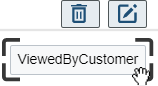
This option is available in [Coveo for Salesforce v3.42](https://docs.coveo.com/en/1280#november-2019-maintenance-release-v342) and later releases.
- Access the **Code View** tab and insert the following code in a `coveo-result` cell, within a `` element:
```xml
```
. Click **Save**.