---
title: Interpreting item body as an HTML item
slug: '2985'
canonical_url: https://docs.coveo.com/en/2985/
collection: index-content
source_format: adoc
---
# Interpreting item body as an HTML item
When indexing an [item](https://docs.coveo.com/en/210/) in your [Coveo organization](https://docs.coveo.com/en/185/), that item must go through the [mapping](https://docs.coveo.com/en/2684#mapping) stage of the [indexing pipeline](https://docs.coveo.com/en/184/) process.
At this stage, the item [metadata](https://docs.coveo.com/en/218/) is associated with [fields](https://docs.coveo.com/en/200/) in your [index](https://docs.coveo.com/en/204/).
The mapping process is similar for the _body_ of an item (that is, actual content) which is mapped to the `body` field whenever possible.
When analyzing your items through the [Content Browser](https://docs.coveo.com/en/2053/) or from your [search interface](https://docs.coveo.com/en/2741/), you may find occurrences where an item excerpt and Quick view display HTML tags that come from the original [repository](https://docs.coveo.com/en/2739/) document such as a web page, file, database record, or Salesforce object.
You can get rid of these HTML tags by applying a mapping rule that will cause the item body to be interpreted as an HTML document.
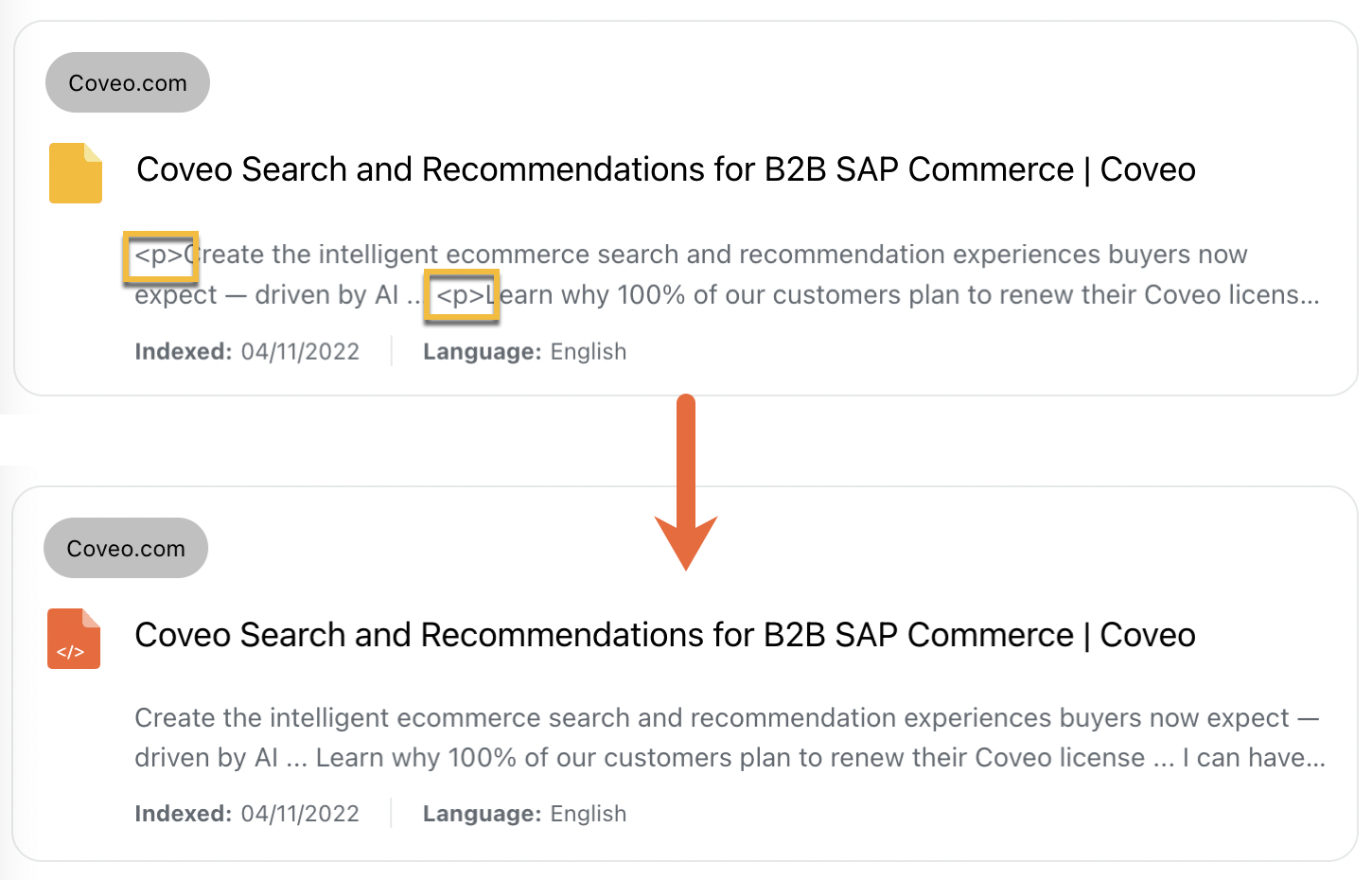
Depending on your needs, you may want to [interpret each item in a source as HTML](#interpreting-each-item-in-a-source-as-html), or to [interpret a subset of items in a source as HTML](#interpreting-a-subset-of-items-in-a-source-as-html).
> **Warning**
>
> Using the following procedures modifies the default mapping behavior of the `body` field in a way that it becomes interpreted as an HTML document.
> Applying this kind of mapping to your source may cause the `body` field of some items to be filled with erroneous information which can lead to relevance issues.
## Interpreting each item in a source as HTML
. In the [Coveo Administration Console](https://docs.coveo.com/en/183/), [access the **Edit mappings** panel](https://docs.coveo.com/en/1640#navigating-the-edit-mappings-panel), and then, select the **Common** tab.
. In the **Edit mappings** panel, click the **Field** dropdown menu, and then select the `body` field (that is, `spobody` in a SharePoint Online source).
. In the panel that appears:
.. Under **Rules**, enclose the `%[metadataName]` placeholder with `html/body` tags as follows: `%[metadataName]`
See [Mapping rule syntax reference](https://docs.coveo.com/en/1839/).
.. Click **Save**.
**Example**
To fill the `[metadataName]` placeholder with the `description` metadata, you create a mapping as follows:
**Field:** `body`
**Apply to:** `All items (common)`
**Rules:** `%[description]`
. Back in the **Edit mappings** panel, click **Save and rebuild source**.
Once the source rebuild process is complete, HTML tags originally appearing in the metadata used to populate the `body` field of your source items should be interpreted as such in item excerpts and Quick views.
The items should also appear as HTML files in the [**Content Browser**](https://platform.cloud.coveo.com/admin/#/orgid/content/browser/) ([platform-ca](https://platform-ca.cloud.coveo.com/admin/#/orgid/content/browser/) | [platform-eu](https://platform-eu.cloud.coveo.com/admin/#/orgid/content/browser/) | [platform-au](https://platform-au.cloud.coveo.com/admin/#/orgid/content/browser/)) or in your search interface.

> **Important**
>
> Coveo [crawlers](https://docs.coveo.com/en/2121/) rely on multiple fields, depending on the [repository](https://docs.coveo.com/en/2739/), to create the `body` field of an item. By modifying the default mapping behavior of the `body` field, you may end up ignoring these fields, leading to an irrelevant or undesired item body.
>
> For example, your item body that contains HTML tags is filled with the values of the `Summary`, `Reporter`, `Assignee`, `Description`, `Comments`, `Creation date`, and `Modification date` fields.
>
> In order to remove the HTML tags from the item body, you create a mapping rule that maps the `Summary` and `Description` field values to the `body` field.
>
> This action prevents the relevant data contained in the `Reporter`, `Assignee`, `Comments`, `Creation date`, and `Modification date` fields from being used to accurately build the item body.
## Interpreting a subset of items in a source as HTML
. In the Coveo Administration Console, [access the **Edit mappings** panel](https://docs.coveo.com/en/1640#navigating-the-edit-mappings-panel), and then, if you want to apply mapping to a subset of your source items, select the **Specific** tab.
. In the upper-right corner of the **Edit mappings** panel, click **Add**, and then select **Item type**.
. In the **Add an Item Type** panel, click the dropdown menu and then select or create the [source item type](https://docs.coveo.com/en/1965/) (for example, `text` or `article`) for which you want the mapping to apply, and then click **Add type**.
. In the upper-right corner of the **Edit mappings** panel, click **Add**, and then select **Mapping**.
. In the panel that appears:
.. Under **Field**, select the `body` field (that is, `spobody` in a SharePoint Online source).
> **Tip**
>
> The `body` field is named differently in each source, but most of the time it contains `body` in its display name.
.. Under **Apply to**, select the **Specific item types** radio button, and then select the source item types for which you want the mapping to apply.
.. Under **Rules**, enclose the `%[metadataName]` placeholder with `html/body` tags as follows: `%[metadataName]`
> **Note**
>
> In this procedure, the `[metadataName]` placeholder is filled with the `description` metadata.
See [Mapping rule syntax reference](https://docs.coveo.com/en/1839/).
.. Click **Apply mapping**
. Back in the **Edit mappings** panel, click **Save and rebuild source**.
Items matching the selected source item type (from step 3) should no longer display HTML tags.
The items should also appear as HTML files in the [**Content Browser**](https://platform.cloud.coveo.com/admin/#/orgid/content/browser/) ([platform-ca](https://platform-ca.cloud.coveo.com/admin/#/orgid/content/browser/) | [platform-eu](https://platform-eu.cloud.coveo.com/admin/#/orgid/content/browser/) | [platform-au](https://platform-au.cloud.coveo.com/admin/#/orgid/content/browser/)) or in your search interface.

> **Important**
>
> Coveo [crawlers](https://docs.coveo.com/en/2121/) rely on multiple fields, depending on the [repository](https://docs.coveo.com/en/2739/), to create the `body` field of an item. By modifying the default mapping behavior of the `body` field, you may end up ignoring these fields, leading to an irrelevant or undesired item body.
>
> For example, your item body that contains HTML tags is filled with the values of the `Summary`, `Reporter`, `Assignee`, `Description`, `Comments`, `Creation date`, and `Modification date` fields.
>
> In order to remove the HTML tags from the item body, you create a mapping rule that maps the `Summary` and `Description` field values to the `body` field.
>
> This action prevents the relevant data contained in the `Reporter`, `Assignee`, `Comments`, `Creation date`, and `Modification date` fields from being used to accurately build the item body.