---
title: Leverage Coveo Machine Learning
slug: '2778'
canonical_url: https://docs.coveo.com/en/2778/
collection: project-guide
source_format: adoc
---
# Leverage Coveo Machine Learning
[Coveo Machine Learning (Coveo ML)](https://docs.coveo.com/en/188/) can dramatically improve relevance in your search solution by providing your users with AI-powered [query suggestions](https://docs.coveo.com/en/1015/) and [Automatic Relevance Tuning (ART)](https://docs.coveo.com/en/1013/).
This article explains how to leverage these functionalities in a Coveo-powered [search interface](https://docs.coveo.com/en/2741/).
> **Note**
>
> The [Coveo ML](https://docs.coveo.com/en/188/) [Content Recommendation (CR)](https://docs.coveo.com/en/1016/) and [Dynamic Navigation Experience (DNE)](https://docs.coveo.com/en/2907/) features require a more complex setup.
> For more information, see:
>
> * [Deploy Content Recommendations (CR)](https://docs.coveo.com/en/1886/)
>
> * [Deploy Dynamic Navigation Experience (DNE)](https://docs.coveo.com/en/2918/)
## Are you ready to enable machine learning?
To maximize relevance in your search solution, there are certain steps that you should follow before you deploy [Coveo ML](https://docs.coveo.com/en/188/).
These steps are illustrated in the following diagram:

. Your [Coveo organization](https://docs.coveo.com/en/185/) [index](https://docs.coveo.com/en/204/) must [contain the items](https://docs.coveo.com/en/2679/) that need to be searchable by its intended audiences.
If you neglect this step, it can negatively affect the search experience and interfere with the way that [Coveo ML](https://docs.coveo.com/en/188/) [models](https://docs.coveo.com/en/1012/) use data to optimize relevance.
. The search solution [must be analyzed](https://docs.coveo.com/en/2696/) to determine whether a specific area needs improvement.
At this point, your search interfaces need to be properly designed and must accurately log [Coveo Analytics events](https://docs.coveo.com/en/260/).
You specifically need to ensure that meaningful [dashboards](https://docs.coveo.com/en/256/), [explorers](https://docs.coveo.com/en/261/), and [reports](https://docs.coveo.com/en/266/) have been configured.
. The dashboards, explorers, and reports should provide key insights on whether a search solution needs improvement.
[This information](https://docs.coveo.com/en/2696#explore-the-default-summary-dashboard) will help you identify areas in which users aren't getting what they need and [determine whether Coveo ML could help](https://docs.coveo.com/en/1727/) solve these issues.
. Ensure that enough data is available for [Coveo ML](https://docs.coveo.com/en/188/) models to provide relevance in your search experience.
Because each model type uses and processes data in a distinct way, your [Coveo organization](https://docs.coveo.com/en/185/) must collect the appropriate input.
At this point, the more quality data a model can learn from, the more effective it will get.
. You're ready to [create your Coveo ML models](#create-your-coveo-ml-models).
## Create your Coveo ML models
To take advantage of the [Coveo ML](https://docs.coveo.com/en/188/) QS, ART, and DNE features in a properly [configured search interface](#configure-your-search-interface), [create your Coveo ML models](https://docs.coveo.com/en/1832/) using the [**Models**](https://platform.cloud.coveo.com/admin/#/orgid/ai-and-ml/models/) ([platform-ca](https://platform-ca.cloud.coveo.com/admin/#/orgid/ai-and-ml/models/) | [platform-eu](https://platform-eu.cloud.coveo.com/admin/#/orgid/ai-and-ml/models/) | [platform-au](https://platform-au.cloud.coveo.com/admin/#/orgid/ai-and-ml/models/)) page of the [Coveo Administration Console](https://docs.coveo.com/en/183/).
### Basic configuration
You should typically use the default settings when creating your QS, ART, and DNE models.
Also ensure that enough [Coveo Analytics data](https://docs.coveo.com/en/259/) has been recorded in your [Coveo organization](https://docs.coveo.com/en/185/) before creating your models.
A newly-created model should become active within an hour or so.
**Example**
Your [Coveo organization](https://docs.coveo.com/en/185/) is powering search on a single website.
You're currently [routing all search and query suggestion requests](https://docs.coveo.com/en/2757#basic-query-pipeline-setup) to the same **Default** [query pipeline](https://docs.coveo.com/en/180/).
Once you've gathered enough UA data to start leveraging [Coveo ML](https://docs.coveo.com/en/188/), you duplicate the **Default** query pipeline.
In the resulting **Default Copy** query pipeline, you create ART and QS models.
You then [set up an A/B test](https://docs.coveo.com/en/3255/) between the two query pipelines, routing 30% of the traffic to **Default Copy**.
Over the following weeks, you monitor the dashboard to see how [your ML models are performing](https://docs.coveo.com/en/1631#ab-testing-template).
They appear to have a positive impact on the relevance of your search solution, so you decide to apply your new models to the **Default** query pipeline.
You disable the A/B test and delete the **Default Copy** query pipeline.
## Configure your search interface
A search interface that [leverages](https://docs.coveo.com/en/2677/) the [Coveo Atomic library](https://docs.coveo.com/en/lcdf0264/) will log search and click events automatically.
This means that you can take advantage of the [Coveo ML](https://docs.coveo.com/en/188/) ART and QS features right away, assuming that the [corresponding models are active](#create-your-coveo-ml-models).
However, to power a [CR](https://docs.coveo.com/en/1016/) [model](https://docs.coveo.com/en/1012/), you must [send view events](https://docs.coveo.com/en/atomic/latest/usage/atomic-usage-analytics/atomic-view-events#send-view-events) for the target [items](https://docs.coveo.com/en/210/).
[Coveo ML](https://docs.coveo.com/en/188/) models then train on recorded UA data.
After training, an ART model will tune the relevance of the results presented in an `atomic-result-list` and a QS model will provide contextually-relevant query suggestions as your users type in an `atomic-search-box`.
> **Notes**
>
> * [Coveo ML](https://docs.coveo.com/en/188/) models yield output in the language of the current user.
>
> The Atomic library supports [localization](https://docs.coveo.com/en/atomic/latest/usage/atomic-localization/) and includes translations into several languages out of the box.
>
> * The [search hub](https://docs.coveo.com/en/1342/) plays an important role in the output of your [Coveo ML](https://docs.coveo.com/en/188/) models.
>
> [Enforce the search hub](https://docs.coveo.com/en/las95231/) through the [search token](https://docs.coveo.com/en/1369#search-token-authentication) or [API key](https://docs.coveo.com/en/1369#api-key-authentication).
>
> You should set this to a unique value for each of your search interfaces.
> For example, your community and internal search interfaces should each have a different `searchHub` value.
>
> * The [Coveo ML](https://docs.coveo.com/en/188/) ART feature only works when query results are sorted by relevance.
>
> The ART feature increases the `score` values of the most contextually-relevant query result items.
> However, `score` values aren't computed when the query results are sorted using criteria other than relevance (such as by date or field).
### Example
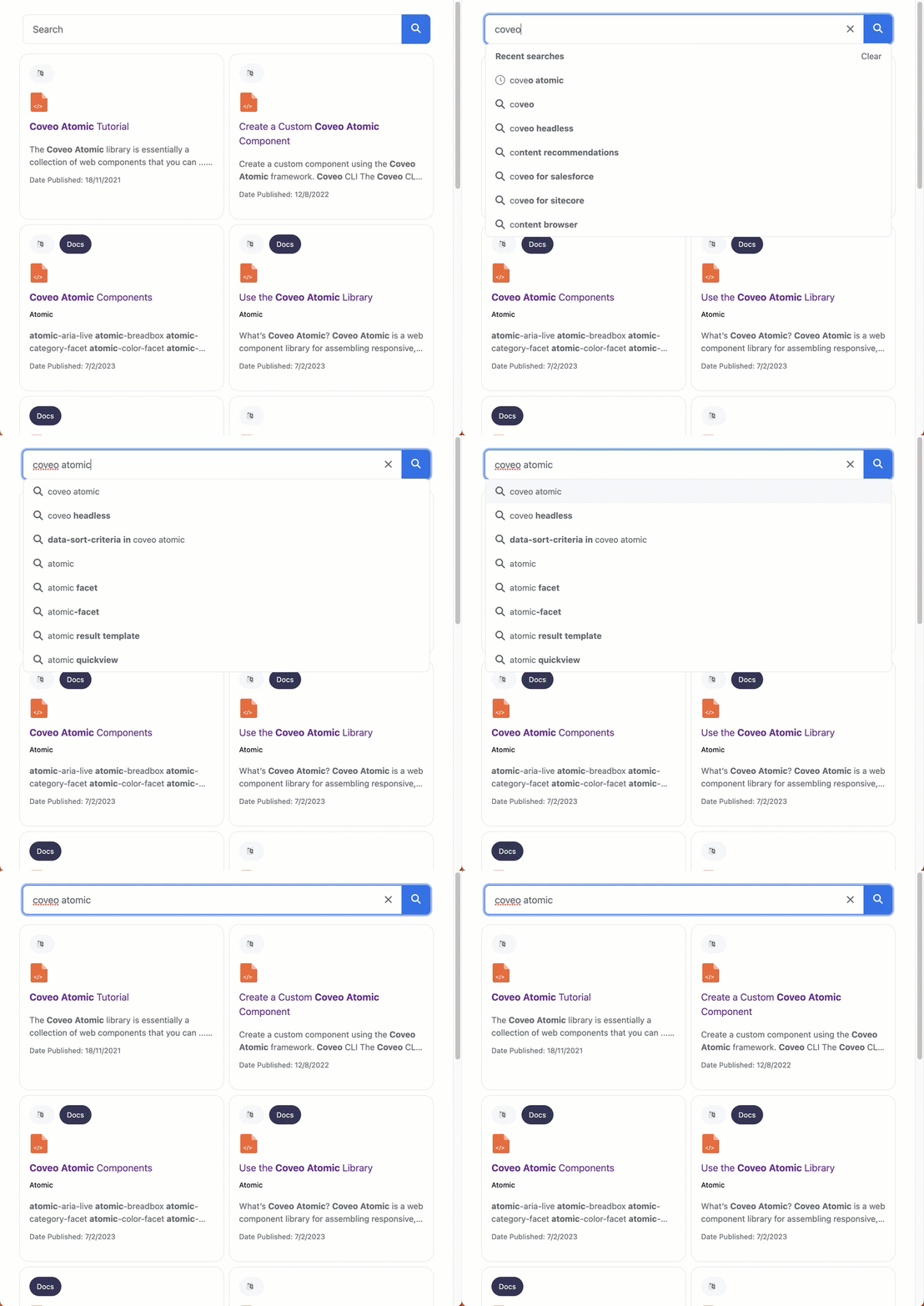
The following search interface benefits from the [Coveo ML](https://docs.coveo.com/en/188/) QS and ART features.
```html
```
As you can see in the following screen capture, the search box displays query suggestions, and the items in the result list are relevant thanks to [Coveo ML](https://docs.coveo.com/en/188/) ART:
## Provide personalized Coveo ML output
[Coveo ML](https://docs.coveo.com/en/188/) models can use [context](https://docs.coveo.com/en/1345/) to learn from user behavior and improve their relevance.
The CR feature in particular uses [custom context](https://docs.coveo.com/en/3389/) to provide more personalized output.
You can add this custom context by [modifying the requests](https://docs.coveo.com/en/atomic/latest/usage/atomic-modify-requests-responses#modify-requests) sent from a search interface that leverages the Atomic library.
You can also provide [custom context for recommendations](https://docs.coveo.com/en/atomic/latest/usage/atomic-recommendations/) by accessing the [Coveo Headless library](https://docs.coveo.com/en/lcdf0493/) [through Atomic](https://docs.coveo.com/en/atomic/latest/usage/headless-through-atomic/).
**Examples**
* On an ecommerce site, you want to promote certain products based on the country in which the user resides.
You retrieve the country from each user's IP address and send this information as custom context.
* On a customer support site, you have access to the list of products owned by authenticated users.
You send this information as custom context, allowing your [Coveo ML](https://docs.coveo.com/en/188/) models to further promote query suggestions and result items related to those products.
## What's next?
The [Common pitfalls](https://docs.coveo.com/en/2759/) section lists some of the most frequently made mistakes in a search project and explains how to avoid them.