---
title: Route search queries to query pipelines
slug: '2724'
canonical_url: https://docs.coveo.com/en/2724/
collection: coveo-for-sitecore-v5
source_format: adoc
---
# Route search queries to query pipelines
> **Legacy feature**
>
> The Coveo Hive Framework is now in maintenance mode and is no longer recommended for new implementations.
>
> To build new search experiences, use one of Coveo's more modern, lightweight, and responsive libraries.
> To get started, see the [Build search](https://docs.coveo.com/en/2473/) article.
You've created one or several Query Pipelines in the Coveo Administration Console (see [What's a query pipeline?](https://docs.coveo.com/en/1611/)).
You now want to specify which Query Pipeline your search queries should use.
There are four ways you can route your queries to Query Pipelines:
* You can set up conditions for Query Pipelines in the Coveo Administration Console to route search queries to Query Pipelines dynamically.
This is the recommended approach (see [Condition-based pipeline routing](#condition-based-pipeline-routing-recommended)).
* You can force a Query Pipeline at the Sitecore instance level, in the `Coveo.SearchProvider.Custom.config` file (see [Set the query pipeline to use for all indexes](https://docs.coveo.com/en/2724#set-the-query-pipeline-to-use-for-all-indexes)).
* You can force a Query Pipeline at the index level, in the `Coveo.SearchProvider.Custom.config` file (see [Set the query pipeline to use for a specific index](https://docs.coveo.com/en/2724#set-the-query-pipeline-to-use-for-a-specific-index)).
* You can force a Query Pipeline at the Coveo-powered search page level, in the **Coveo Search Interface** rendering settings (see [Set the query pipeline to use in your Coveo-powered search page](https://docs.coveo.com/en/2724#set-the-query-pipeline-to-use-in-your-coveo-powered-search-page)).
> **Leading practice**
>
> Using condition-based routing not only lets you draw upon query context to send searches dynamically to the most suitable Query Pipeline, but it also makes it possible to compare the performance of different Query Pipelines (see [Condition-based pipeline routing](#condition-based-pipeline-routing-recommended)).
> **Note**
>
> Query Pipeline configurations can be copied across organizations using the [Resource Snapshot feature](https://docs.coveo.com/en/l3ge0200/).
> This can help you streamline your development and deployment process.
This article explains how to perform the necessary configurations for each Query Pipeline routing option.
## Condition-based pipeline routing (recommended)
As an alternative to hard-coding the Query Pipeline that's applied to all your queries, this method allows you to associate conditions to your Query Pipelines.
Your query is evaluated against each condition.
Upon the first match, the associated Query Pipeline is applied (see [Condition-based routing](https://docs.coveo.com/en/1666#condition-based-routing-recommended)).
> **Note**
>
> When no Query Pipeline is explicitly specified in Coveo for Sitecore and the query doesn't match any Query Pipeline condition set in your Coveo organization, the Query Pipeline tagged as `Default` in your Coveo organization is used.
>
> 
Using condition-based routing and many Query Pipelines eases the comparison of Query Pipeline performance through A/B testing (see [Manage A/B tests](https://docs.coveo.com/en/3255/)).
## Set the query pipeline to use for all indexes
In your `Coveo.SearchProvider.config` file, locate the `defaultIndexConfiguration/queryConfiguration` section.
Copy and paste it in your `Coveo.SearchProvider.Custom.config` file, under `defaultIndexConfiguration`.
Set the value of the `queryPipelineName` element with your Query Pipeline name.
```xml
...
...
myQueryPipelineName
...
```
> **Note**
>
> When no Query Pipeline is explicitly specified in Coveo for Sitecore and the query doesn't match any Query Pipeline condition set in your Coveo organization, the Query Pipeline tagged as `Default` in your Coveo organization is used.
>
> 
## Set the query pipeline to use for a specific index
In your `Coveo.SearchProvider.config` file, locate the `contentSearch` section.
Copy it, and add it to your `Coveo.SearchProvider.Custom.config` file.
Under `configuration/indexes`, if not already done, change the configuration element of the specific index to override the `queryConfiguration` section and set the `queryPipelineName`.
```xml
$(id)
myQueryPipelineName
```
> **Note**
>
> When no Query Pipeline is explicitly specified in Coveo for Sitecore and the query doesn't match any Query Pipeline condition set in your Coveo organization, the Query Pipeline tagged as `Default` in your Coveo organization is used.
>
> 
## Set the query pipeline to use in your Coveo-powered search page
You can override your `Coveo.SearchProvider.Custom.config` file configurations by specifying the Query Pipeline to use directly in a Coveo-powered search page.
To specify the Query Pipeline to use in a search page
. Open the Coveo-powered search page in the Sitecore **Experience Editor**.
. Select the **Coveo Search Interface** rendering.
. Select the **Edit the rendering's data source** option in the floating toolbar.
It should be the leftmost option.
. Scroll to the **Query Settings** section in the dialog.
. Specify the name of the Query Pipeline to apply in the `Query pipeline` field.
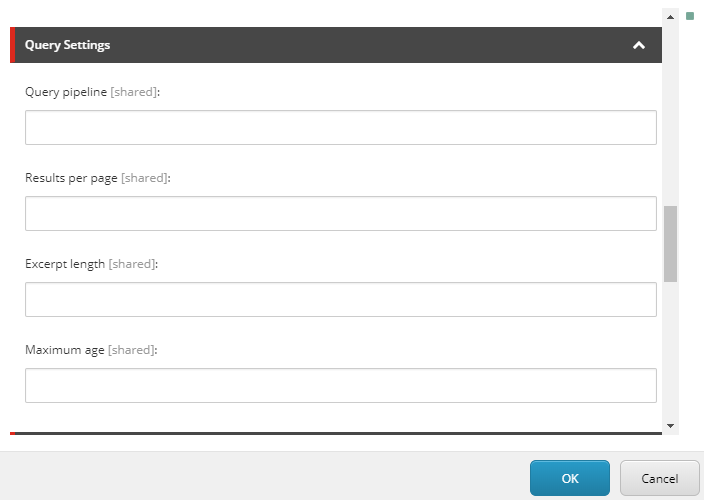
. Click **OK**.
. Save your changes in the **Experience Editor**.
> **Note**
>
> When no Query Pipeline is explicitly specified in Coveo for Sitecore and the query doesn't match any Query Pipeline condition set in your Coveo organization, the Query Pipeline tagged as `Default` in your Coveo organization is used.
>
> 
## Determining the query pipeline used for a search
For troubleshooting purposes, it's useful to know which Query Pipeline your search page is using for a specific search.
This information is available through the browser developer tools (see [Determine which query pipeline a search page uses](https://docs.coveo.com/en/89/)).