---
title: Leverage the Coveo Atomic library
slug: '2677'
canonical_url: https://docs.coveo.com/en/2677/
collection: project-guide
source_format: adoc
---
# Leverage the Coveo Atomic library
The [Atomic library](https://docs.coveo.com/en/lcdf0264/) offers a large collection of components to help you create, customize, and maintain end-user interfaces that rely on the [Coveo Platform](https://docs.coveo.com/en/186/). You can leverage Atomic to build and send [queries](https://docs.coveo.com/en/231/), display query results, and log appropriate [Coveo Analytics events](https://docs.coveo.com/en/260/).
> **Important**
>
> We recommend the Atomic library for [most use cases](https://docs.coveo.com/en/atomic/latest#when-should-i-use-atomic), but in some circumstances you might decide to use the [Headless library](https://docs.coveo.com/en/lcdf0493/) or even use the [Coveo APIs](https://docs.coveo.com/en/4/) directly.
>
> If you do [use the Coveo APIs](https://docs.coveo.com/en/1370/), make sure that you [log the right UA events](https://docs.coveo.com/en/1373/).
> If you don't, you won't be able to use [Coveo Machine Learning (Coveo ML)](https://docs.coveo.com/en/188/) or [Coveo Analytics reporting](https://docs.coveo.com/en/266/).
This article provides a high-level overview of the crucial steps and elements required to design your [search interface](https://docs.coveo.com/en/2741/) using the Atomic library.
## Install Atomic
You can [install the Atomic library](https://docs.coveo.com/en/atomic/latest/usage#install-atomic) as an npm package or load it through CDN links in the page ``.
The simplest option is to include the CDN links, as follows:
```html
<1>
<2>
```
<1> The main Atomic script.
<2> The [default Atomic stylesheet](https://static.cloud.coveo.com/atomic/v2/themes/coveo.css).
While this import is optional, if you don't import it you'll need to [define its variables](https://docs.coveo.com/en/atomic/latest/usage/themes-and-visual-customization#theme-variables) yourself.
## Initialize the search interface
Once you have installed Atomic, you'll need to add a script like the following to initialize it:
[source,html,subs="attributes+"]
```
```
<1> `` (string) is an [API key](https://docs.coveo.com/en/105/) that was created using the **Anonymous search** [template](https://docs.coveo.com/en/1718#api-key-templates) or a [search token](https://docs.coveo.com/en/56/) that grants the **Allowed** [access level](https://docs.coveo.com/en/2818/) on the [**Execute Queries**](https://docs.coveo.com/en/1707#execute-queries-domain) [domain](https://docs.coveo.com/en/2819/) and the **Push** [access level](https://docs.coveo.com/en/2818/) on the [**Analytics Data**](https://docs.coveo.com/en/1707#administrate-domain) [domain](https://docs.coveo.com/en/2819/) in the target [organization](https://docs.coveo.com/en/185/).
> **Important**
>
> We strongly recommend that the access token enforces a `searchHub` value.
> See [Defining the search hub in the authentication](https://docs.coveo.com/en/n89e0266#defining-the-search-hub-in-the-authentication) for more details.
<2> `` (string) is the [unique identifier of your Coveo organization](https://docs.coveo.com/en/n1ce5273/) (for example, `mycoveoorganizationa1b23c`).
<3> `` (function) returns a new access token, usually by fetching it from a backend service that can generate [search tokens](https://docs.coveo.com/en/56/).
The engine will automatically run this function when the current access token expires (that is, when the engine detects a `419 Authentication Timeout` HTTP code).
> **Note**
>
> You don't need to specify a `renewAccessToken` callback if your application is using [API key authentication](https://docs.coveo.com/en/105/).
> This is typically not recommended, but can be legitimate in some scenarios.
## Log usage analytics data
[Coveo ML](https://docs.coveo.com/en/188/) features, such as [Automatic Relevance Tuning (ART)](https://docs.coveo.com/en/1013/) and [Query Suggestions (QS)](https://docs.coveo.com/en/1015/), require [Coveo Analytics data](https://docs.coveo.com/en/259/) to function.
When used correctly, Atomic components provide this data by logging search and click events for you.
You can also [customize event logging](https://docs.coveo.com/en/atomic/latest/usage/atomic-usage-analytics/atomic-coveo-ua/) to meet your needs.
However, to power a [content recommendations](https://docs.coveo.com/en/1016/) [model](https://docs.coveo.com/en/1012/), you must [send view events](https://docs.coveo.com/en/atomic/latest/usage/atomic-usage-analytics/atomic-view-events#send-view-events) for the target [items](https://docs.coveo.com/en/210/).
## Use components to create your search interface
Atomic builds search pages by attaching [components](https://docs.coveo.com/en/atomic/latest/reference/components/) to target HTML elements.
You can create your own search interface by assembling the desired components, as shown in the following example:
```html
<1>
<2>
<3>
<4>
<5>
<6>
<7>
<8>
```
The following screenshot illustrates how Atomic components fit together in a search interface:
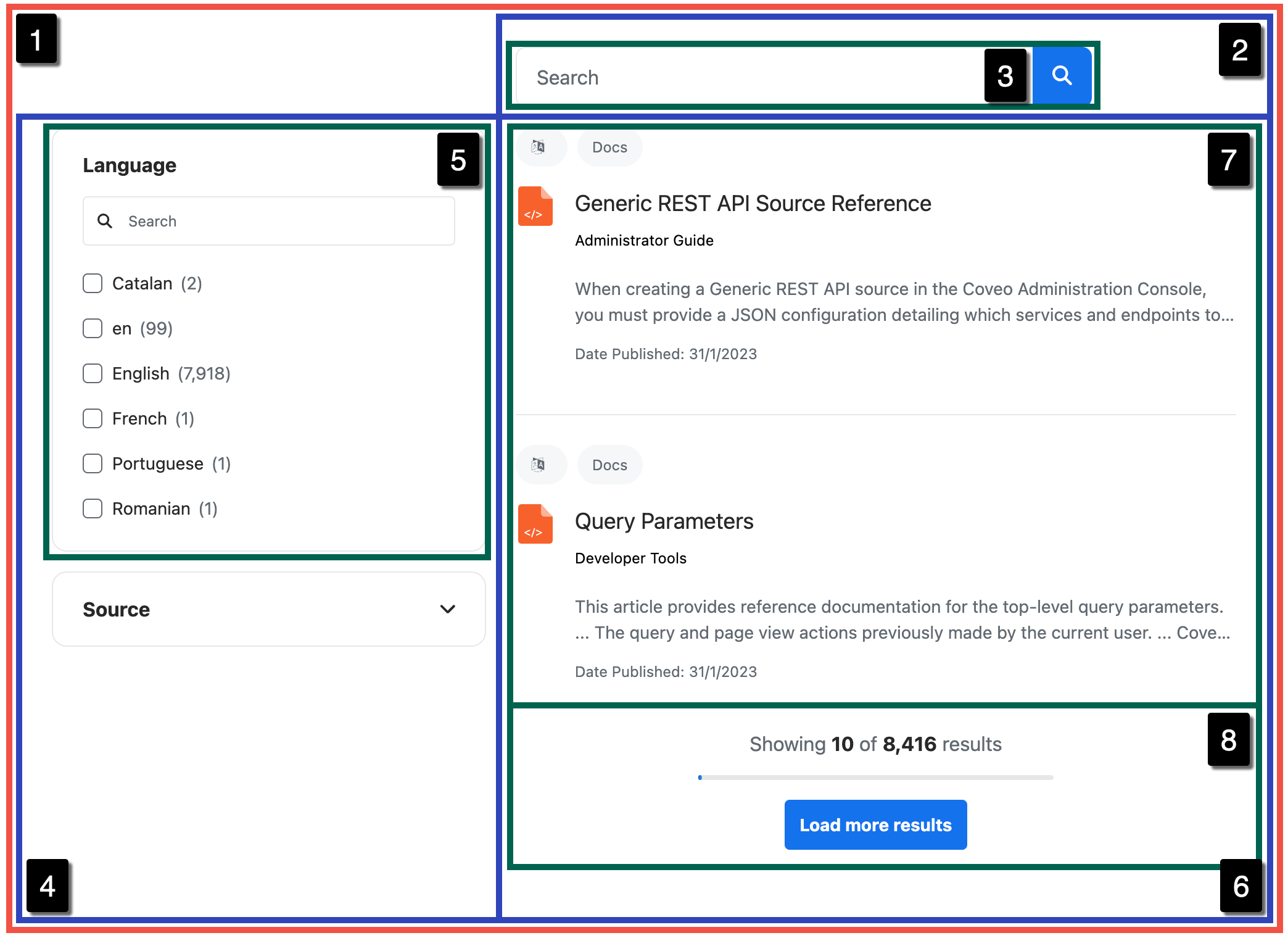
The rest of this article provides a very general overview of a few key Atomic components.
For more detailed information on how to use components, you can visit the Atomic [usage documentation](https://docs.coveo.com/en/atomic/latest/usage/).
### Organize your components
The [`atomic-search-layout`](https://static.cloud.coveo.com/atomic/v3/storybook/index.html?path=/docs/atomic-search-layout\--docs) and [`atomic-layout-section`](https://static.cloud.coveo.com/atomic/v3/storybook/index.html?path=/docs/atomic-layout-section\--docs) components help you keep your Atomic components organized.
You can nest `` elements.
```html
```
All of the examples in this section will be enclosed in `` elements.
### Create a search box
A search box is a text input field from which queries can be submitted, and it's the centerpiece of most search interfaces.
The [`atomic-search-box`](https://static.cloud.coveo.com/atomic/v3/storybook/index.html?path=/docs/atomic-search-box\--docs) component comes with built-in support for QS.
```html
```
This component adds a basic search box:

> **Note**
>
> You can also use Atomic to implement a [standalone search box](https://docs.coveo.com/en/atomic/latest/usage/ssb/).
### Create a result list
The [`atomic-result-list`](https://static.cloud.coveo.com/atomic/v3/storybook/index.html?path=/docs/atomic-result-list\--docs) component displays query results using one or more result templates.
```html
```
This component adds a basic result list:
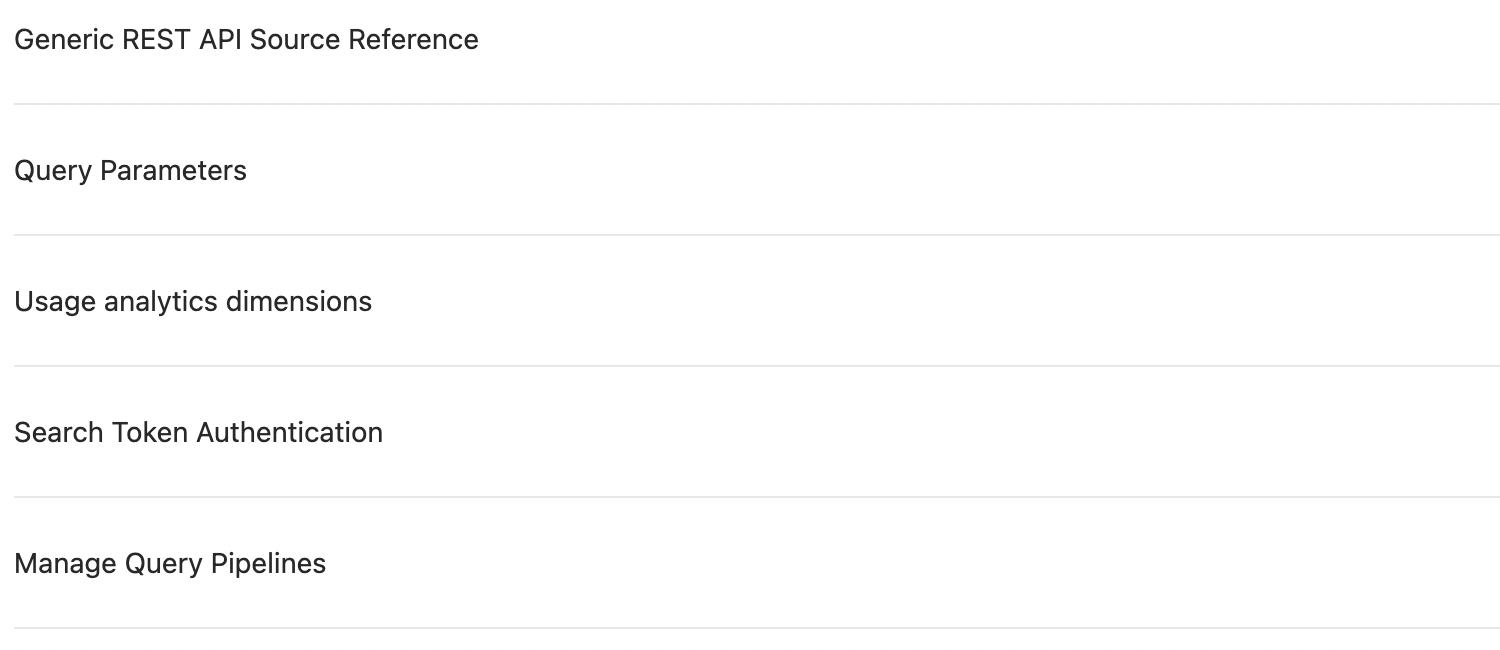
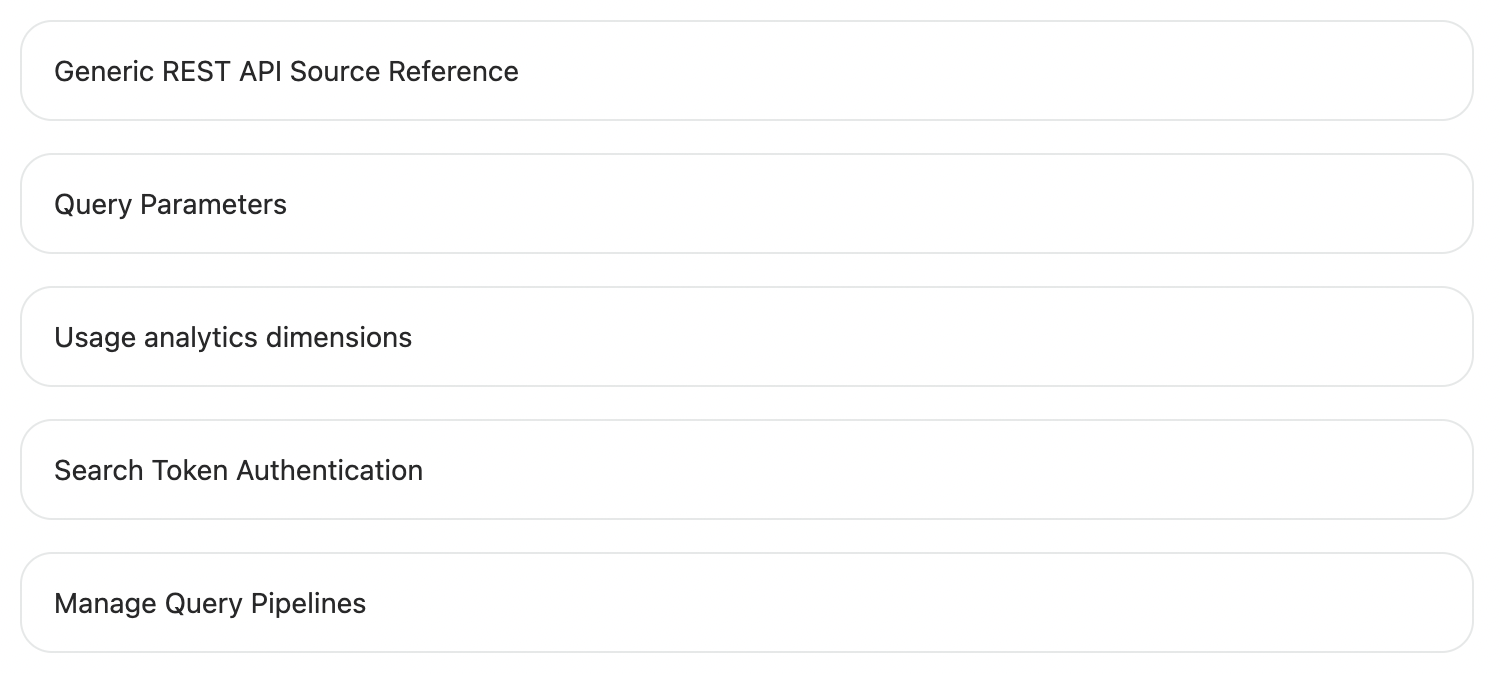
Atomic result lists are responsive.
On windows that are under 1024px in width, the results are displayed as tiles:
#### Customize the result list
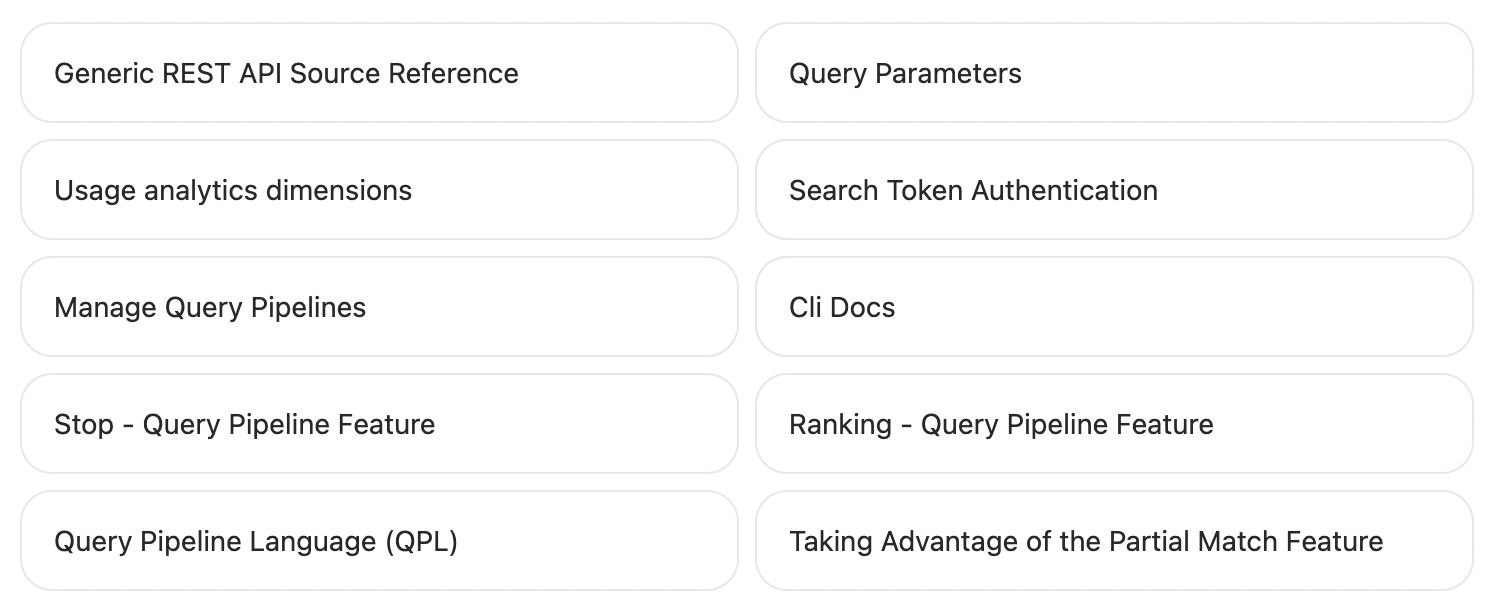
In the `atomic-result-list` component, you can set the display format, density, and image size of the result items.
```html
```
This presents the search results in a grid:
#### Add sorting
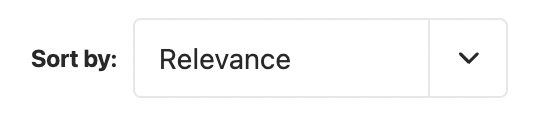
The [`atomic-sort-dropdown`](https://static.cloud.coveo.com/atomic/v3/storybook/index.html?path=/docs/atomic-sort-dropdown\--docs) component adds a dropdown menu that lets the user reorder the result items according to a particular criterion.
```html
```
This component adds the following interface:
#### Add pagination
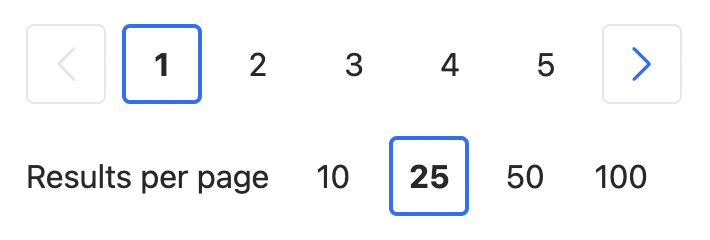
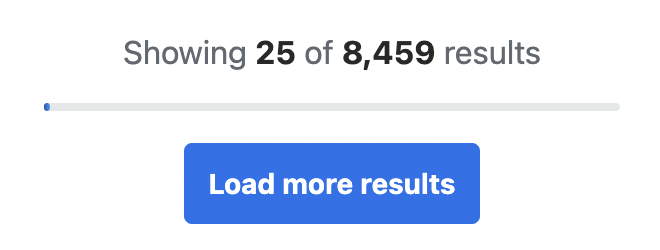
Atomic includes two pagination components, [`atomic-pager`](https://static.cloud.coveo.com/atomic/v3/storybook/index.html?path=/docs/atomic-pager\--docs) and [`atomic-load-more-results`](https://static.cloud.coveo.com/atomic/v3/storybook/index.html?path=/docs/atomic-load-more-results\--docs).
The former lets the user navigate through different result pages, while the latter loads additional results if more are available.
You can combine `atomic-pager` with the [`atomic-results-per-page`](https://static.cloud.coveo.com/atomic/v3/storybook/index.html?path=/docs/atomic-results-per-page\--docs) component to let users control how many results they can see at a time.
**Pager**
```html
```
This component adds the following interface:
**Load more results**
```html
```
This component adds the following interface:
### Create facets
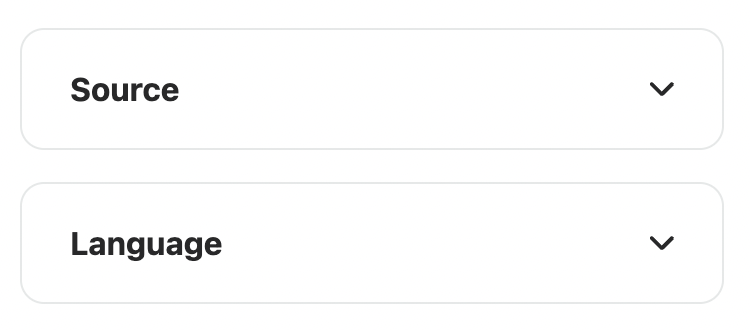
A search page typically includes [facets](https://docs.coveo.com/en/198/).
These allow the end user to select dynamic filter values which narrow down a query to a specific subset of result items.
In addition to the basic [`atomic-facet`](https://static.cloud.coveo.com/atomic/v3/storybook/index.html?path=/docs/atomic-facet\--docs) component, Atomic has several specialized facets including [category](https://static.cloud.coveo.com/atomic/v3/storybook/index.html?path=/docs/atomic-category-facet\--docs), [rating](https://static.cloud.coveo.com/atomic/v3/storybook/index.html?path=/docs/atomic-rating-facet\--docs), and [timeframe](https://static.cloud.coveo.com/atomic/v3/storybook/index.html?path=/docs/atomic-timeframe-facet\--docs) facets.
Atomic facets are responsive.
The facet column isn't visible on windows that are under 1024px in width.
In Atomic, these facets are usually enclosed in the [`atomic-facet-manager`](https://static.cloud.coveo.com/atomic/v3/storybook/index.html?path=/docs/atomic-facet-manager\--docs) component, which leverages [Coveo ML](https://docs.coveo.com/en/188/) to reorder them based on their relevance in the current context.
```html
<1>
```
<1> The `field` property is required.
The `label` property isn't, but you probably want to replace the default, which is `No label`.
This adds the following facets:
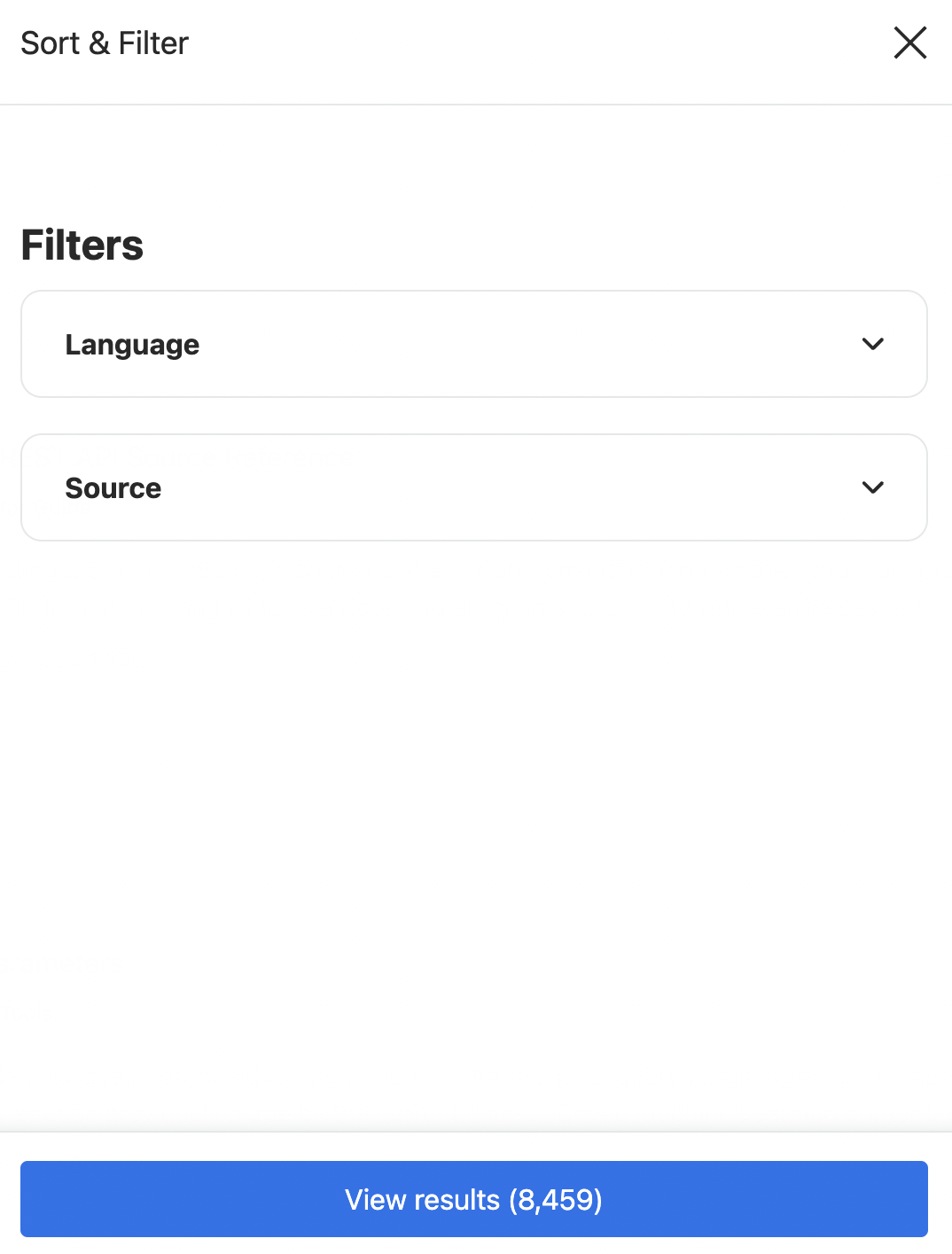
#### Add a refine search button
On smaller screens, the facet column would take up too much horizontal space.
You can add the [`atomic-refine-toggle`](https://static.cloud.coveo.com/atomic/v3/storybook/index.html?path=/docs/atomic-refine-toggle\--docs) component to let the user open the facets in a modal.
This component is responsive, so it's only visible on windows that are under 1024px in width.
```html
```
This adds the following interface:

When opened, the **Sort & Filter** modal looks like this:
### Create a result template
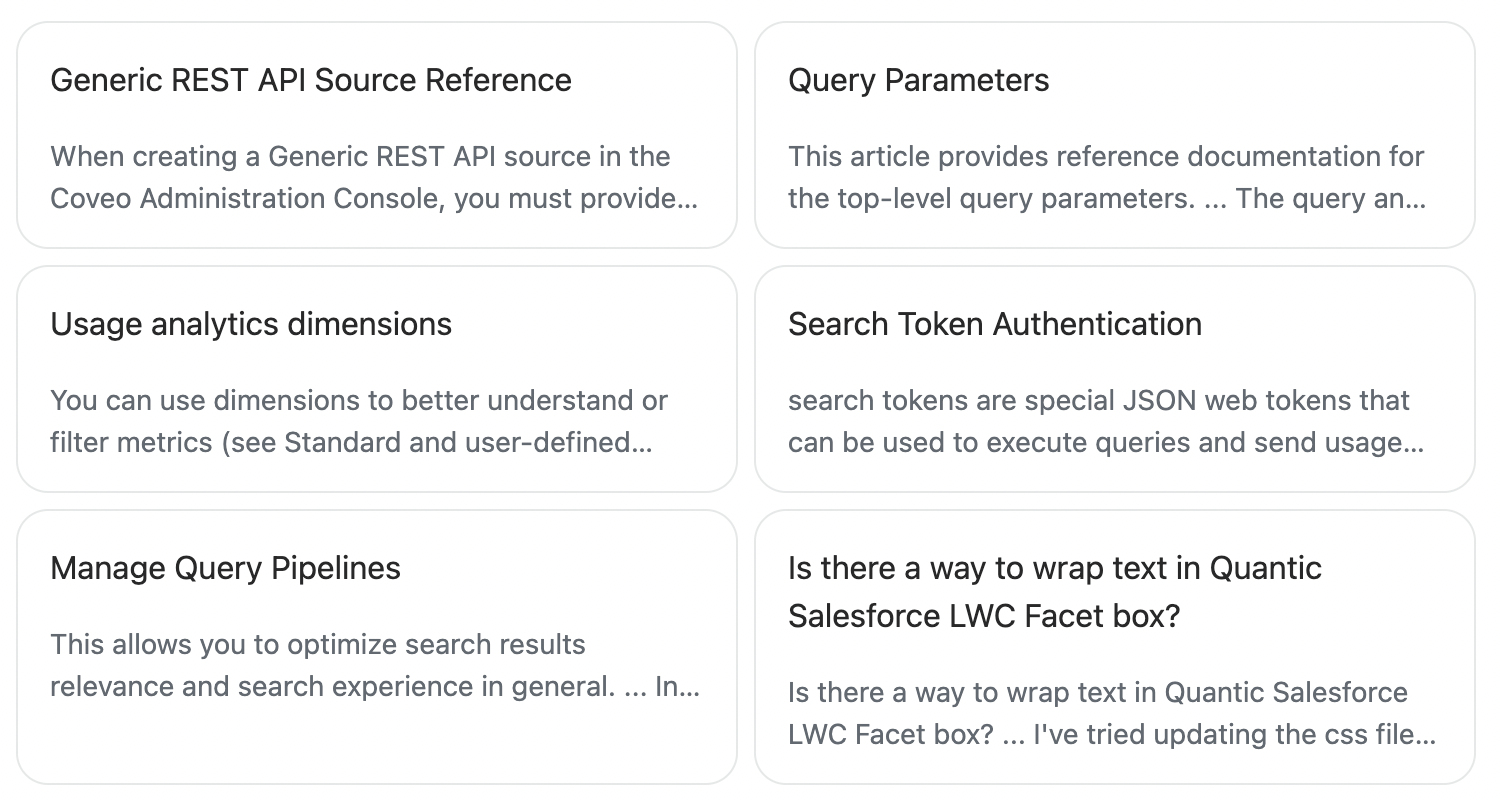
Result templates determine the format of the individual query results in the result list.
You can define multiple [`atomic-result-template`](https://static.cloud.coveo.com/atomic/v3/storybook/index.html?path=/docs/atomic-result-template\--docs) components, each of which applies when different conditions are met.
A result template without any conditions is considered the default template.
If a result fails to satisfy the conditions of any other template, it is rendered using the default template.
When a result list is in a list or grid display format, you can use [result sections](https://docs.coveo.com/en/atomic/latest/usage/displaying-results/result-sections/) to construct your result template.
Result templates are made up of various components, including [`atomic-result-link`](https://static.cloud.coveo.com/atomic/v3/storybook/index.html?path=/docs/atomic-result-link\--docs), [`atomic-result-text`](https://static.cloud.coveo.com/atomic/v3/storybook/index.html?path=/docs/atomic-result-text\--docs), and [`atomic-result-icon`](https://static.cloud.coveo.com/atomic/v3/storybook/index.html?path=/docs/atomic-result-icon\--docs).
These components are typically used in specific result sections.
```html
```
This result template would appear as follows:
#### Result template example
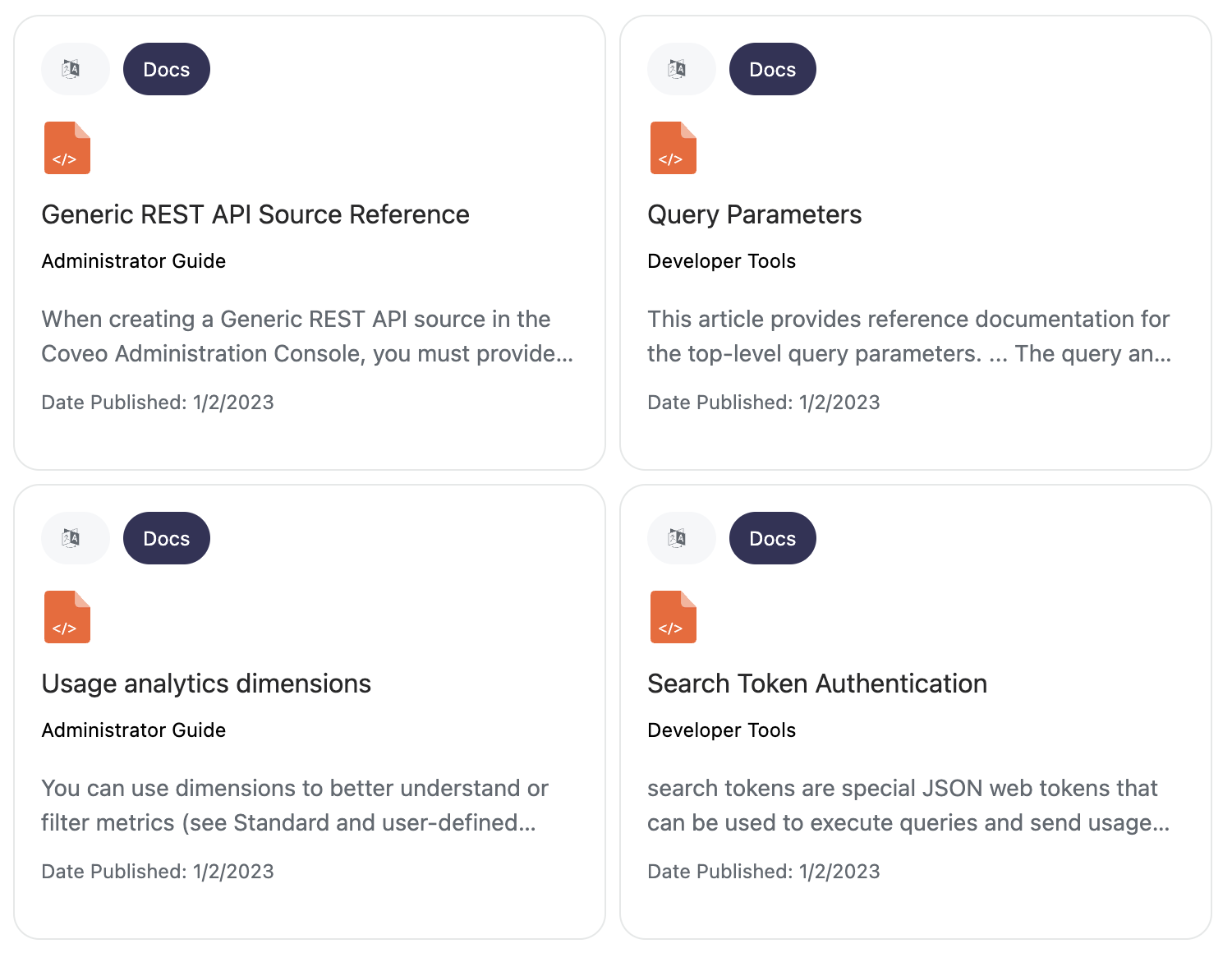
The following is a more comprehensive example of a result template.
It includes an icon, badges, and two separate metadata sections.
To add styling that's specific to your result template, you add the CSS to a `
Date Published:
```
This result template would appear as follows:
## What's next?
The [Design an architecture for multiple search experiences](https://docs.coveo.com/en/2941/) article presents the leading practices when designing multiple Coveo-powered search experiences.