---
title: Custom Multi-Sort tutorial - Add other options
slug: '2258'
canonical_url: https://docs.coveo.com/en/2258/
collection: coveo-for-sitecore-v5
source_format: adoc
---
# Custom Multi-Sort tutorial - Add other options
> **Legacy feature**
>
> The Coveo Hive Framework is now in maintenance mode and is no longer recommended for new implementations.
>
> To build new search experiences, use one of Coveo's more modern, lightweight, and responsive libraries.
> To get started, see the [Build search](https://docs.coveo.com/en/2473/) article.
This page covers how to add other options to the Multi-Sort component.
## Adding the Fields in the Data Source Template
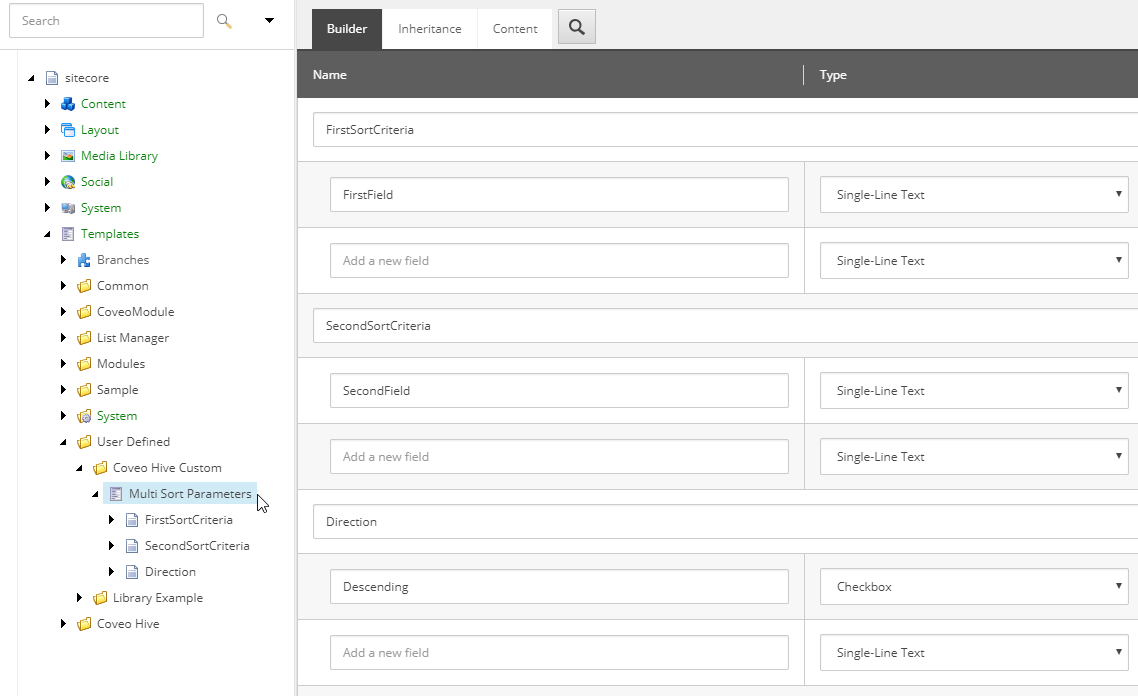
Add two fields: string field `SecondField` and checkbox `Descending`.
## Mapping the New Fields in the ModelProperties
. In your `MultiSortModelProperties`, add properties for the new fields:
[source,c#]
```
public class MultiSortModelProperties : IModelProperties
{
[SitecoreProperty("FirstField")]
public string FirstField { get; set; }
[SitecoreProperty("SecondField")]
public string SecondField { get; set; }
[SitecoreProperty("Descending")]
public bool Descending { get; set; }
}
```
. The `Descending` property is a checkbox in Sitecore.
However, the Coveo JavaScript Search Framework requires a `string` value.
It would be useful to front this property as a string instead.
Add the following code in:
[source,c#]
```
public string Direction => Descending ? "descending" : "ascending";
```
. Save the project, and make sure to copy the DLL!
## Setting the Values on the Data Source
There are no out-of-the-box fields that are really useful in a multi-sort.
However, for testing purposes, let's assume some items might have the same name.
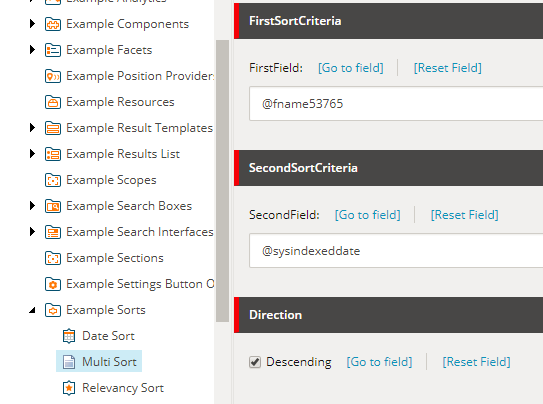
. Change the `FirstField` value to `@fnameXXXXX` (where XXXXX is the hash value for your `coveo_master_index`)
. Set the `SecondField` value to `@indexeddate`.
. Check the `Descending` checkbox.
## Adding the new fields in the rendering
Add the properties to construct the sort criteria.
```html
@model Coveo.Custom.MultiSortModel
```
Note that we used the `Direction` property to output either the `descending` or `ascending` string directly.
## Result
Your sort should now have a multi-sort criteria.
By inspecting your DOM element, you can validate that it uses your data source properly.
It should give you a result similar to the following code:
```html
```
The next step will cover how to improve the experience of this component by automatically translating the fields.