---
title: Create and make use of a new result template
slug: '2173'
canonical_url: https://docs.coveo.com/en/2173/
collection: coveo-for-sitecore-v5
source_format: adoc
---
# Create and make use of a new result template
> **Legacy feature**
>
> The Coveo Hive Framework is now in maintenance mode and is no longer recommended for new implementations.
>
> To build new search experiences, use one of Coveo's more modern, lightweight, and responsive libraries.
> To get started, see the [Build search](https://docs.coveo.com/en/2473/) article.
This article covers how to create a result template in Coveo Hive and how to specify when it should be used to display search results.
> **Note**
>
> For information on how to edit the content of a result template, see [Edit the content of a result template](https://docs.coveo.com/en/2834/).
## Things You Should Know and Do Beforehand
There are a few prerequisite steps to perform and time-saving information you should know before you begin.
### Required Parent Components
Creating and using a custom result template for search results typically requires the following steps:
. Inserting a **Coveo File Result Template** or **Coveo Item Result Template** component in your interface.
. When using a **Coveo File Result Template** component, linking that component to a `.cshtml` view file.
When using a **Coveo Item Result Template** component, providing the result template code in the component data source `Script` field.
. Specifying conditions on the result template component that determine when the result template should be used.
However, before you can insert a **Coveo File Result Template** or **Coveo Item Result Template** component in your interface, you need the necessary parent components.
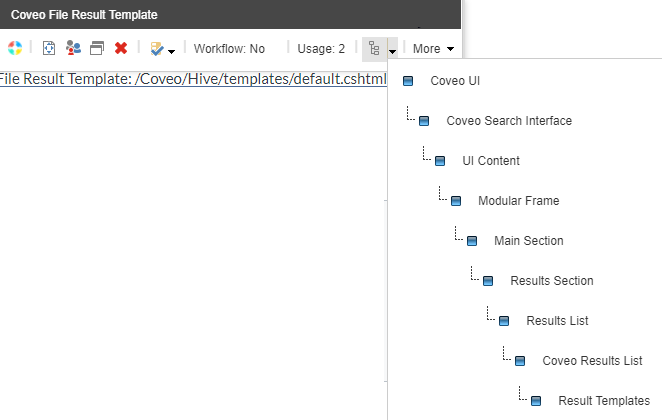
Coveo for Sitecore comes with a **Default Frame** component that automatically sets up a basic Coveo for Sitecore search interface with all the necessary result template parent components and placeholders, up to and including the **Results List** placeholder (see [Example of a Page Structure with the Default Frame](https://docs.coveo.com/en/2213#example-of-a-page-structure-with-the-default-frame)).
The **Example Search Page** template in Coveo for Sitecore is another time saving tool you can use to obtain a complete search interface, including two **Coveo File Result Template** components, one inserted inside a card result list and the other in a list result list component (see [Insert an example search page with Coveo Hive](https://docs.coveo.com/en/2212/)).
### About the Results List Component
A search interface may contain several **Coveo Results List** components.
A typical search interface includes two results list components, one for a `List` layout and the other for a `Card` layout (see [JavaScript Search Framework result layouts](https://docs.coveo.com/en/360/)).
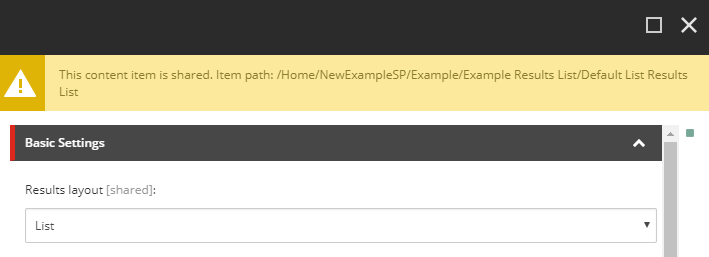
You specify which type of layout to use in the **Coveo Results List** component data source, in the `Results layout` field.
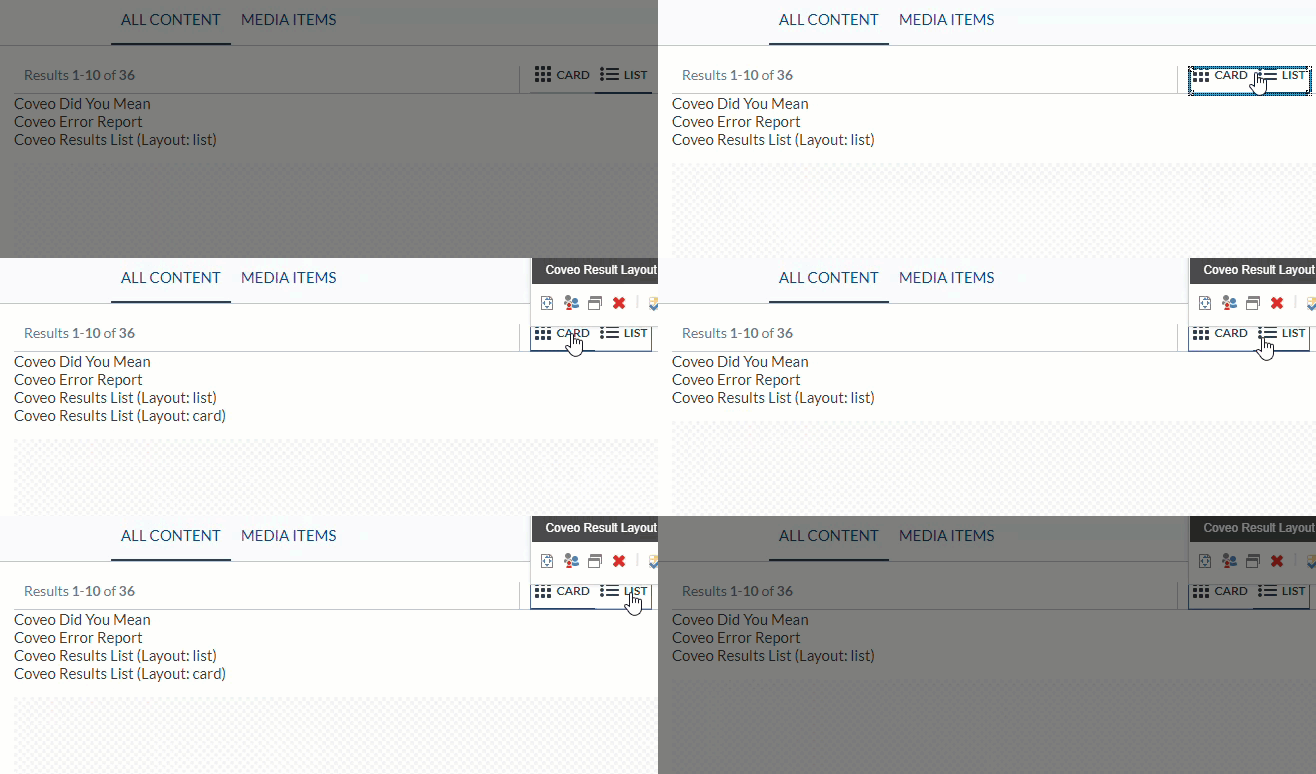
The rendering of a **Coveo Results List** component in the Sitecore **Experience Editor** tells you which type of layout the result list is associated with.

In the Sitecore Experience Editor, when you use the **Coveo Result Layout** component to toggle between the `Card` and `List` layouts, you're actually selecting the corresponding result list component.
Therefore, when you select `Card` in the **Coveo Result Layout** toggle component, the **Result Templates** placeholder of the card **Coveo Results List** component becomes accessible, whereas you would select the `List` option in the **Coveo Result Layout** component to make the **Result Templates** placeholder of the list **Coveo Results List** accessible.
### About the Coveo Result Template Components
You actually don't need to insert a **Coveo File Result Template** or **Coveo Item Result Template** component inside a **Coveo Results List** component for search results to be displayed.
However, when a **Coveo Results List** component doesn't contain a result template component, the search interface uses a very basic template containing an item title and excerpt to display results.
This basic template is _not_ related in any way to the `/Coveo/Hive/templates/default.cshtml` file.
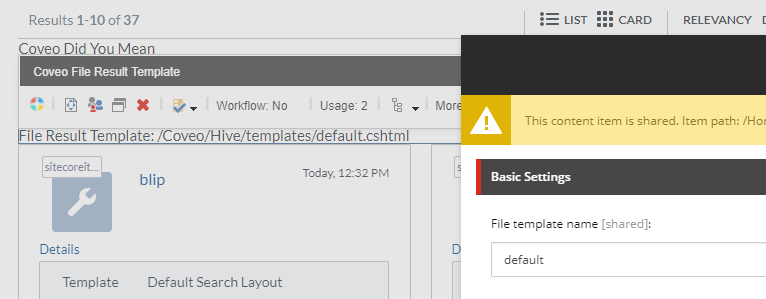
You can link a **Coveo File Result Template** component to an actual view file located in the `/Coveo/Hive/templates` folder by referencing the `.cshtml` file name in the `File template name` field of the result template component data source.
If you use the **Example Search Page** template in Coveo for Sitecore to get started, that search interface contains both a list and a card **Coveo Results List** component.
In each of these components, you find a **Coveo File Result Template** component referencing the `/Coveo/Hive/templates/default.cshtml` file.
Hence, a card layout and a list layout can share the same `.cshtml` file.
The CSS classes applied to format the result list in a single column or two columns are specified upstream from the result template view files.
## Types of Coveo Result Template Components
Coveo for Sitecore packages include two types of result template components:
* the **Coveo File Result Template** component
* the **Coveo Item Result Template** component
### Coveo File Result Template
A **Coveo File Result Template** component is associated with a `.cshtml` view file which is saved on disk, in the `/Coveo/Hive/templates` folder.
You must use the `File template name` field of the component data source to reference the .`cshtml` view file to use.
**Example**
You would like to create a new result template, based on the Coveo Hive `default` template, and use it to display results in your search interface.
For this example, we'll use the **Example Search Page** as the starting point.
. Create a new **Example Search Page** (see [Insert an example search page with Coveo Hive](https://docs.coveo.com/en/2212/)).
. In the Sitecore **Experience Editor**, toggle between the **List** and **Card** layouts and remove the existing result templates in both results lists.


. Save your page.
. In your file explorer, open the `/Coveo/Hive/templates` folder.
. Create a copy of the `default.cshtml` file called `test.cshtml`.
. Back in the **Experience Editor**, select the **List** option in the **Coveo Result Layout** component.
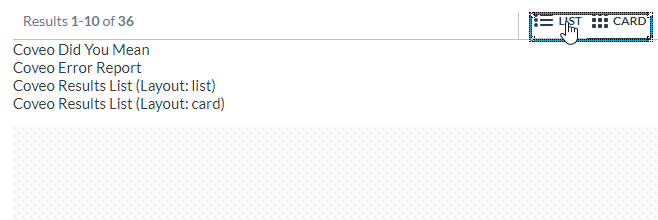
. In the list **Coveo Results List** component **Result Templates** placeholder, click **Add here**.
. Select the **Coveo File Result Template** component.
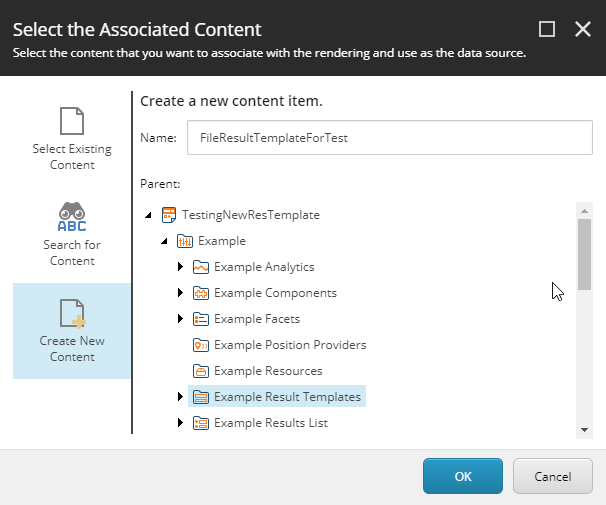
. Create a data source for your new component.
An `Undefined Result Template` message should be displayed.
. In the floating toolbar, select the **Edit a rendering's data source** option.
It should be the leftmost option in the toolbar.
. Set the value of the `File template name` field to test.
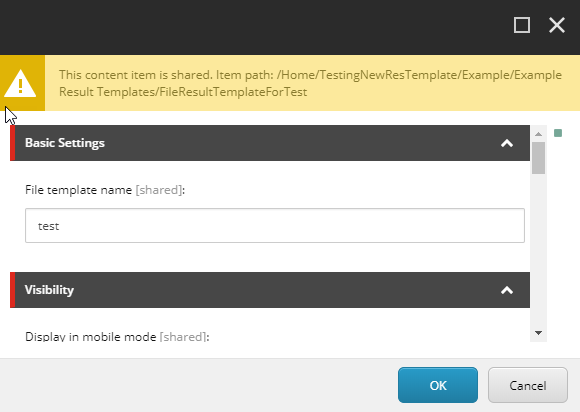
. Click **OK** and save the changes on your page.
When the `List` layout is selected, your search interface should now show results including the item `Template`, `Created By`, `Created`, `Updated By`, `Language`, and `URI` field values.
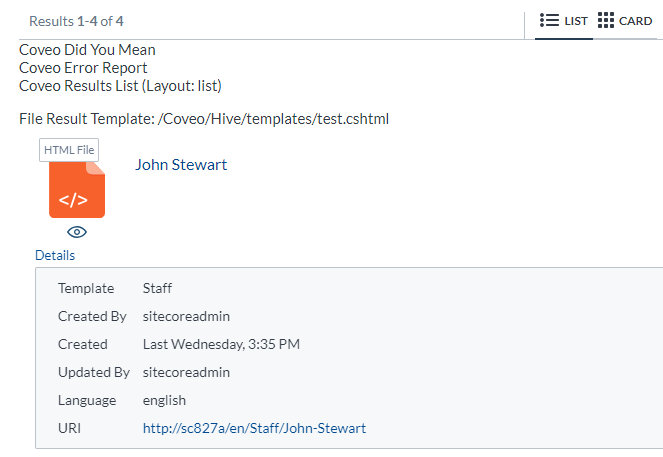
When the `Card` layout is selected, your search interface should now show results using the base out-of-the-box title and excerpt template, because the card **Coveo Results List** component contains no result template component.
### Coveo Item Result Template
The rendering markup of this result template is stored directly in the component data source.
Configure the `Script` field with the result template you want to use.
**Example**
Copy-paste the code below in the `Script` field of your result template data source and save the item.
**Example Result Template**
```html
```
## Result Template Conditions
Conditions allow you to configure specific views in your result list, depending on the item type.
Conditions are specified in the **Conditions** section of **Coveo File Result Template** and **Coveo Item Result Template** data sources.
If a result item matches all conditions specified in the Coveo Result Template data source, it's rendered using the template referenced in the data source `File template name` field.
If not, the result item is evaluated against the conditions in the next Coveo Result Template component in the list.
Therefore, the order in which you insert your Coveo Result Template components in your search interface is important.
> **Leading practice**
>
> If you leave a Coveo Result Template without conditions at the top of the list, the other templates in the list will never be evaluated since the first one will always have matching conditions.
>
> We instead recommend that you insert the Coveo Result Template associated to your default template, without conditions, at the bottom of the list as a proper fallback.
> **Note**
>
> For more information on which template is chosen when trying to render a result, see [About the Condition Evaluation Mechanism](https://docs.coveo.com/en/413#about-the-condition-evaluation-mechanism).
### Template Based Conditions
[.version.c4sc.c4sc-new.5-0-239-2.February-26&-2019]
[Coveo for Sitecore 5.0.239.2](https://docs.coveo.com/en/2764#release-notes)
Use the TreeList field to select the Sitecore templates to target.
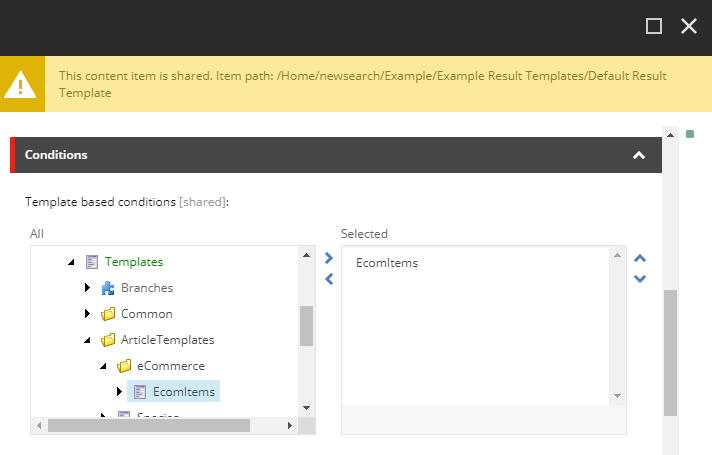
When one or several templates are targeted, the Result Template component adds a `+data-field-=",,..."+` script tag attribute in the search page rendering.
### Field Value Based Conditions
On top of the template based conditions you might have set before, you can add field value based conditions to filter items.
These field value based conditions are set using field-value pairs.
> **Note**
>
> Coveo Hive automatically translates the condition field names to the Coveo format.
Each field value based condition you specify adds a `data-field-=""` script tag attribute in the search page rendering.
**Example**
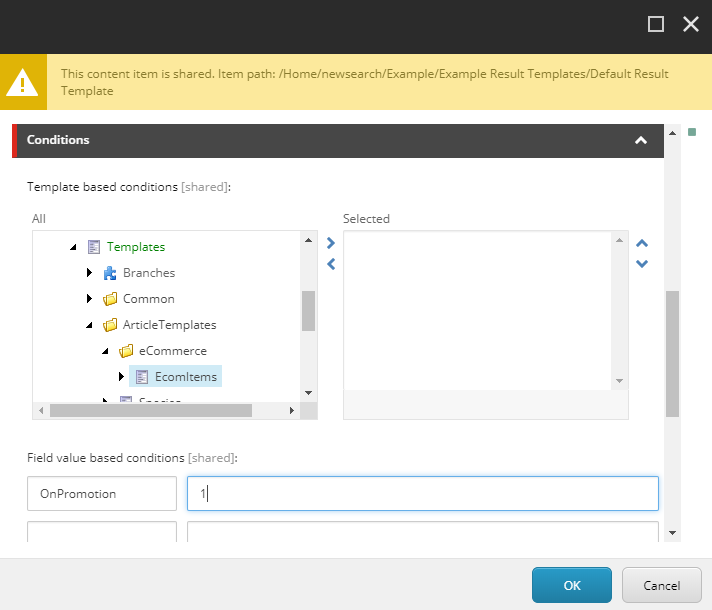
You have commerce items with an `OnPromotion` checkbox field.
You check that checkbox every time the given item is on sale.
This allows you to display on-sale items in search results using a result template with special styling and content.
In this case, the field value based condition on your special styling Result Template component would look like the following:
## Multiple Result Template Example
In this example, there are three results templates: `author`, `book`, and `default`.
. In the **Result Templates** section, select **Add here**.
. Choose **Coveo File Result Template** and click **Select**.
. Create a new data source and name it something meaningful.
For this example, you can use `Author Result Template`.
. Click the newly added rendering, and click **Edit the rendering's data source**.
. Edit the `File template name` to the name of your `.cshtml` template file.
. Set a template based condition that matches only the items that are authors.
. Repeat steps 1 through 6 for the `book` and `default` result templates.
.. On the `book` result template, set a template based condition that matches only the items that are books.
.. On the `default` result template, set no conditions as it will be used as a general fallback for other items.
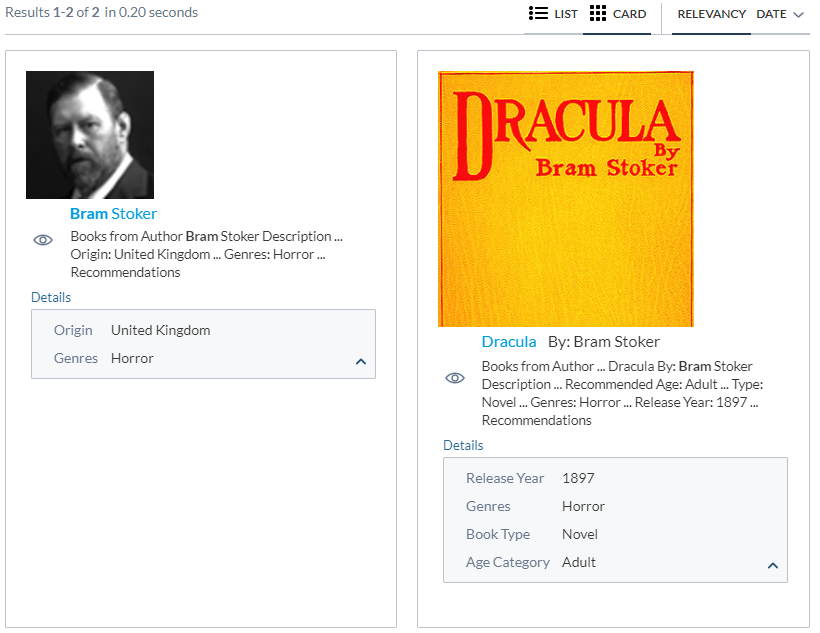
Here is what the result can look like:
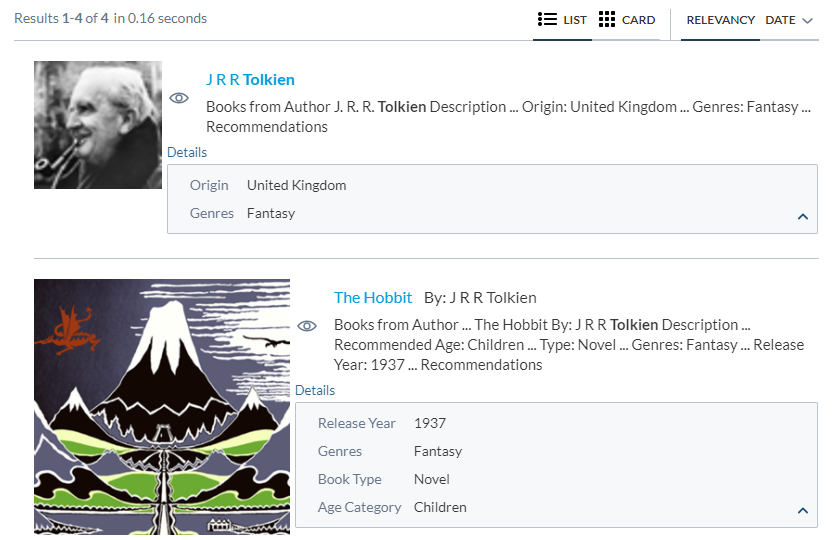
The Book item matches the `book` template and is now rendered differently than authors and other items.
### Referencing the Template in Many Results List
If you're leveraging the **Coveo Result Layout** component or using many result list, you can easily reference already created result template data sources.
The following steps allow you to add the same templates from the previous example in a Card layout.
. Click **Card Layout**, located in the **Result Layout** section.
. Select the displayed result list **Result Template** placeholder, and add a new component
. Choose **File Result Template** and click **Next**.
. Select the previously created result template.
. Save the page.
The same template should now be shown in the card layout.
Here is the result: