---
title: Change event data
slug: '2162'
canonical_url: https://docs.coveo.com/en/2162/
collection: coveo-for-sitecore-v5
source_format: adoc
---
# Change event data
> **Legacy feature**
>
> This article pertains to achieving relevance with the Coveo Hive framework.
> Coveo Hive is now in maintenance mode.
>
> See [Achieve relevance](https://docs.coveo.com/en/n9qd0318/) for guidance on leveraging [Coveo Platform](https://docs.coveo.com/en/186/) relevance features with the Coveo Atomic library.
By default, the analytics component only tracks a limited amount of information on each search event.
However, by using the Coveo analytics pipeline, custom processing can be done to change the format in which the information is stored or to include custom metadata.
The current tutorial will show you how to create a custom analytics processor in order to change the way the results URIs are stored in the database, and to include the device which triggered the search event.
## Steps
. Create a new C# class following the code below.
Reference the `Coveo.SearchProviderBase` and `Coveo.Framework` dlls, as well as `Sitecore.Kernel` and `Sitecore.Analytics`.
This is your custom processor for the Coveo analytics pipeline.
[source,c#]
```
using System;
using System.Collections.Generic;
using System.Linq;
using System.Text.RegularExpressions;
using Coveo.SearchProvider.Analytics;
using Coveo.SearchProvider.Pipelines;
namespace CustomAnalyticsProcessing
{
public class CustomAnalyticsEventProcessor
{
///
/// A processor. This method is responsible for changing the way
/// the results are stored and for logging the current device.
///
/// The .
public void Process(CoveoAnalyticsPipelineArgs p_Args)
{
SearchEvent searchEvent = p_Args.AnalyticsData as SearchEvent;
if (searchEvent != null) {
Regex guidRegex = new Regex(@"\b[A-F0-9]{8}(?:-[A-F0-9]{4}){3}-[A-F0-9]{12}\b", RegexOptions.IgnoreCase);
// Modify the way the results are stored only for the search box event.
if (searchEvent.Type == "search box") {
// Find all the GUIDs in the EventData Text parameter. This field typically contains the result URIs.
IEnumerable searchResultsIds = guidRegex.Matches(p_Args.EventData.Text)
.Cast()
.Select(match => match.Value)
.ToList();
// Replace the results URIs with their Sitecore item ID, and keep track of the device (for example, Chrome, Firefox)
// that generated the event.
p_Args.EventData.Text = String.Join("|", searchResultsIds);
p_Args.EventData.DataKey = String.Format("Device: {0}", searchEvent.Device);
}
}
}
}
}
```
** This method simply detects when a query event is triggered and replaces the content of the `Text` property with a pipe-separated list of result IDs.
Furthermore, it keeps track of the current device and stores this information in the `DataKey` property.
. Compile the class and copy its assembly to the `bin` directory of your Sitecore website.
. Create a `Coveo.UI.Controls.Custom.config` file, which is a patch of the `Coveo.UI.Controls.config` and add the `` element in which you will place your processor.
```xml
```
> **Note**
>
> There are many other ways to define processors in configuration files.
> For example, you can define this processor in your own configuration file, as long as it's located under the `App_Config/Include` directory of your website.
> See the [All About Web.config Include Files with the Sitecore ASP.NET CMS](https://community.sitecore.com/community/en/all-about-web-config-include-files-with-the-sitecore-asp-net-cms?id=community_blog&sys_id=efd22fed1b8370d0b8954371b24bcb9c) article for more information.
. Browse to your Coveo-powered search page and perform a new query.
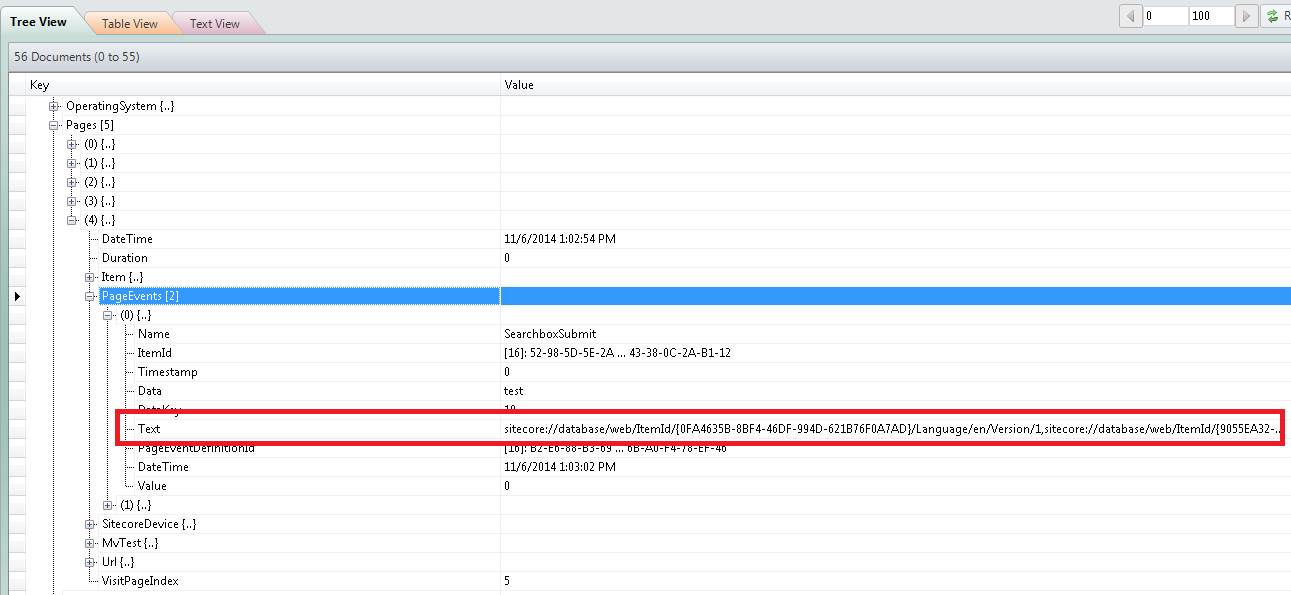
. Validate that the processor was executed correctly by [querying the `PageEvents` table](https://docs.coveo.com/en/2424/) in your analytics database.
You should see that the `DataKey` and `Text` data are now logged differently than your previous queries.