---
title: Integrate a search page into your commerce solution
slug: '2080'
canonical_url: https://docs.coveo.com/en/2080/
collection: coveo-for-commerce
source_format: adoc
---
# Integrate a search page into your commerce solution
This article serves as an introduction and high-level guide to creating a search interface with the [Coveo Atomic library](https://docs.coveo.com/en/lcdf0264/).
> **Important**
>
> This section provides information on how to implement search interfaces that interact with the Coveo Search API, which is no longer recommended for Coveo for Commerce implementations.
>
> New Coveo for Commerce implementations should use the Coveo for Commerce API, which provides a more efficient and flexible way to interact with the [Coveo Platform](https://docs.coveo.com/en/186/).
> See [Build commerce interfaces](https://docs.coveo.com/en/o4ue6279/) for documentation on how to build commerce interfaces using the Coveo for Commerce API.
## Example code
You can quickly build a minimal search interface using just a few dozen lines of HTML code:
```html
.
.
.
```
The rest of this article dissects and analyzes the various sections of the above code sample.
## Including the Atomic library resources
To use the Atomic library, link the following two files in the `` of the page (see [install the Atomic library](https://docs.coveo.com/en/atomic/latest/usage#install-atomic)):
```html
<1>
<2>
```
<1> The main Atomic script.
<2> The [default Atomic stylesheet](https://static.cloud.coveo.com/atomic/v2/themes/coveo.css).
While this import is optional, if you don't import it you'll need to [define its variables](https://docs.coveo.com/en/atomic/latest/usage/themes-and-visual-customization#theme-variables) yourself.
## Initializing the Atomic search interface
Before you can begin searching content, you must connect your search page to your [Coveo organization](https://docs.coveo.com/en/185/).
Do so within the `` tag of the search page.
[source,html,subs="attributes+"]
```
```
<1> `` (string) is an [API key](https://docs.coveo.com/en/105/) that was created using the **Anonymous search** [template](https://docs.coveo.com/en/1718#api-key-templates) or a [search token](https://docs.coveo.com/en/56/) that grants the **Allowed** [access level](https://docs.coveo.com/en/2818/) on the [**Execute Queries**](https://docs.coveo.com/en/1707#execute-queries-domain) [domain](https://docs.coveo.com/en/2819/) and the **Push** [access level](https://docs.coveo.com/en/2818/) on the [**Analytics Data**](https://docs.coveo.com/en/1707#administrate-domain) [domain](https://docs.coveo.com/en/2819/) in the target [organization](https://docs.coveo.com/en/185/).
> **Important**
>
> We strongly recommend that the access token enforces a `searchHub` value.
> See [Defining the search hub in the authentication](https://docs.coveo.com/en/n89e0266#defining-the-search-hub-in-the-authentication) for more details.
<2> `` (string) is the [unique identifier of your Coveo organization](https://docs.coveo.com/en/n1ce5273/) (for example, `mycoveoorganizationa1b23c`).
<3> `` (function) returns a new access token, usually by fetching it from a backend service that can generate [search tokens](https://docs.coveo.com/en/56/).
The engine will automatically run this function when the current access token expires (that is, when the engine detects a `419 Authentication Timeout` HTTP code).
> **Note**
>
> You don't need to specify a `renewAccessToken` callback if your application is using [API key authentication](https://docs.coveo.com/en/105/).
> This is typically not recommended, but can be legitimate in some scenarios.
## Building your search interface
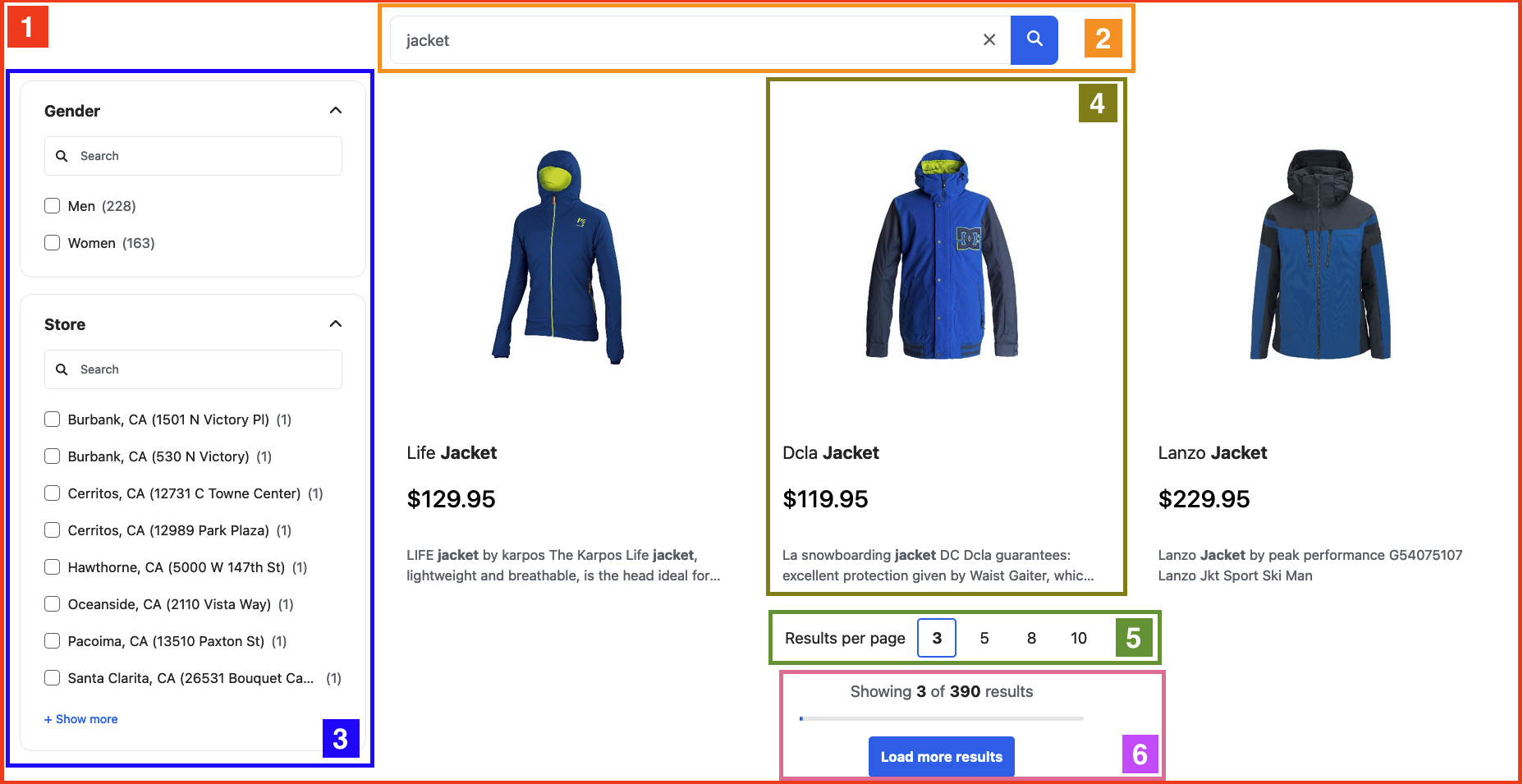
A Coveo Atomic search interface builds search pages by attaching [components](https://docs.coveo.com/en/atomic/latest/reference/components/) to target HTML elements.
These components add functionality to your search interface. Some of the important components are highlighted in the example below.
```html
<1>
<2>
<3>
<4>
.
.
.
<5>
<6>
```
Some essential components include:
[cols="2",options="header"]
|===
|Atomic component
|Description
| 1. [atomic-search-interface](https://static.cloud.coveo.com/atomic/v3/storybook/index.html?path=/docs/atomic-search-interface\--docs)
| The parent of all other atomic components in the search page.
``
Notice that this is where you would define a `` to name your component (for example, `my search hub`).
This value is used as your interface's identifier and will be sent along with each queries and usage analytics events originating from this component.
See [About the search hub](https://docs.coveo.com/en/n89e0266/) for more information on search hubs.
| 2. [atomic-search-layout](https://static.cloud.coveo.com/atomic/v3/storybook/index.html?path=/docs/atomic-search-layout\--docs)
| Helps organize elements on the search page.
Has the `mobileBreakpoint` property which specifies when layout switches from mobile to desktop.
``
| 3. [atomic-layout-section](https://static.cloud.coveo.com/atomic/v3/storybook/index.html?path=/docs/atomic-layout-section\--docs)
| Allows the identification of various sections of an Atomic page.
Acts as a container
``
| 4. [atomic-facet-manager](https://static.cloud.coveo.com/atomic/v3/storybook/index.html?path=/docs/atomic-facet-manager\--docs)
| Helps reorder facets.
Acts as a container for facet components.
``
| 5. [atomic-facet](https://static.cloud.coveo.com/atomic/v3/storybook/index.html?path=/docs/atomic-facet\--docs)
| Displays a list of values for a specific field occurring in the results
``
| 6. [atomic-result-list](https://static.cloud.coveo.com/atomic/v3/storybook/index.html?path=/docs/atomic-result-list\--docs)
| Responsible for displaying query results.
``
|===
There's another essential functionality which isn't visible in the search interface example provided above: [Atomic Usage Analytics](https://docs.coveo.com/en/atomic/latest/usage/atomic-usage-analytics/).
Atomic records [Coveo Analytics events](https://docs.coveo.com/en/260/) performed in the search interface to feed [Coveo Machine Learning (Coveo ML)](https://docs.coveo.com/en/188/) [models](https://docs.coveo.com/en/1012/) and to create UA reports.
For more details, to customize or send your own UA events, see [Atomic Usage Analytics](https://docs.coveo.com/en/atomic/latest/usage/atomic-usage-analytics/).
## What's next?
You now have a general understanding of how to configure a Coveo-powered search interface using the Atomic library.
You may also want to [create a standalone search box](https://docs.coveo.com/en/atomic/latest/usage/ssb/) to provide relevant search throughout your ecommerce solution or website.
For more examples, have a look at the interactive ones below: