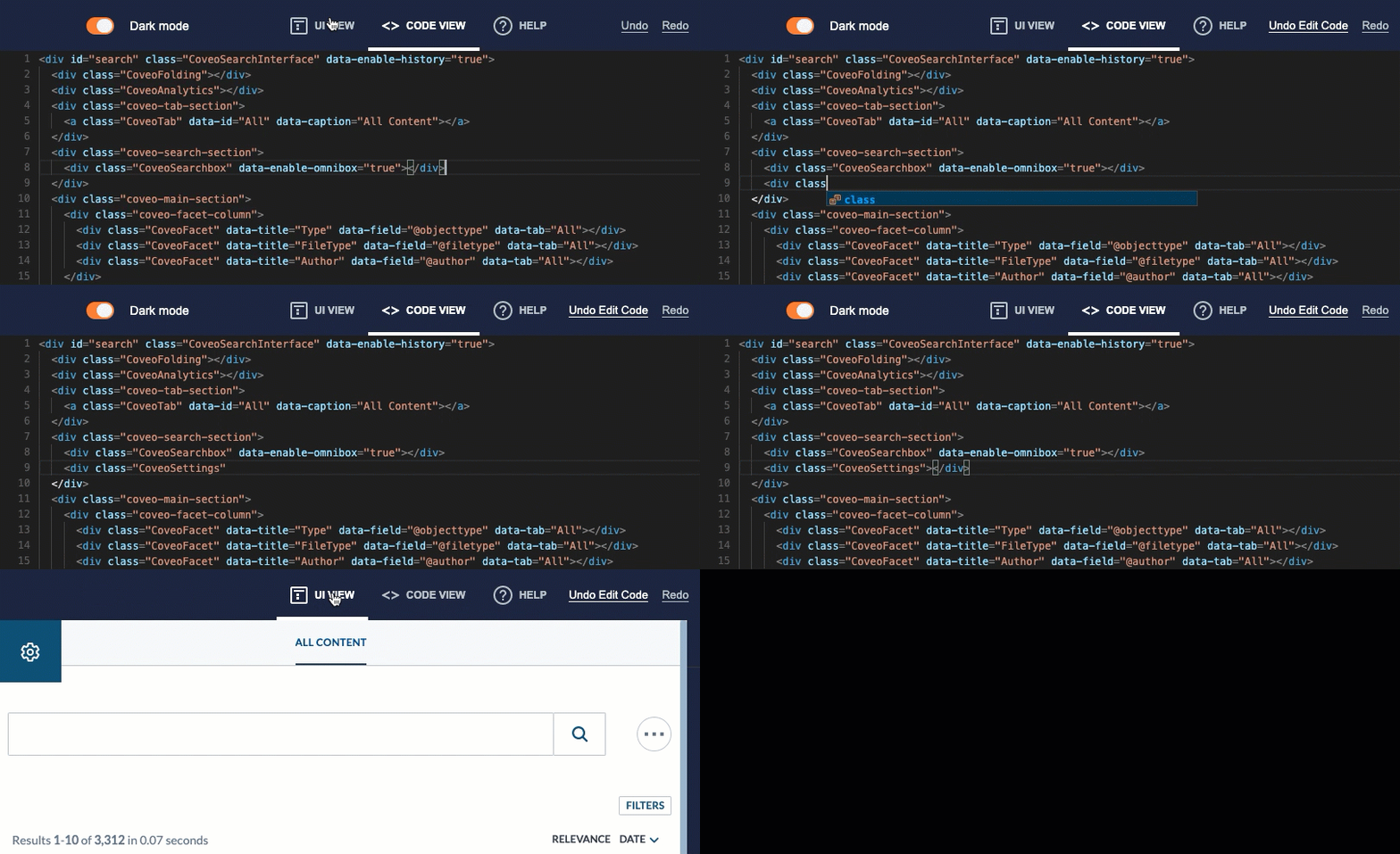
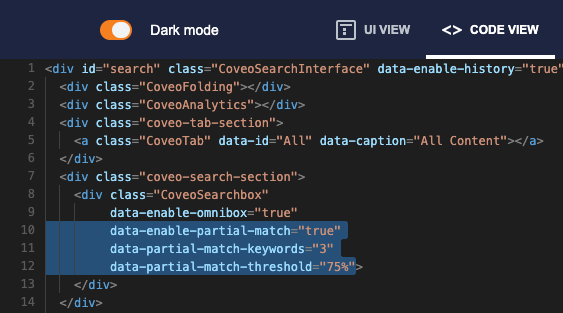
--- title: Use the legacy Interface Editor slug: '1852' canonical_url: https://docs.coveo.com/en/1852/ collection: build-a-search-ui source_format: adoc --- # Use the legacy Interface Editor > **Tip** > > The Interface Editor is a reliable, time-tested tool. > However, we recommend that you use the Interface Editor only when instructed to by the documentation. > If you aren't, you may want to try the new [search interface builder](https://docs.coveo.com/en/1656#create-a-hosted-search-interface) instead. > Thanks to its intuitive design, you can create a search interface for test and demo purposes. > Search interfaces created with the new builder are also hosted by Coveo, which makes them immediately operational. The Interface Editor lets you create and customize feature-rich [search interfaces](https://docs.coveo.com/en/2741/) using the Coveo JavaScript Search Framework. Since there are [newer alternatives](https://docs.coveo.com/en/3368/) to the Framework, we recommend that you use the Interface Editor only when instructed to by the documentation. The Interface Editor is available through the [**Search Pages**](https://platform.cloud.coveo.com/admin/#/orgid/search/search-pages/) ([platform-ca](https://platform-ca.cloud.coveo.com/admin/#/orgid/search/search-pages/) | [platform-eu](https://platform-eu.cloud.coveo.com/admin/#/orgid/search/search-pages/) | [platform-au](https://platform-au.cloud.coveo.com/admin/#/orgid/search/search-pages/)) page of the Coveo Administration Console. ## UI view The **UI View** provides a WYSIWYG editor useful for designing and testing search interfaces. This view is selected by default when you access the Interface Editor. > **Tip** > > In **UI View**, hover over a  icon to get detailed reference information regarding a component or an option. > >  ### Adding components You can add components ([tabs](https://docs.coveo.com/en/1406/), [facets](https://docs.coveo.com/en/198/), etc.) to a search interface by dropping them on the page. **Example** Adding a dynamic facet  To add a component . On the right side, from the list of **Components**, drag the desired component and drop it where it should appear on the page. You can always [move the component](#moving-components) later. . In the panel that appears, configure the required component settings, and then click **Ok**. The component is added and automatically selected in edit mode. . (Optional) Further customize the component using the available panels. You can always [edit the component](#editing-components) later. . Click **Apply**. ### Moving components Any search interface component you can [add by dragging](#adding-components) can be moved in the same fashion. **Example** Moving a dynamic facet  ### Editing components You can select a component and enter edit mode to review and modify its current configuration. **Example** Editing a dynamic facet  To edit a component . Hover over the desired component instance, and then click [edit]. . Use the available panels to make the desired modifications, and then click **Apply**. ### Deleting components Any search interface component you can [add by dragging](#adding-components) can also be removed. **Example** Deleting a dynamic facet  To delete a component . Hover over the component instance, and then click [delete]. . In the **Delete a component** dialog, click **Yes**. ### Managing result templates When editing a result template, you can [add](#adding-components), [move](#moving-components), [edit](#editing-components), and [delete](#deleting-components) result template components (Field Value, Icon, etc.), just as you would with other search interface components (Facet, Tab, etc.). You can also visually edit result template cells and rows. For more detailed information and examples, see [Configure search result templates](https://docs.coveo.com/en/1767/). **Example** Designing a YouTube result template  ### Editing the no results page You can customize the content that gets displayed when a query doesn't return any results. **Examples** * Editing the no results message  * Adding a custom HTML section to the no results message   To edit the no results page . On the upper-left corner, click icon:settings-cog[alt=settings-cog,width=16]. . Select **Edit no results page**. . In the **Query Summary Options** panel that appears, enter the desired text in the **Message to display** input. You can use `+$[query](https://docs.coveo.com/en/231/)+` to insert the current query expression in the message (for example, `+$[query](https://docs.coveo.com/en/231/), you say? Sorry, no results!+`). . (Optional) Set additional options as desired, possibly including a custom HTML section. . Click **Apply**. ### Editing other settings You can configure additional basic search interface options through the **UI Settings** (icon:settings-cog[alt=settings-cog,width=16]) menu. **Example** Modifying search interface and result list settings  ## Code view Each modification you make in the **UI View** has an impact on the underlying markup configuration of the search interface. This markup configuration can be accessed by selecting the **Code View**. ### Basics Dropping a new facet as shown in the [Adding components](#adding-components) example generates the following markup: ```html
``` The location of each dynamic facet in a search interface is determined by its position in the `div` with the `coveo-facet-column` class: ```html