---
title: Customize localized strings in a search interface
slug: '1798'
canonical_url: https://docs.coveo.com/en/1798/
collection: build-a-search-ui
source_format: adoc
---
# Customize localized strings in a search interface
When you build search pages with [Coveo for Salesforce](https://docs.coveo.com/en/1404/), you might need to localize your search pages by changing some strings that are displayed.
You might also want to add translations for strings you've written.
## Coveo for Salesforce use case
> **Available since**
>
> This feature was introduced in the July 2016 release of Coveo for Salesforce version [2.26](https://docs.coveo.com/en/1124#july-2016-maintenance-release-v226).
The [Coveo JavaScript Search Framework](https://docs.coveo.com/en/187/) that's bundled with Coveo for Salesforce comes with standard user interface string translations for [several languages](https://docs.coveo.com/en/421#built-in-languages).
When a user configures a personal language for their Salesforce Web user interface (see [Setting Language Options](https://help.salesforce.com/s/articleView?id=sf.siteforce_languages_settings.htm&type=5) and [How to change to a different language for Salesforce?](https://help.salesforce.com/apex/HTViewSolution?id=000005218&language=en_US)) to one supported by the Coveo JavaScript Search Framework, Coveo for Salesforce [search interfaces](https://docs.coveo.com/en/2741/) automatically open in that language.
The English version of the search interface strings are always loaded and are used by default when a string is missing in the loaded localization.
For unsupported languages, search interfaces also appear in English by default.
Using the [Interface Editor](https://docs.coveo.com/en/1852/), you can:
* Override existing localizations
* Add translations for custom strings
* Add translations for unsupported languages or regional versions of a language (as described in the following [procedure](#procedure))
> **Note**
>
> The Interface Editor is in English only and can't be localized.
## [[procedure]]Procedure
**To customize localized strings in a search interface**
. In Salesforce, ensure that the personal language configured for your Salesforce user interface is the language in which you want to customize the localization (see [Setting Language Options](https://help.salesforce.com/s/articleView?id=sf.siteforce_languages_settings.htm&type=5) and [How to change to a different language for Salesforce?](https://help.salesforce.com/apex/HTViewSolution?id=000005218&language=en_US)).
. Open or reload your Coveo-powered search interface.
For [languages supported by the Coveo JavaScript Search Framework](https://docs.coveo.com/en/421#built-in-languages), most search interface strings should already appear in the selected language.
Custom user interface strings and search result contents aren't translated.
. [Access the Interface Editor](https://docs.coveo.com/en/3081/).
While the Interface Editor is open, the search interface strings appear in English.
> **Tip**
>
> You can open the search interface in another browser tab, without the Interface Editor, to identify the untranslated strings for which you want to customize the localization.
. In the Interface Editor, access the **Localization** panel:
.. Click icon:settings-cog[alt=settings-cog,width=16].
.. Add a Localization component to your search interface, if not already done:
In the **Select a setting** box, start typing `Localization`, and then select the **Localization** option.
> **Leading practice**
>
> While you can add more than one Localization component to a search interface, you should only include one where you define all your string translations.
. In the **Localization** panel, add one or more languages:
.. Click **Add a Language**.
.. In the **Add a Language** panel, in the **Language key** box, enter the 2 or 4-letter language code for the desired localization, referring to the [Salesforce supported language list](https://help.salesforce.com/apex/HTViewHelpDoc?id=faq_getstart_what_languages_does.htm&language=en_US).
**Examples**
* `fr` for French
* `zh_CN` for simplified Chinese
.. Click **OK**.
.. Repeat the previous steps to customize the localization for other languages.
You can always add languages later.
> **Note**
>
> You can delete a language from the **Localization** panel by hovering over the language header, and then clicking **Delete**.
. Add a string localization:
.. In the search interface, identify a string for which you want to customize the localization.
.. In the **Localization** panel, click **Add a String**.
.. In the **Add a String** panel, what you enter in the **Word** box depends on the string characteristics:
--
Strings hardcoded in the markup of the HTML page
... Enter the original and exact case-sensitive English string.
... To confirm that a string is hardcoded in the markup of the HTML page:
.... At the top of the Interface Editor, click **Code** to access the markup code of the HTML page.
.... Search for the string you want to translate to confirm that it's present.
**Example**
You create a custom [facet](https://docs.coveo.com/en/198/) labeled **KB Author**.
In the HTML code, the facet label is defined in the `data-title` attribute of a `CoveoFacet` component, so you enter `KB Author` in the **Word** box.
```html
```
--
--
Strings coming from a `CoveoJsSearch.js` dictionary
... Enter the case-sensitive JavaScript dictionary key.
... To figure out whether a string comes from a JavaScript dictionary and what its key is:
.... In the browser tab where the Interface Editor is opened for your search interface, open the browser developer tools to inspect the code.
.... On the **Sources** tab, locate and open the `CoveoJsSearch.js` file (as shown in the following image with Chrome developer tools).
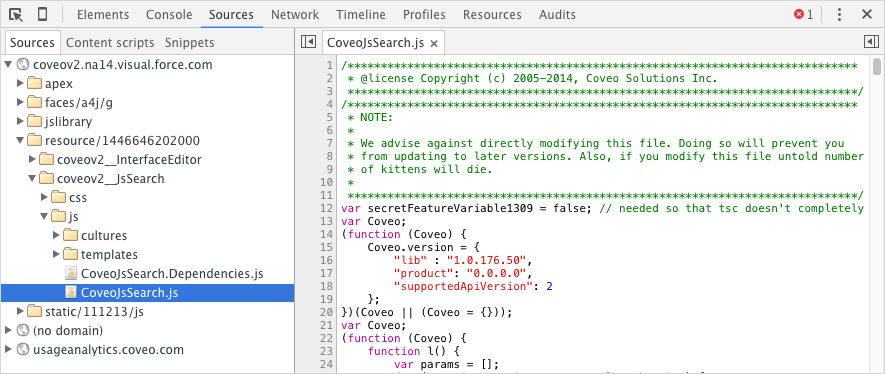
.... In the `CoveoJsSearch.js` file, search for the exact string for which you want to customize the localization.
.... Look for an occurrence in the following format:
```javascript
(function () {
var dict = {
...
"StringKey": "The string you search",
...
}
})
```
.... Enter the corresponding `StringKey` in the **Word** box.
--
. In the **Localization** panel, add a translation for the added string for each language that you defined by entering the string without quotes.
See [Special cases](#special-cases) for details on particular situations you might encounter while doing so.
> **Notes**
>
> From the **Localization** panel:
>
> * You can delete a string by hovering over it, and then clicking **Delete**.
>
> * You can't modify a string, but you can add a new corrected one, enter the corresponding translations, and then delete the original string.
>
> * The order in which strings are entered doesn't matter, as strings are only replaced when there's an exact case-sensitive match with the key.
. In the Interface Editor, click **Save** to close the **Localization** panel and make your changes effective.
. Back on the updated search interface, validate that your localization changes appear as expected.
. Repeat the previous steps to add other languages and add or modify string localization customizations.
> **Notes**
>
> * The **Localization** panel adds a `script` section at the bottom of the HTML page code as shown in the following example.
>
> ```html
```
>
> You can view and edit the localization JSON from the **Code** tab of the Interface Editor.
> This is sometimes more efficient than using the **Localization** panel (for example, when you want to rename a string key).
>
> * To add an unsupported regional version of a base language:
>
> .. Set Salesforce to the base language.
>
> .. Copy the list of key/string pairs from the `resource/[id]/coveov2__JsSearch/js/cultures/[baselang].js` file.
>
> .. Paste the key/string pairs in the `script` section at the bottom of the HTML page code.
>
> .. Change or add the region specific strings in the **Localization** panel or directly in the code.
>
> * If you include JavaScript code in your HTML page, you can reference a localized string version as follows:
>
> ```javascript
'StringKey'.toLocaleString();
```
## Special cases
This section describes the following special cases to consider when customizing the localization of a search interface:
* [Dictionary strings containing variables](#case1)
* [Dictionary strings containing singular and plural tags](#case2)
### [[case1]]Dictionary strings containing variables
Some original English JavaScript dictionary strings may be built dynamically by concatenating hard coded text with one or more string or numerical variables referenced with `+{n}+`, where `n` is `0` for the first variable, and incremented for other variables.
When you create a translation for such a string, you should include the variable markers present in the original string at the appropriate location in the appropriate order in your translated string.
**Example**
In the following original dictionary string, `+{0}+` refers to the filter name and `+{1}+` the query expression of this filter.
```json
"AreYouSureDeleteFilter": "Are you sure you want to delete the filter {0} with the expression {1}"
```
For the string translated to Chinese, because of the language flow, the variable order must be inverse:
```json
"您是否确定要删除采用 {1} 表达式的筛选条件 {0}"
```
### [[case2]]Dictionary strings containing singular and plural tags
An original English JavaScript dictionary string may contain singular/plural tags to dynamically change the string from singular to plural form, depending on the context (such as the value of a numerical variable).
Anything within `` tags only appears in a singular context, while anything within `` tags appears in a plural context.
When you create a translation for this type of string, if the target language also has the concept of singular/plural forms, you should include the appropriate singular and plural tags in your translation.
**Example**
In the following original dictionary string, the singular versus plural context depends on the number of available search results for the current query.
Singular applies when there's no or only one result.
Plural applies when there are two or more results.
```json
"Results": "Results"
```
In French, your translation would be:
```xml
Résultats
```
> **Tip**
>
> You can create easier to read singular and plural string forms by enclosing the whole string of each version with the appropriate tags:
>
> ```html
There's only one resultThere are many results
```
>
> Rather than tagging each individual singular/plural difference:
>
> ```xml
There isare only onemany results
```