---
title: Add a SharePoint Online source
slug: '1739'
canonical_url: https://docs.coveo.com/en/1739/
collection: index-content
source_format: adoc
---
# Add a SharePoint Online source
:figure-caption!:
Members with the [required privileges](#required-privileges) can [index](https://docs.coveo.com/en/204/) SharePoint Online or OneDrive content and make it searchable.
SharePoint Online tenants typically hold large volumes of content.
Follow the SharePoint Online source configuration [leading practices](https://docs.coveo.com/en/n8ub0545/) to optimize indexing performance.
> **Notes**
>
> * To retrieve SharePoint _on-premises_ content, [create a SharePoint Server source](https://docs.coveo.com/en/2061/) instead.
>
> * The item modifications that are retrievable during a source rescan are determined by the options selected when adding or editing the SharePoint Online source in the [Additional content](#additional-content) section.
>
> * Following a refresh operation, deleted discussion lists are excluded from your SharePoint Online source content, but replies to the original discussion message will only be excluded following the next rescan operation.
> This is a known issue caused by a limitation of SharePoint Online.
## Source key characteristics
The following table presents the main characteristics of a SharePoint Online source.
[cols="2,2,3,4",options="header"]
|===
2+|Features
|Supported
|Additional information
2+|SharePoint Online version
|Latest cloud version
|
2+|Indexable content
|Sites, sub-sites, user profiles, personal websites, lists, list items, list item attachments, document libraries, document sets, documents, web parts, and microblog posts and replies.
|If you select **Specific URLs** or **User profiles** in the [**Content**](#content) section, some additional items will be indexed.
To retrieve user profiles, the source must dig through your SharePoint Online instance, including your host site collection and the items it contains.
The items it encounters in the process are retrieved and indexed as well.
.3+.^|[Content update operations](https://docs.coveo.com/en/2039/)
|[refresh](https://docs.coveo.com/en/2710/)
^|[check]
|[Takes place every hour by default](https://docs.coveo.com/en/1933/).
A refresh _doesn't_ capture groups that are added/removed using the SharePoint **Advanced site permissions** panel.
Only rescans and rebuilds capture these changes.
|[rescan](https://docs.coveo.com/en/2711/)
^|[check]
|[[parallelrefresh]][Takes place every week by default](https://docs.coveo.com/en/1933/).
Extracts all the data and indexes the following: modified permissions on items, new items, existing items with a modified date greater than the date in the index, and existing items with a computed entity tag (The entity tag is the version identifier of an item and is calculated using the item metadata.) different than the one in the index.
Coveo runs refreshes in parallel with rescan operations only when [**App authentication using certificate**](#app-authentication-using-certificate-recommended) is used.
|[rebuild](https://docs.coveo.com/en/2712/)
^|[check]
|
.3+.^|[Content security](https://docs.coveo.com/en/1779/) options
|[Same users and groups as in your content system](https://docs.coveo.com/en/1779#same-users-and-groups-as-in-your-content-system)
^|[check]
|
|[Specific users and groups](https://docs.coveo.com/en/1779#specific-users-and-groups)
^|[check]
|
|[Everyone](https://docs.coveo.com/en/1779#everyone)
^|[check]
|
.4+|[Metadata indexing for search](#index-metadata)
|Automatic mapping of [metadata](https://docs.coveo.com/en/218/) to [fields](https://docs.coveo.com/en/200/) that have the same name
2+a|This setting is disabled by default and [not recommended for this source type](https://docs.coveo.com/en/1640#about-the-performfieldmappingusingallorigins-setting).
|Automatically indexed [metadata](https://docs.coveo.com/en/218/)
2+|Examples of [auto-populated default fields](https://docs.coveo.com/en/1833#field-origin) (no user-defined metadata required):
• `author`
• `clickableuri`
• `date`
• `filename`
• `filetype`
• `indexeddate`
• `language` (auto-detected from item content)
• `searchablemeta` (The keys and values indexed in the `searchablemeta` field are also available as separate indexable metadata; no parsing on your part is required. Just proceed as explained in the [Indexing metadata)(#index-metadata) section to index the pieces you need.]
• `spolistbasetype`
• `spolisttype`
• `spparentname`
• `spsitename`
• `title`
After a content update, [inspect your item field values](https://docs.coveo.com/en/2053#inspect-search-results) in the **Content Browser**.
|Extracted but not indexed metadata
2+a|The SharePoint Online source extracts some of the site, list, list item, and file-level metadata that the SharePoint Online APIs make available.
After a rebuild, review the [**View and map metadata**](https://docs.coveo.com/en/m9ti0339#view-and-map-metadata-subpage) subpage for the list of indexed metadata, and [index additional metadata](https://docs.coveo.com/en/m9ti0339#index-metadata).
|Custom metadata extraction
2+a|[Add columns to your list and libraries](https://support.microsoft.com/en-us/office/create-a-column-in-a-list-or-library-2b0361ae-1bd3-41a3-8329-269e5f81cfa2?ui=en-us&rs=en-us&ad=us).
The SharePoint Online source automatically extracts the metadata in these columns during content updates.
|===
## Authentication and site access
A SharePoint Online source uses the OAuth 2.0 authorization protocol to access your SharePoint Online site content, and the source must authenticate through an Azure Active Directory application.
You can choose to authenticate the Azure Active Directory application via a client certificate using app-only permissions, or using a delegated SharePoint Online user account (crawling account).
The authentication method you choose depends mainly on your individual needs and corporate policy.
Before creating a new SharePoint Online source:
. Determine the authentication method you want to use.
The following subsections highlight the main advantages of each authentication method.
. Perform the prerequisites corresponding to your authentication method:
** [**App authentication using certificate** prerequisites](#app-authentication-using-certificate-prerequisites)
** [**User delegated access using OAuth 2.0** prerequisites](#user-delegated-access-using-oauth-2-0-prerequisites)
> **Notes**
>
> * It's important to know the difference between site access, indexed items, and user access to content.
>
> ** Authenticating through a certificate or a delegated crawling account gives Coveo authorization to crawl site content in your SharePoint Online tenant.
>
> ** The sites and items that are actually indexed by your SharePoint Online source are determined by your source [**Content to index**](#content-to-index-subtab) settings.
>
> ** User access to the indexed items through a Coveo-powered [search interface](https://docs.coveo.com/en/2741/) depends on your source [**Content Security**](#content-security-tab) settings.
>
> * You must enter authentication credentials to be able to save a new SharePoint Online source configuration.
### App authentication using certificate (recommended)
The main advantages of **App authentication using certificate** are:
* It provides a higher throttling rate limit than **User delegated access using OAuth 2.0**, and is recommended for indexing large amounts of data.
* It enables [parallel refreshes](#parallelrefresh), which improve content freshness by indexing latest changes even when the source is performing a long rescan operation.
* It allows more flexibility than **User delegated access using OAuth 2.0** in terms of content access.
** You can grant the source permission to access all site content, Team sites, personal sites, and user profiles in your SharePoint Online tenant without having to provide individual access to each site.
The content that's actually crawled and indexed depends on your source [**Content to index**](#content-to-index-subtab) subtab settings.
** You can grant the source with access to only a subset of site collections using the `Sites.Selected` permission (instead of `Sites.FullControl.All`).
* It provides easier setup, as you don't need to create and manage a crawling account in SharePoint Online, assign the account appropriate roles and permissions, and grant the account access to content.
#### App authentication using certificate prerequisites
If you choose to authenticate using a certificate, you must perform the following before creating your SharePoint Online source:
. [Create a client certificate](#create-a-client-certificate).
. [Create the Azure Active Directory application](#create-the-azure-active-directory-application) and assign the required permissions.
. [Add the client certificate to the Azure Active Directory application](#add-the-client-certificate-to-the-azure-active-directory-application).
##### Create a client certificate
Your SharePoint Online source uses the client certificate to authenticate the Azure Active Directory application to crawl your SharePoint Online tenant.
. Create a CA-signed certificate using a trusted certificate authority (recommended), or a [self-signed certificate](https://learn.microsoft.com/en-us/entra/identity-platform/howto-create-self-signed-certificate) using the method of your choice.
> **Note**
>
> The certificate file format must be `.cer`, `.pem`, or `.cert`.
> You'll need the certificate file when adding the certificate to your Azure Active Directory application.
. Export the certificate as a password-protected `.pfx` file.
Depending on how you created the certificate file, the `.pfx` file may be created for you automatically.
> **Note**
>
> You'll need the `.pfx` file and password when creating your SharePoint Online source.
##### Create the Azure Active Directory application
The Azure Active Directory application that you create for use with your source grants Coveo the permissions to crawl your SharePoint Online tenant.
Create the application and assign the required permissions as follows:
. Access your [Azure portal](https://portal.azure.com/) with an administrator account, and [create (register) an Azure Active Directory application](https://docs.microsoft.com/en-us/azure/active-directory/develop/quickstart-register-app#register-an-application).
> **Notes**
>
> * Select **Accounts in this organizational directory only** for the **Supported account type** option when creating the application.
>
> * Once you register the application, you're taken to the application **Overview** page in Azure.
> Take note of the **Application (client) ID** and **Directory (tenant) ID** as you'll need them when creating your SharePoint Online source.
. Grant the Azure Active Directory application the required crawling permissions as follows:
.. If you're currently on your application's page in Azure, proceed to the next step.
Otherwise, access your [Azure portal](https://portal.azure.com/) with an administrator account, click **App registration**, and then click the application you created previously.
.. Click **API permissions**.
.. If the **User.Read** permission is added by default, click the permission, and then click **Remove permission**.
.. For each of the following required permissions, click **Add a permission**, and then in the **Microsoft APIs** tab:
* Click **Microsoft Graph**, click **Application permissions**, and then add the following permissions:
** [`Directory.Read.All`](#directoryreadall)
** [`Group.Read.All`](#groupreadall)
** [`Team.ReadBasic.All`](#teamreadbasicall) (if you plan to index only Team sites)
** [`Sites.Read.All`](#sitesreadall) (recommended) or [`Sites.Selected`](#sitesselectedgraph)
* Click **SharePoint**, click **Application permissions**, and then add the following permissions:
** [`Sites.FullControl.All`](#sitesfullcontrolall) (recommended) or [`Sites.Selected`](#sitesselected)
`Sites.Selected` isn't compatible with the **All sites** and **Hub sites** content retrieval options.
If you select the `Sites.Selected` scope, grant the application `FullControl` access on a per-site basis, for each site you want to index.
See [Controlling app access on specific SharePoint site collections is now available in Microsoft Graph](https://devblogs.microsoft.com/microsoft365dev/controlling-app-access-on-specific-sharepoint-site-collections/) and [Use Sites.Selected Permission with FullControl rather than Write or Read](https://www.leonarmston.com/2022/02/use-sites-selected-permission-with-fullcontrol-rather-than-write-or-read/) for further details.
> **Important**
>
> Create only one application per tenant when using `Site.Selected`.
> Then re-use the certificate for all sites to crawl across all sources that target the same tenant.
>
> You can't target a set of sites using one application and another set of sites in the same tenant using another application.
> A security provider for the tenant is created when the first source is created.
> If you create a second source to capture content from the same tenant, the second source will use the same security provider as the first.
** [`User.Read.All`](#userreadall)
. Once you've added all the required permissions, [grant tenant-wide admin consent to the application](https://docs.microsoft.com/en-us/azure/active-directory/manage-apps/grant-admin-consent#grant-admin-consent-in-app-registrations).
> **Note**
>
> You must have the [appropriate user role](https://docs.microsoft.com/en-us/azure/active-directory/manage-apps/grant-admin-consent#prerequisites) to be authorized to consent on behalf of the organization.
##### Add the client certificate to the Azure Active Directory application
Follow the [Microsoft documentation](https://docs.microsoft.com/en-us/azure/active-directory/develop/quickstart-register-app#add-a-certificate) to add your certificate to the Azure Active Directory application.
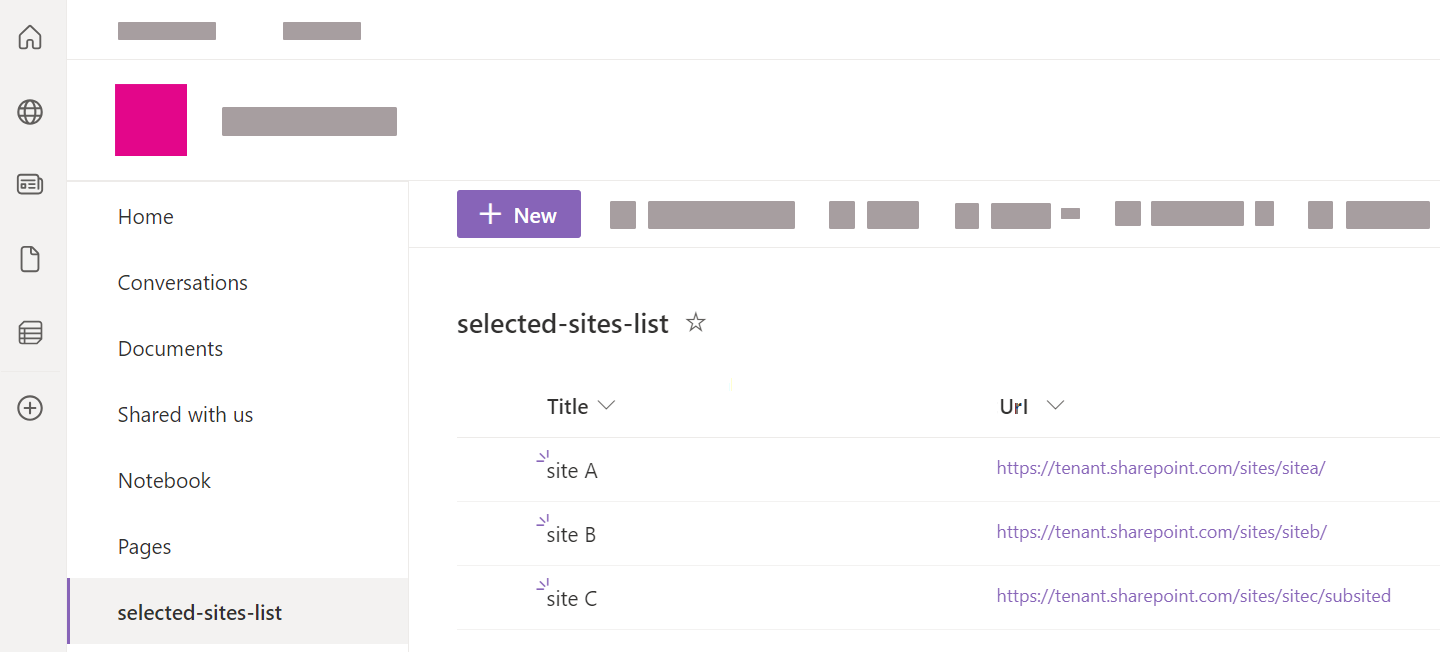
##### (Optional) Create a selected sites list in SharePoint Online
With **App authentication using certificate**, to use the [**Selected sites list URL**](#sharepoint-online-content) option, you need to create a list of the selected site collections you've granted your application access to.
You can then reference the URL of this list in your SharePoint Online source.
To create the list in SharePoint Online
. In your SharePoint Online tenant, access one of the sites that your application has access to.
. Go to **Site Contents**.
. Click **+ New** > **List**.
. Enter a descriptive **Name** for the list (for example, `selected-sites-list`), and optionally, a **Description**. Then click **Create**.
. In the list, click **+ Add column**.
. Select the `Hyperlink` column type, and then click **Next**.
. For the **Name** field, type `Url` (with that precise casing), and then click **Save**.
. For each site collection that you want to index, add a new list item, and then enter the site URL in the **Url** column.
#### Azure application permissions with App authentication using certificate
To work with Microsoft APIs (CSOM and REST), Coveo must authenticate via an Azure Active Directory application that has the proper permissions.
The access token is then limited to these permissions, which are necessary to successfully crawl SharePoint Online.
You must provide tenant-wide admin consent for the permissions in the Azure Active Directory application that's used to authenticate your source.
Typically, you provide consent when [creating the Azure Active Directory application](#create-the-azure-active-directory-application) for use with Coveo, but you can [do so at a later time](https://learn.microsoft.com/en-us/entra/identity-platform/howto-convert-app-to-be-multi-tenant#understand-user-and-admin-consent-and-make-appropriate-code-changes).
> **Notes**
>
> * To provide admin consent, you must have the [appropriate user role](https://docs.microsoft.com/en-us/azure/active-directory/manage-apps/grant-admin-consent#prerequisites).
>
> * You won't be able to index your SharePoint Online content until you provide admin consent.
>
> * The application permissions determine what Coveo can access when crawling your SharePoint Online tenant.
> The sites and items that are actually crawled and indexed by your SharePoint Online source depends on your source [**Content to index**](#content-to-index-subtab) subtab settings.
> User access to the indexed items through a Coveo-powered [search interface](https://docs.coveo.com/en/2741/) depends on your source [**Content security**](#content-security-tab) setting.
>
> * Coveo is a [verified publisher](https://docs.microsoft.com/en-us/azure/active-directory/develop/publisher-verification-overview) for the Azure application.
>
> * You must provide admin consent for all required application permissions.
The following table provides a description of the permissions that you must grant the application when using **App authentication using certificate**.
[cols="1,3,5",options="header"]
|===
|API
|Permission
|Justification
.3+|SharePoint
|[[sitesfullcontrolall]]`Sites.FullControl.All`
a|Allows Coveo to retrieve permissions of crawled items, such as sites, users, lists, and documents.
> **Why is `FullControl` required?**
>
> Coveo indexes item permissions to support the **Same users and groups as in your content system** [content security](#content-security-tab) source option, ensuring user access to items in a Coveo-powered search interface mirrors your SharePoint permission system.
> To get all item permissions, Coveo needs to access the list of Site Collection Administrators, which Microsoft considers to contain sensitive information.
> Microsoft requires a user to be Site Collection Administrator to view, add, or edit this list, in other words, someone with `FullControl` on the site collection.
> This is why the application needs `FullControl`.
|[[sitesselected]]`Sites.Selected` (FullControl)
a|Grants Coveo the permission to access only a specified subset of site collections.
Grant the application the `FullControl` permission on each crawled site.
> **Why is `FullControl` required?**
>
> Coveo indexes item permissions to support the **Same users and groups as in your content system** [content security](#content-security-tab) source option, ensuring user access to items in a Coveo-powered search interface mirrors your SharePoint permission system.
> To get all item permissions, Coveo needs to access the list of Site Collection Administrators, which Microsoft considers to contain sensitive information.
> Microsoft requires a user to be Site Collection Administrator to view, add, or edit this list, in other words, someone with `FullControl` on the site collection.
> This is why the application needs `FullControl`.
> **Note**
>
> The `Sites.Selected` permission can't be used with the **All sites** and **Hub sites** options.
|[[userreadall]]`User.Read.All`
a|Grants Coveo the permission to crawl user profiles.
> **Note**
>
> Coveo crawls all user profiles in your SharePoint Online tenant.
> You can't choose to grant Coveo access to crawl only specific user profiles.
.5+|Microsoft Graph
|[[sitesreadall]]`Sites.Read.All`
a|Grants Coveo the permission to crawl site content.
> **Note**
>
> This permission only grants permission to crawl site content.
> The site content that's actually crawled and indexed is determined by your source [**Content to index**](#content-to-index-subtab) settings.
|[[sitesselectedgraph]]`Sites.Selected`
|Grants Coveo the [permission to access only a specified subset of site collections](https://learn.microsoft.com/en-us/graph/permissions-reference#sitesselected).
|[[directoryreadall]]`Directory.Read.All`
a|Coveo requires this permission to fetch:
* The [Directory Role and Directory Role Members](https://docs.microsoft.com/en-ca/graph/api/group-list-members?view=graph-rest-1.0&tabs=http).
* [All users in Office 365](https://docs.microsoft.com/en-ca/graph/api/user-list?view=graph-rest-1.0&tabs=http), which is necessary to [determine which users are in built-in groups](https://docs.coveo.com/en/1719/) such as Everyone.
> **Note**
>
> The Azure documentation shows that the least privileged permission to retrieve the list of users in a group is actually `User.ReadBasic.All`, but since `Directory.Read.All` is already required for other operations, `User.ReadBasic.All` doesn't appear in the list of required permissions.
|[[groupreadall]]`Group.Read.All`
|Coveo uses this permission to [obtain the ID of a group](https://docs.microsoft.com/en-ca/graph/api/group-get?view=graph-rest-1.0&tabs=http) (represents an Azure Active Directory group, which can be an Office 365 group, or a security group), and then a [list of the group members](https://docs.microsoft.com/en-ca/graph/api/group-list-members?view=graph-rest-1.0&tabs=http).
|[[teamreadbasicall]][`Team.ReadBasic.All`](https://learn.microsoft.com/en-us/graph/permissions-reference#teamreadbasicall)
|When [`IndexOnlyTeamSites`](https://docs.coveo.com/en/o2f80147#indexonlyteamsites-boolean) is enabled, Coveo uses this permission to retrieve the list of all Team sites in your SharePoint Online tenant at the beginning of the indexing process.
This improves indexing performance when you only want to index SharePoint Team sites.
|===
### User delegated access using OAuth 2.0
For **User delegated access using OAuth 2.0**, the Azure Active Directory application is automatically created in your SharePoint tenant when you create the source, and is linked to the permissions of the crawling account that you create.
> **Note**
>
> The Azure Active Directory application appears as **SharePoint Online Connector** in your Azure portal [**Enterprise applications** page](https://portal.azure.com#blade/Microsoft_AAD_IAM/StartboardApplicationsMenuBlade/Overview).
The main advantages of **User delegated access using OAuth 2.0** are:
* It provides a way to give the crawling account, and by association your source, access to crawl only specific sites and user profiles.
* It provides a way to grant the crawling account with minimal permissions when accessing site content.
However, an important drawback of **User delegated access using OAuth 2.0** is that it's more prone to throttling than **App authentication using certificate**.
#### User delegated access using OAuth 2.0 prerequisites
If you decide to use **User delegated access using OAuth 2.0**, perform the following before creating your SharePoint Online source:
. [Create a SharePoint Online user account](https://docs.coveo.com/en/3252#create-a-sharepoint-online-account-with-appropriate-roles-and-permissions) (crawling account) with appropriate roles and permissions.
. [Grant the crawling account permission to access sites](https://docs.coveo.com/en/3252#add-permission-for-a-specific-site).
#### Azure application permissions with user delegated access using OAuth 2.0
A SharePoint Online source uses the OAuth 2.0 authorization protocol.
To work with Microsoft APIs (CSOM and REST), Coveo must authenticate via an Azure Active Directory application that has the proper permissions.
The access token is then limited to these permissions, which are necessary to successfully crawl SharePoint Online.
You must provide tenant-wide admin consent for the permissions in the Azure Active Directory application that's used to authenticate your source.
Provide admin consent directly [from your SharePoint Online source panel](#adminconsentsourcepanel) when creating your source (requires SharePoint **Global Admin** credentials), or [from your Azure portal](https://docs.microsoft.com/en-us/azure/active-directory/manage-apps/grant-admin-consent#grant-tenant-wide-admin-consent-in-enterprise-apps) after creating your source.
> **Note**
>
> The Azure Active Directory application that's automatically created in your SharePoint Online tenant after you create your source appears as **SharePoint Online Connector** in your Azure portal's [**Enterprise applications** page](https://portal.azure.com/#blade/Microsoft_AAD_IAM/StartboardApplicationsMenuBlade/Overview).
> **Notes**
>
> * To provide admin consent from the Azure portal, you must have the [appropriate user role](https://docs.microsoft.com/en-us/azure/active-directory/manage-apps/grant-admin-consent#prerequisites).
>
> * You won't be able to index your SharePoint Online content until you provide admin consent.
>
> * The application permissions determine what Coveo can access when crawling your SharePoint Online tenant.
> The sites and items that are actually crawled and indexed by your SharePoint Online source depends on your source [**Content to index**](#content-to-index-subtab) settings.
> User access to the indexed items through a Coveo-powered [search interface](https://docs.coveo.com/en/2741/) depends on your source [**Content Security**](#content-security-tab) setting.
>
> * Coveo is a [verified publisher](https://docs.microsoft.com/en-us/azure/active-directory/develop/publisher-verification-overview) for the Azure application.
The following table lists the permissions that are automatically assigned to the application when using **User delegated access using OAuth 2.0**.
[cols="1,3,5",options="header"]
|===
|API
|Permission
|Justification
.2+|SharePoint
|`AllSites.FullControl`
a|Allows Coveo to retrieve permissions of crawled items, such as sites, users, lists, and documents.
> **Why is `FullControl` required?**
>
> Coveo indexes item permissions to support the **Same users and groups as in your content system** [content security](#content-security-tab) source option, ensuring user access to items in a Coveo-powered search interface mirrors your SharePoint permission system.
> To get all item permissions, Coveo needs to access the list of Site Collection Administrators, which Microsoft considers to contain sensitive information.
> Microsoft requires a user to be Site Collection Administrator to view, add, or edit this list, in other words, someone with `FullControl` on the site collection.
> This is why the application needs `FullControl`.
> **Note**
>
> Coveo will never have more privileges than the crawling account, as the crawling account permissions take precedence.
> Coveo can only have the complete set of `AllSites.FullControl` privileges if the crawling account also has the same level of privileges.
|`User.Read.All`
a|Grants Coveo the permission to crawl user profiles.
> **Note**
>
> Coveo only crawls the user profiles that the [crawling account](https://docs.coveo.com/en/3252/) permissions allow.
.4+|Microsoft Graph
|`Sites.Read.All`
a|Grants Coveo the permission to crawl site content.
> **Note**
>
> Coveo has permission to crawl only the sites that the [crawling account](https://docs.coveo.com/en/3252/) permissions allow.
> The site content that's actually crawled and indexed depends on your source [**Content to index**](#content-to-index-subtab) settings.
|`Directory.Read.All`
a|Coveo requires this permission to fetch:
* The [Directory Role and Directory Role Members](https://docs.microsoft.com/en-ca/graph/api/group-list-members?view=graph-rest-1.0&tabs=http).
* [All users in Office 365](https://docs.microsoft.com/en-ca/graph/api/user-list?view=graph-rest-1.0&tabs=http), which is necessary to [determine which users are in built-in groups](https://docs.coveo.com/en/1719/) such as Everyone.
> **Note**
>
> The Azure documentation shows that the least privileged permission to retrieve the list of users in a group is actually `User.ReadBasic.All`, but since `Directory.Read.All` is already required for other operations, `User.ReadBasic.All` doesn't appear in the list of required permissions.
|`Group.Read.All`
|Coveo uses this permission to [obtain the ID of a group](https://docs.microsoft.com/en-ca/graph/api/group-get?view=graph-rest-1.0&tabs=http) (represents an Azure Active Directory group, which can be an Office 365 group, or a security group), and then [list the group members](https://docs.microsoft.com/en-ca/graph/api/group-list-members?view=graph-rest-1.0&tabs=http).
|[`Team.ReadBasic.All`](https://learn.microsoft.com/en-us/graph/permissions-reference#teamreadbasicall)
|When [`IndexOnlyTeamSites`](https://docs.coveo.com/en/o2f80147#indexonlyteamsites-boolean) is enabled, Coveo uses this permission to retrieve the list of all Team sites in your SharePoint Online tenant at the beginning of the indexing process.
This improves indexing performance when you only want to index SharePoint Team sites.
|===
## Domain Name System records configuration for Microsoft 365
Regardless of the chosen authentication method, if you're using custom domains in SharePoint Online, you must configure your Domain Name System (DNS) records for Microsoft 365.
. Access the [**Domains**](https://admin.microsoft.com/AdminPortal/Home#/Domains) page of your Office 365 admin center.
. Select your corporate domain (not `company.onmicrosoft.com`) checkbox.
. On the domain page, in the **DNS records** section, take note of the DNS records.
. [Configure the DNS records in your DNS host provider](https://docs.microsoft.com/en-us/office365/admin/get-help-with-domains/create-dns-records-at-any-dns-hosting-provider?view=o365-worldwide).
. On the domain page, in the **DNS records** section, click **Check health** to ensure that the DNS records were correctly configured.
## Add a SharePoint Online source
A SharePoint Online source [indexes](https://docs.coveo.com/en/204/) cloud content.
To retrieve on-premises (server) content, see [Add or edit a SharePoint Server source](https://docs.coveo.com/en/2061/) instead.
> **Leading practice**
>
> It's best to create or edit your source in your sandbox organization first.
> Once you've confirmed that it indexes the desired content, you can copy your source configuration to your production organization, either [with a snapshot](https://docs.coveo.com/en/3239/) or manually.
>
> See [About non-production organizations](https://docs.coveo.com/en/2959/) for more information and best practices regarding sandbox organizations.
. Determine the [authentication method](#authentication-and-site-access) you want to use.
. Perform the prerequisites corresponding to your authentication method:
** [**App authentication using certificate** prerequisites](#app-authentication-using-certificate-recommended)
** [**User delegated access using OAuth 2.0** prerequisites](#user-delegated-access-using-oauth-2-0-prerequisites)
. If applicable, [configure your DNS records for Microsoft 365](#domain-name-system-records-configuration-for-microsoft-365).
. On the [**Sources**](https://platform.cloud.coveo.com/admin/#/orgid/content/sources/) ([platform-ca](https://platform-ca.cloud.coveo.com/admin/#/orgid/content/sources/) | [platform-eu](https://platform-eu.cloud.coveo.com/admin/#/orgid/content/sources/) | [platform-au](https://platform-au.cloud.coveo.com/admin/#/orgid/content/sources/)) page, click **Add source**, and then click **SharePoint Online**.
. Configure your [source](https://docs.coveo.com/en/246/).
### "Configuration" tab
In the **Add a SharePoint Online Source** page, the **Configuration** tab is selected by default.
It contains your source's general and authentication information, as well as other parameters.
#### "Identification" subtab
The **Identification** subtab contains general information about the source.
## Name
The source name.
It can't be modified once it's saved.
##### Name
Enter a name for your source.
> **Leading practice**
>
> A source name can't be modified once it's saved, therefore be sure to use a short and descriptive name, using letters, numbers, hyphens (`-`), and underscores (`_`). Avoid spaces and other special characters.
##### Project
Use the **Project** selector to associate your source with one or more Coveo [projects](https://docs.coveo.com/en/n7ef0517/).
#### "Content to index" subtab
The **Content to index** subtab lets you define the content that you want to make available as search results.
> **Note**
>
> For implementations using the Quickview component in a [Coveo JavaScript Search Framework](https://docs.coveo.com/en/187/) result template, and ASPX list items in SharePoint Online, the Quick view is supported only for ASPX list items (pages) of type `Wiki`, `Publishing`, `Modern`, and `Web Part`.
##### Content
Select whether you want to index [**SharePoint Online**](#sharepoint-online-content), [**User profiles**](#user-profiles), [**Personal sites**](#personal-sites), or [**OneDrive for Business**](#onedrive-for-business) content.
###### SharePoint Online content
Select this content type to scope the SharePoint Online content you want to [index](https://docs.coveo.com/en/204/).
The options are:
* **Specific URLs**
Select this option to [index](https://docs.coveo.com/en/204/) specific site collections, subsites, or lists by specifying their URLs.
**Examples of URLs**
* For a specific site: `+https://contoso.sharepoint.com/sites/support+`
* For a specific list: `+https://contoso.sharepoint.com/sites/support/Lists/contacts/AllItems.aspx+`
> **Notes**
>
> * For **User delegated access using OAuth 2.0**, the [crawling account](https://docs.coveo.com/en/3252/) must have access to the specified sites.
>
> * A specific folder in a list isn't supported.
* [[selectedsiteslist]]**Selected sites list URL**
Select this option to [index](https://docs.coveo.com/en/204/) content you've granted the SharePoint Online source access to by referencing a [custom list of site collections](#optional-create-a-selected-sites-list-in-sharepoint-online).
The list must be in a site that the SharePoint Online source also has access to.
> **Optimal configuration**
>
> Using the **Selected sites list URL** option in conjunction with **App authentication using certificate** and the [`Sites.Selected`](#sitesselected) application permission is an optimal configuration, [both in terms of indexing performance and content access](#app-authentication-using-certificate-recommended).
* **Hub site URLs**
Select this option to [index](https://docs.coveo.com/en/204/) the content of all sites associated with the hub sites you reference.
This includes all subsites and lists in the associated sites.
> **Note**
>
> For **User delegated access using OAuth 2.0**, the [crawling account](https://docs.coveo.com/en/3252/) must have access to the hub site and the associated sites.
> If the [crawling account](https://docs.coveo.com/en/2122/) has access only to a subset of the associated sites, only these sites will be [indexed](https://docs.coveo.com/en/204/) and searchable.
* **All sites**
With **App authentication using certificate**, all sites in your SharePoint Online tenant can be indexed.
With **User delegated access using OAuth 2.0**, only the sites that the [crawling account](https://docs.coveo.com/en/3252/) is allowed to access can be indexed.
> **Notes**
>
> * This option corresponds only to top-level site collections and their associated content.
> It doesn't include personal site content.
>
> * To index only Teams sites
>
> ** Select the **All sites** option.
>
> ** Set the [`IndexOnlyTeamSites`](https://docs.coveo.com/en/o2f80147#indexonlyteamsites-boolean) parameter to `true` in the [source JSON configuration](https://docs.coveo.com/en/1685#access-the-edit-configuration-with-json-panel).
>
> ** Ensure that your authentication method grants the Microsoft Graph [`Team.ReadBasic.All`](#teamreadbasicall) permission.
###### User profiles
Select this content type to [index](https://docs.coveo.com/en/204/) only the user profiles in your SharePoint Online tenant.
> **Note**
>
> For **User delegated access using OAuth 2.0**, the [crawling account](https://docs.coveo.com/en/2122/) must be [set as an owner in the personal sites](https://docs.coveo.com/en/3252#add-permission-for-a-personal-site) for the user profiles that you want to index.
###### Personal sites
Select this content type to only [index](https://docs.coveo.com/en/204/) personal sites, which includes site collections and OneDrive documents.
> **Notes**
>
> * For **User delegated access using OAuth 2.0**, the [crawling account](https://docs.coveo.com/en/2122/) must be [set as an owner in all personal sites](https://docs.coveo.com/en/3252#add-permission-for-a-personal-site) that you want to index.
>
> * User access to the indexed items through a Coveo-powered [search interface](https://docs.coveo.com/en/2741/) depends on your source [**Content security**](#content-security-tab) setting.
> **Personal sites** documents and folders are private unless they're shared with others.
###### OneDrive for Business
Select this content type to only [index](https://docs.coveo.com/en/204/) the document libraries in OneDrive, including the **My Files** content of users' personal sites.
To index all content of users' personal sites (all site collections) in addition to document libraries, select the [**Personal sites**](#personal-sites) option.
However, if you only want to index user documents, use the **OneDrive for Business** option to limit the crawling scope.
> **Notes**
>
> * For **App authentication using certificate**, your source has access to all user content.
> For **User delegated access using OAuth 2.0**, the [crawling account](https://docs.coveo.com/en/2122/) must be [set as an owner in all personal sites](https://docs.coveo.com/en/3252#add-permission-for-a-personal-site) that you want to index.
>
> * User access to the indexed items through a Coveo-powered [search interface](https://docs.coveo.com/en/2741/) depends on your source [**Content security**](#content-security-tab) setting.
> **OneDrive for Business** documents and folders are private unless they're shared with others.
##### Exclusions and inclusions
Add exclusion and inclusion rules to crawl only specific items based on their URL.

The following diagram illustrates how the SharePoint Online [crawler](https://docs.coveo.com/en/2121/) applies the exclusion and inclusion rules.
This flow applies to all items, including the starting URLs.
You must therefore pay attention to not filter out your starting URLs.

> **About the "Include all non-excluded items" option**
>
> [.float-group]
> --
> 
>
> The **Include all non-excluded items** option automatically adds an "include all" inclusion rule in the background.
> This ensures that all starting URLs meet the `Does URL match at least one inclusion rule?` condition and that all non-excluded items get crawled.
>
> With [SharePoint Online content](https://docs.coveo.com/en/1739#sharepoint-online-content), the following are common configuration patterns:
>
> * When you don't want to exclude content on a URL basis, you don't add any exclusion rule and you use the default **Include all non-excluded items** inclusion option.
>
> * When you want to exclude content on a URL basis with the **Hub site URLs** and **All sites** options, you add an inclusion rule for the special root URL Coveo uses to discover sites (that is, the `+sharepoint://online/Administration tenant+` URL), and other inclusion rules for each of the sites you want to index.
>
> See [Exclusion and inclusion configuration examples](#exclusion-and-inclusion-configuration-examples).
> --
You can use any of the six types of rules:
* **is** and a URL that includes the protocol.
For example, `+https://myfood.com/+`.
* **contains** and a string found in the URL.
For example, `recipes`.
* **begins with** and a string found at the beginning of the URL and which includes the protocol.
For example, `+https://myfood+`.
* **ends with** and a string found at the end of the URL.
For example, `.pdf`.
* **matches wilcard rule** and a wildcard expression that matches the whole URL.
For example, `+https://myfood.com/recipes*+`.
* **matches regex rule** and a regex rule that matches the whole URL.
For example, `^.**(company-(dev|staging)).**html.?$`.
> **Tip**
>
> When using regex rules, make sure they match the desired URLs with a testing tool such as [Regex101](https://regex101.com/).
###### Exclusion and inclusion configuration examples
The following examples illustrate how to configure exclusion and inclusion rules for your SharePoint Online source.
For demonstration purposes only, some of the examples use the [**All sites**](#sharepoint-online-content) content option.
You should try to use another content option whenever possible to [limit the scope of your source](https://docs.coveo.com/en/n8ub0545#scope-the-content-to-index).
**Example 1: Using the **All sites** content option with exclusions**
Details
You want to index all site collections in your SharePoint Online tenant, except for the `HR` (`+https://mytenant.sharepoint.com/sites/HR+`) site collection.
**Possible solution**
* SharePoint Online content option: **All sites**
* Exclusions: `+https://mytenant.sharepoint.com/sites/HR*+` (type: `matches wildcard rule`)
* Inclusions: **Include all non-excluded items**[.footnote]^[[1](#all-sites-inclusion-required-1)]^
--
1. With the **All sites** option, the site discovery address (that is, `+sharepoint://online/Administration tenant+`) must be in your inclusions, otherwise no items will be indexed.
--
Details
You want to index all top level site collections in your SharePoint Online tenant whose names start with `B` (that is, their URLs begin with `+https://mytenant.sharepoint.com/sites/B+`).
**Possible solution**
* SharePoint Online content option: **All sites**
* Exclusions: none
* Inclusions:
** `+https://mytenant.sharepoint.com/sites/B*+` (type: `matches wildcard rule`)
** `+sharepoint://online*+` (type: `matches wildcard rule`)[.footnote]^[[2](#all-sites-inclusion-required-2)]^
--
2. With the **All sites** option, the site discovery address (that is, `+sharepoint://online/Administration tenant+`) must be in your inclusions, otherwise no items will be indexed.
--
Details
You have a hub site, `SiteA` (`+https://mytenant.sharepoint.com/sites/SiteA+`).
Sites `SiteB` (`+https://mytenant.sharepoint.com/sites/SiteB+`) and `SiteC` (`+https://mytenant.sharepoint.com/sites/SiteC+`) are associated with `SiteA`.
You want to index the content of `SiteA` and `SiteB`, but exclude the content of `SiteC`
**Possible solution 1**
* SharePoint Online content option: **Hub site URLs** (set URL to `+https://mytenant.sharepoint.com/sites/SiteA+`)
* Exclusions: `+https://mytenant.sharepoint.com/sites/SiteC*+` (type: `matches wildcard rule`)
* Inclusions: **Include all non-excluded items**[.footnote]^[[3](#hub-sites-inclusion-required)]^
**Possible solution 2**
* SharePoint Online content option: **Hub site URLs** (set URL to `+https://mytenant.sharepoint.com/sites/SiteA+`)
* Exclusions: none
* Inclusions:
** `+https://mytenant.sharepoint.com/sites/SiteA*+` (type: `matches wildcard rule`)
** `+https://mytenant.sharepoint.com/sites/SiteB*+` (type: `matches wildcard rule`)
** `+sharepoint://online*+` (type: `matches wildcard rule`)[.footnote]^[[3](#hub-sites-inclusion-required)]^
--
3. With the **Hub site URLs** option, the site discovery address (that is, `+sharepoint://online/Administration tenant+`) must be in your inclusions, otherwise no items will be indexed.
--
Details
The SharePoint Online source automatically extracts the metadata from your list and library columns.
To extract additional metadata you want to index, [add columns to your lists and libraries](https://support.microsoft.com/en-us/office/create-a-column-in-a-list-or-library-2b0361ae-1bd3-41a3-8329-269e5f81cfa2?ui=en-us&rs=en-us&ad=us).
Then, rebuild and map each extracted custom metadata to a field, as you did for the default metadata.