---
title: Review implementation successes and issues with metrics
slug: '1725'
canonical_url: https://docs.coveo.com/en/1725/
collection: coveo-analytics
source_format: adoc
---
# Review implementation successes and issues with metrics
Coveo Analytics [report cards](https://docs.coveo.com/en/267/) such as table, metric, and trend cards display [metric](https://docs.coveo.com/en/263/) values in different colors:
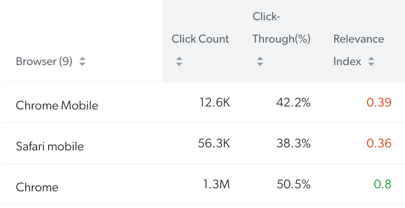
Depending on the metric:
* A green value either means that the value has improved compared to a certain period and/or that your Coveo-powered [search interface](https://docs.coveo.com/en/2741/) has a good search relevance.
* A **black** value can either be neutral or have no significance.
* A red value can mean that the value is retrogressing compared to a certain period and/or that your Coveo-powered search interface has search relevance issues.
You can create analytics [dashboards](https://docs.coveo.com/en/256/) to learn for which [metrics](https://docs.coveo.com/en/263/) their [search interface](https://docs.coveo.com/en/2741/) performs well and which metrics signal potential relevance issues.
## Access a dashboard in Edit mode
On the [**Reports**](https://platform.cloud.coveo.com/admin/#/orgid/usage/reports/) ([platform-ca](https://platform-ca.cloud.coveo.com/admin/#/orgid/usage/reports/) | [platform-eu](https://platform-eu.cloud.coveo.com/admin/#/orgid/usage/reports/) | [platform-au](https://platform-au.cloud.coveo.com/admin/#/orgid/usage/reports/)) page, do one of the following:
* Click the desired dashboard, click **Open** in the Action bar, and then click **Edit** in the upper-right corner.
* Click **Add**, and then select **Blank dashboard**.
## Find search implementation successes and issues with metrics
You can use report cards to assess your relevance metrics and identify potential relevance issues.
. [Access a dashboard in Edit mode](#access-a-dashboard-in-edit-mode).
. On the dashboard:
.. Add [table](https://docs.coveo.com/en/1540/), [metric](https://docs.coveo.com/en/2040/), or [trend](https://docs.coveo.com/en/2032/) cards and report on at least the following relevance metrics, which are necessary to have an overview of search result relevance:
> **Note**
>
> For trend and metric cards, you have to select a dimension on which the metric calculation is based on.
> Select either **Origin 1 (page/hub)** or **Origin 2 (tab/interface)** at first to have a global overview of the search relevance of your interface/search page.
*** [Average Click Rank](https://docs.coveo.com/en/2836/)
*** [Search Event Clickthrough](https://docs.coveo.com/en/2837/)
*** [Relevance Index](https://docs.coveo.com/en/2838/)
.. Review the metric value colors, and act if necessary.
The following table lists all available metrics, thresholds to determine value colors (if any), and the metrics for which a higher or lower value is better:
[%header,cols="~,~,~,~,~"]
|===
|Metric
|Threshold (if any)
|Higher values are better
|Lower values are better
|Quality of a value depends on the context
|Activity
|
|[check]
|
|
|Attach to Case Count
|
|[check]
|
|
|Click Event Count
|
|[check]
|
|
|Search Event Clickthrough (%)
a|
* Green if > 60%
* **Black** between 40-60%
* Red if < 40%
|[check]
|
|
|Search Events With Clicks
|
|[check]
|
|
|Relevance Index
a|
* Green if > 0.7
* **Black** between 0.5 to 0.7
* Red if < 0.5
|[check]
|
|
|Average Click Rank
a|
* Green between 1 and 3
* **Black** between 3 and 6
* Red if > 6
|
|[check]
|
|Custom Event Count
|
|
|
|[check]
|Manual Search Event Count
|
|
|
|[check]
|Search Event Count
|
|
|
|[check]
|Refined Search Event Count
|
|
|
|[check]
|Unique User ID
|
|
|
|[check]
|Unique User IP
|
|
|
|[check]
|Unique Visitor ID
|
|
|
|[check]
|Visit Count
|
|
|
|[check]
|===
> **Notes**
>
> * Values are colored regardless of the report card in which the metrics appear.
>
> * (If no thresholds) In comparison to a previous period, in trend cards only, higher values are green and lower values are red.
> In other cards (table, metric, etc.) the values of those metrics aren't colored.
>
> * Since the quality of each metric value depends on the search implementation, and on the dimensions and filters applied, the values of those metrics are always displayed in black, regardless of the cards in which they appear.
> For example, a high **Custom Event Count** value is bad when reporting on the number of cases created, but it's good when reporting on the number of cases deflected.
## Required privileges
The following table indicates the required privileges to view and edit dashboards from the [**Reports**](https://platform.cloud.coveo.com/admin/#/orgid/usage/reports/) ([platform-ca](https://platform-ca.cloud.coveo.com/admin/#/orgid/usage/reports/) | [platform-eu](https://platform-eu.cloud.coveo.com/admin/#/orgid/usage/reports/) | [platform-au](https://platform-au.cloud.coveo.com/admin/#/orgid/usage/reports/)) page and associated panels (see [Manage privileges](https://docs.coveo.com/en/3151/) and [Privilege reference](https://docs.coveo.com/en/1707/)).
> **Note**
>
> Access to dashboards or part of their content may be further restricted as a function of the member (see [Manage access to reports](https://docs.coveo.com/en/1888/) and [Manage permission filters](https://docs.coveo.com/en/1917/)).
[%header,cols="~,~,~"]
|===
|Action
|Service - Domain
|Required access level
|View report access configurations
a|
Analytics - Analytics data
Analytics - Reports
Organization - Organization
|View
.3+|Edit report access configurations
a|
Analytics - Analytics data
Organization - Organization
|View
a|
Analytics - Reports
|Edit
a|
Analytics - Administrate
|Allowed
|===